EasyManua.ls Logo

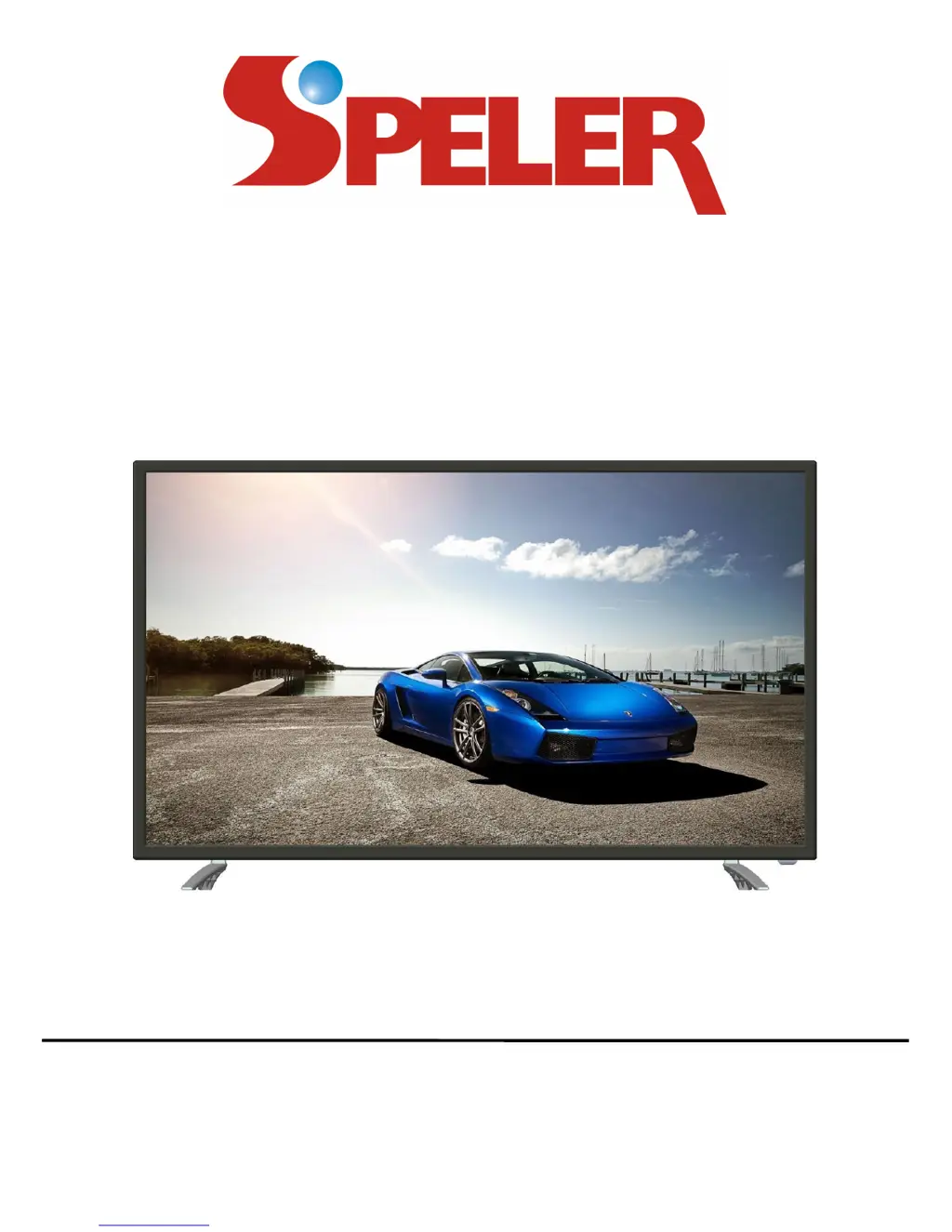
Speler SP-LED40 - User Manual

Speler SP-LED40
34 pages
Print Icon
To Next Page IconTo Next Page
Loading...
39” WIDESCREEN LED TV
MODEL NO.: SP-LED40
USER MANUAL
Please read this manual carefully before using,
and keep it for future reference.

Other manuals for Speler SP-LED40

Questions and Answers

  • Y
    Yolanda SpearsAug 1, 2025
    What to do if the Speler SP-LED40 remote control is not working?
    • R
      Raymond MillerAug 1, 2025
      If you can't perform operations with the remote control, check the following: * Ensure the batteries are installed with the correct polarities. * Replace exhausted batteries with new ones. * Point the remote control at the remote sensor on the TV and try again. * Operate the remote control at a distance of less than 6m from the TV's remote control sensor. * Remove any obstacles between the remote control and the remote control sensor on the TV.
  • M
    Michael TerryAug 6, 2025
    Why is there no sound on my Speler SP-LED40 LED TV?
    • K
      kbakerAug 6, 2025
      If there is no sound or poor sound on your Speler LED TV: * Check the audio settings. * Press the MUTE button on the remote control to cancel the mute function. * Unplug any headphones that may be connected.
  • S
    Stephanie BakerAug 11, 2025
    How to improve poor picture quality on Speler SP-LED40?
    • W
      William ParkerAug 11, 2025
      To improve poor picture quality on your Speler LED TV: * Adjust the antenna or use an external antenna. * Relocate the unit near a window if inside a building. * Move subjects that cause interference away from the TV. * Do Auto Tuning again. * Try another channel.
  • M
    michael77Aug 16, 2025
    What to do if Speler SP-LED40 key operations are not effective?
    • L
      Laura NelsonAug 16, 2025
      If no key operation is effective on your Speler LED TV (either by the main unit or the remote control), disconnect the power cord from the power source and then reconnect it.
  • F
    Francis BaileyAug 21, 2025
    How to troubleshoot distorted sound on Speler SP-LED40 LED TV?
    • S
      Sarah McintoshAug 21, 2025
      To troubleshoot distorted sound on your Speler LED TV: * Ensure the equipment is connected properly. * Ensure that the input settings for the TV and stereo system are correct. * Adjust the master volume to a suitable level using the VOL+/VOL- button.
  • M
    Megan TorresAug 27, 2025
    How to eliminate noise interference on Speler LED TV?
    • M
      Melissa SmithAug 27, 2025
      If you are experiencing noise or other interference with your Speler LED TV, and the cause is electronic equipment near the unit, relocate the unit or move the interfering equipment.

Summary

Important Safety Instructions

Remote Control Overview

Remote Control Preparation

Basic Connection Guide

Connection Types

Composite AV Connection

Connects the TV to devices using composite AV cables.

YPbPr Connection

Connects the TV to devices using YPbPr component cables.

Advanced Connection Types

HDMI Connection

Connects the TV to devices via HDMI for high-definition signals.

PC;VGA Connection

Connects the TV to a PC using VGA and audio cables.

Basic Operations

USB Multimedia Playback

Main Menu and Initial Setup

Common Procedure for Initial Settings

General steps to navigate and adjust settings within the main menu.

First Time Installation (Setup Wizard)

Guide to the initial TV setup process using the Setup Wizard.

Picture Settings

Picture Mode

Adjusts picture appearance (User, Standard, Dynamic, Soft, Power Saving).

Brightness, Contrast, Color, Tint, Sharpness

Adjusts fundamental picture qualities like brightness, contrast, and color.

Sound Settings

Sound Mode & Audio Adjustments

Configures sound modes, bass, treble, and balance for optimal audio.

Time Settings

Setup Menu Options

Lock Settings

Channel Settings

PC;VGA Mode Settings

Wall Mounting

Stand Installation

Maintenance

Specifications

General Troubleshooting

Speler SP-LED40 Specifications

General IconGeneral
Display TechnologyLED
Refresh Rate60 Hz
Aspect Ratio16:9
Built-in SpeakersYes
Display Size40 inches
Resolution1920 x 1080 pixels

Related product manuals