
 Need help?
Do you have a question about the Star mC-Print3 MCP31L and is the answer not in the manual?
Lists all included accessories in the printer package, varying by region.
Details the capabilities of the mC-Print3 utility software for printer settings and updates.
Advises referring to the Online Manual for any setup difficulties encountered.
Instructions for connecting an iOS device to the printer using a Lightning cable.
Steps to connect the printer to a network using a commercially available LAN cable.
Steps to connect an Android device to the printer using a USB cable and adapter.
Instructions for connecting an Android device to the printer through a wired network.
Guidance on downloading drivers and connecting Mac/Linux systems to the printer.
Steps for connecting Windows devices to the printer using a USB cable.
Instructions for connecting Windows devices to the printer via a wired network.
Procedure to reset and initialize wired LAN communication settings if connection fails.
Guide on how to properly load the paper roll into the printer, including the paper roll guide.
Procedure for correctly attaching the rear cover and powering on the printer.
Instructions on how to attach the rear cover to the back of the printer unit.
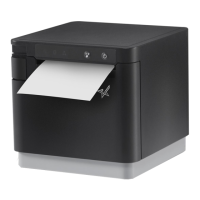
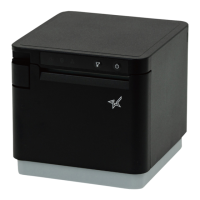
The Star mC-Print3 is a versatile and compact thermal printer designed for various point-of-sale and receipt printing applications. It offers multiple connectivity options, including USB and wired LAN, making it compatible with a wide range of devices such as iOS terminals, Android terminals, Mac/Linux computers, and Windows tablets/PCs.
The primary function of the mC-Print3 is to print receipts, tickets, and other transactional documents quickly and efficiently. It utilizes thermal printing technology, which means it does not require ink cartridges or ribbons, simplifying maintenance and reducing operational costs. The printer is capable of handling different paper roll widths, specifically 58 mm and 80 mm, providing flexibility for various printing needs.
Beyond basic printing, the mC-Print3 integrates advanced features through its utility software. This utility allows users to customize printer settings, manage peripheral devices, and perform diagnostic checks. Key functionalities include Bluetooth pairing, adjusting Bluetooth and LAN settings, modifying memory switch settings, registering logos for custom receipts, and performing sample prints to verify functionality. Firmware updates can also be managed through the utility, ensuring the printer remains up-to-date with the latest features and bug fixes.
The printer is designed for ease of use, from initial setup to daily operation. Its compact footprint makes it suitable for environments where space is limited, while its robust construction ensures reliability in demanding retail or hospitality settings.
Installing the paper roll is a straightforward process. Users begin by pulling an open lever to open the printer cover. For 58 mm paper rolls, a provided paper roll guide must be installed. This guide has a notch (triangle mark) that faces down and is angled into the printer, aligning with a main unit rib before being slid into place. Once the guide is set, the paper roll is inserted into the compartment, ensuring any slack is removed. The end of the paper roll is pulled straight out, and the printer cover is closed using both hands. If the paper roll guide was used, it is then stood upright and pressed until it clicks into place. The printer also supports 80 mm paper rolls without the need for the guide.
To power on the mC-Print3, the rear cover must first be removed by placing nails into the gaps on the right and left sides and pulling it off. The power cable is then connected to the AC adapter, and the cable connector is plugged into the printer. Finally, the plug is inserted into an electrical outlet. The power button on the printer is pressed, and the blue LED illuminates to confirm that the device is powered on.
The mC-Print3 offers diverse connectivity to accommodate various host devices:
By default, DHCP is enabled for wired LAN settings, allowing the printer to automatically obtain an IP address. For environments requiring a consistent IP address, users can set a static IP address. The procedure for setting a static IP address is detailed in the Online Manual.
If communication issues arise, the wired LAN settings can be initialized. This involves ensuring the printer power is OFF. A small-tipped pen or similar item is used to press the RESET button on the back of the printer. While holding RESET, the power switch on the front of the printer is pressed until the POWER LED turns on. The RESET switch is held until the Network LED (green) on the front of the printer flashes. Finally, the FEED button is pressed and held to confirm the initialization. After initialization, the connection procedure (3-A, B, or D) should be repeated.
After initial setup or maintenance, the rear cover is reinstalled by pressing the hooks at the bottom of the cover into the notches in the printer main unit. Then, the hooks on the left and right sides of the rear cover are fitted into the printer main unit until they click into place.
The mC-Print3 is designed for low maintenance, primarily due to its thermal printing technology which eliminates the need for ink or toner replacement.
The mC-Print3 Utility is a key maintenance tool. It allows users to:
For detailed troubleshooting and advanced procedures, the mC-Print3 Online Manual is readily available. This resource provides comprehensive instructions for various scenarios, including static IP address configuration and specific connection details for different operating systems. An enclosed flyer can also be kept near the printer for quick reference.
The easy-to-access paper roll compartment and straightforward installation process minimize downtime during paper changes, which is a frequent operational task.
The physical RESET button provides a quick way to restore communication settings, which is useful for resolving network connectivity issues without extensive troubleshooting.
Overall, the Star mC-Print3 is a user-friendly and robust printer with features that simplify setup, operation, and maintenance, making it an ideal choice for various business environments.
 General
| Print Method | Direct Thermal |
|---|---|
| Resolution | 203 dpi |
| Paper Width | 80 mm / 58 mm |
| Connectivity | USB, Ethernet |
| Cutter | Auto Cutter |
| Dimensions | 132 x 140 x 125 mm |
| Paper Thickness | 0.053 - 0.075 mm |
| Print Speed | 250mm/s (9.8 ips) |




 To Next Page