– 22 –
< Current Setting >
Auto Connection : OFF
To enable this setting, turn
Printer Power OFF and turn ON.
PAIR
RST
PAIR
RST
RST button
3-7-4. Setting up Auto Connection
u
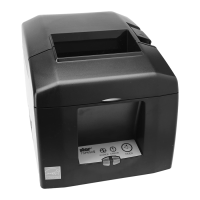
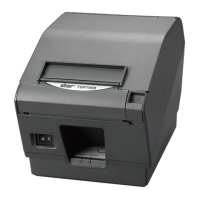
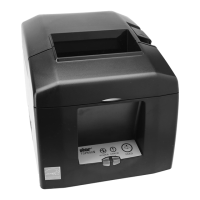
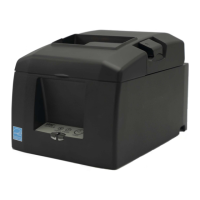
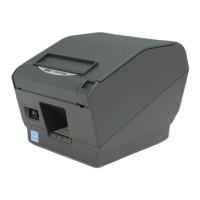
Setting up from the Main Unit for the TSP800II
Note: e following procedure explains how to change the Auto Connection function setting from ON to OFF.
If you want to change it from OFF to ON, please follow the same procedure.
(1) When paper is loaded in the printer and it is turned on, the [POWER] LED(green) on
the front of the printer turns on.
(2) If you hold down the [RST] button on the back of the printer for at more than ve seconds,
initial operations are performed in the same way as when the power is turned on, and the
LEDs on the front of the printer ash. If you press the [RST] button when the printer is
placed upright, place it horizontally again while the LED is ashing.
(3) The following information is printed. After that, turn the printer off and then back
on again to set "Auto Connection" to OFF.
(4) To make sure "Auto Connection" is set to OFF correctly, perform self-printing as
described in " 3-7-3 < Conrmation procedure by self-printing >".
u
Setting from the Software
After pairing your device and the TSP800II, change "Auto Connection" in the following
application provided by our company.
l
iOS: Download "Star Setting Utility" from the following Web site.
http://www.star-m.jp/prjump/000003.html
l
Android: Download "Star Setting Utility" from the following Web site.
http://www.star-m.jp/prjump/000004.html
l
Windows: Download "Star Bluetooth Utility" from the following Web site.
http://www.star-m.jp/prjump/000006.html


 To Next Page
 Loading...