- 21 -
STC8H Series Manual
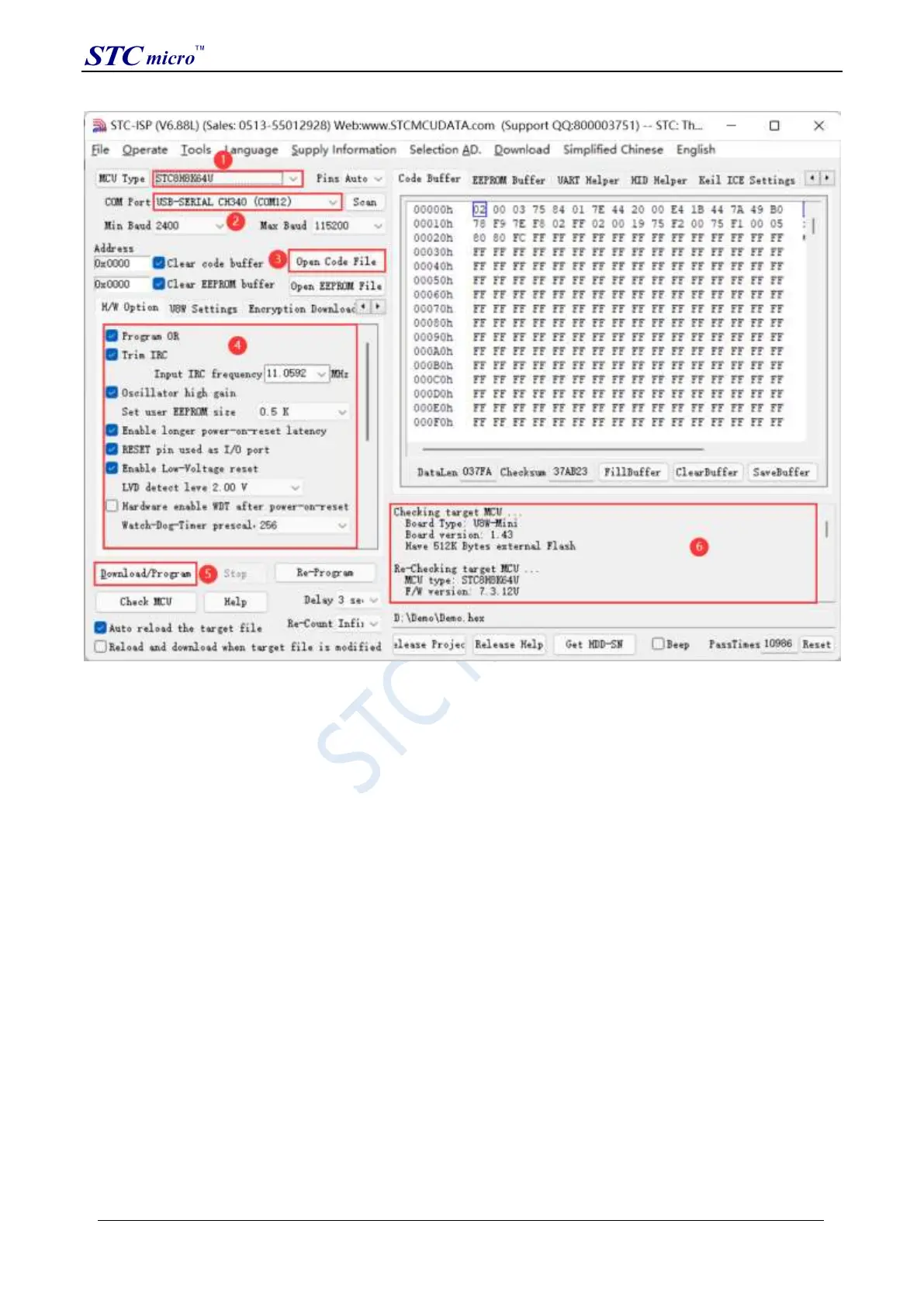
1. Select the MCU model;
2. Select the number of pins. When the chip is directly installed on the U8W-Mini to download, be sure to select the
correct number of pins, otherwise the download will fail;
3. Select the serial port number corresponding to U8W-Mini;
4. Open the target file (HEX format or BIN format);
5. Set the hardware options;
6. Click the "Download/Program" button to start burning;
7. The step information of the burning process is displayed, and the message "Completed!" is displayed when the
burning is completed.
When there is the version number information of the output download board and the corresponding information of the
external Flash in the information box, it means that the U8W-Mini download tool has been correctly detected.
During the downloading process, the 4 LEDs on the U8W-Mini download tool will be displayed in marquee mode.
After the download is complete, if the download is successful, the 4 LEDs will be on and off at the same time; if the
download fails, all the 4 LEDs will be off.
It is recommended that users use the latest version of STC-ISP to download the software (please pay attention to the
updates of the STC-ISP download software on the STC official website http://www.STCMCUDATA.com. It is
strongly recommended that users download the software on the official website http://www.STCMCUDATA.com).
3.7 U8W-Mini offline download instructions
The target chip is connected to the U8W-Mini by the user system lead and connected to the computer via USB
to power the U8W-Mini for offline download.
The steps for offline download using USB to power the U8W-Mini are as follows:
(1) Use the USB cable provided by STC to connect the U8W-Mini download board to the computer, as shown below:
STC Tool Instruction Manual



 To Next Page