46
Installing the Windows Mobile Device Center
The Windows 7 and the Windows Vista operating system include a basic connectivity driver
for devices powered by a Windows Mobile operating system. This driver allows you to
transfer files from the handheld to an office computer.
To install software onto a device powered by a Windows Mobile operating system, you must
install Windows Mobile Device Center 6.1 onto a PC.
A copy of the Windows Mobile Device Center is provided on the S7 Series Getting Started
Disc.
Alternatively, go to:
http://www.microsoft.com/en-us/download/windowsMobile.aspx?q=windows+mobile
to download the latest version from the Microsoft website.
Installing ActiveSync technology
A copy of ActiveSync technology is provided on the S7 Series Getting Started Disc.
Alternatively, go to:
http://www.microsoft.com/en-us/download/details.aspx?id=15 to download the latest
version from the Microsoft website.
4.2. Connecting the handheld to a PC
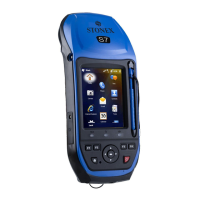
To connect the S7 series handheld to a PC:
1. Make sure that the handheld and the PC are switched on.
2. Make sure you have installed the appropriate connection management software
onto the PC
3. To form a connection, do one of the following:
- Use the handheld's integrated Bluetooth radio to establish a wireless serial link to a
Bluetooth-enabled computer.
- Use a USB connection:
a. Connect the USB data cable to the USB port on the handheld.
b. Connect the other end of the USB data cable to a USB port on the PC.
When the handheld and the PC are connected, you can manage the connection through a
window that appears on the PC. See one of the following:
- Managing the connection using the Windows Mobile Device Center.
- Managing the connection using ActiveSync technology.


 To Next Page