51
Chapter 5: Using the camera
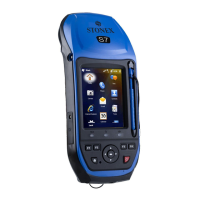
The S7 series handheld contains an integrated digital camera to capture photos or video.
Parts of the camera
Use the Camera button to:
Start the camera application
Lock focus (press and hold the button)
Capture photos (release the button)
Start and stop recording a video (in Video mode, press the button)
Starting the camera application and capturing photos or video
To start the camera, do one of the following:
1. Press the Camera button in the center of the keypad.
2. Tap / Pictures & Videos / Camera.
When the camera application is started, it is by default in Still (photo) mode.
3. Do one of the following:
a. To capture a photo:
- Hold the handheld steady. Use the preview window to frame the subject in
the center of the frame.
- To capture the photo, press the enter button of the keyboard and hold the
camera steady until the review photo is shown.
b. To capture a video:
– Tap the Menu button and then select Video.
– Use the preview window to frame the start of the video.
– To start recording, press the Camera button and then release. Move the handheld to
record the video.
– To pause recording, tap the Pause button. To stop recording, tap the Stop button or
press the Camera button.
Note: When the camera application displays the icon, it is storing the photo or video
file. Removing the battery or the memory card while recording may affect photos / videos or
damage the memory card.
To switch to Still mode from Video mode, tap the Menu button and then select Still.


 To Next Page