
 Need help?
Do you have a question about the Stryker Physio Control Lifepak CR2 and is the answer not in the manual?
Guide the user to identify the specific LIFEPAK CR2 defibrillator model they possess.
Instruct the user to identify their online account for AED management.
Use provided credentials to log into the LIFELINKcentral AED Program Manager account.
Navigate to the Resource Center to find and select the Wi-Fi Configuration Tool.
Run the downloaded setup file and follow the InstallShield Wizard prompts to complete installation.
Enter credentials and connect the LIFEPAK CR2 to the computer using a USB cable.
Select a Wi-Fi network or add a custom one, then apply the settings.
Confirm update success, disconnect the USB cable, and close the tool.
Open the AED lid, wait for voice prompts, and press specific buttons to hear 'Device ready.'
Listen for voice prompts indicating Wi-Fi or mobile connection initiation and progress.
Listen for 'Connection established' and 'Communication complete' prompts.
Listen for prompts indicating mobile connection initiation, progress, and completion.
Log in to your account and verify the AED status shows 'Ready' in green.
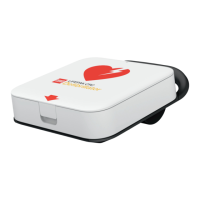
The LIFEPAK CR2 Defibrillator, managed with LIFELINKcentral™ AED Program Manager, is an Automated External Defibrillator (AED) designed for use in emergency situations. This wireless setup guide facilitates the connection of the AED to a Wi-Fi network and, if applicable, a cellular network, enabling remote monitoring and management of the device's readiness.
The LIFEPAK CR2 Defibrillator is an essential medical device used to deliver an electrical shock to a person experiencing sudden cardiac arrest, aiming to restore a normal heart rhythm. Its primary function is to guide lay rescuers through the defibrillation process with clear voice prompts and visual indicators, making it accessible for use by individuals with minimal training. The device is designed to be "Connected and Ready" for use, meaning it can communicate its status wirelessly to the LIFELINKcentral AED Program Manager. This connectivity allows for remote monitoring of the AED's readiness, battery life, and pad expiration dates, ensuring it is always prepared for an emergency. The wireless capabilities also enable the AED to automatically send event data to medical professionals after use, facilitating post-event review and care.
The LIFEPAK CR2 Defibrillator is designed for intuitive and straightforward use. Before deployment, it is crucial to determine the defibrillator type (USB only, Wi-Fi® and USB, or Wi-Fi, cellular, and USB) to ensure proper setup. For devices with wireless capabilities, the setup process involves downloading and installing a Wi-Fi Configuration Tool on a PC. This tool allows users to load Wi-Fi network settings into the AED, enabling it to connect to a wireless network at its intended location.
The setup process begins by logging into the LIFELINKcentral AED Program Manager account, which serves as the central hub for managing AEDs. Once logged in, users can access the Resource Center to download the Wi-Fi Configuration Tool. The installation of this tool on a Windows 7 or above PC with Administrator rights is a prerequisite. The tool guides the user through selecting their country and entering their LIFELINKcentral credentials.
A key step in the setup involves physically connecting the LIFEPAK CR2 to the computer using a USB cable provided in the shipping box. The Wi-Fi Configuration Tool then prompts the user to specify Wi-Fi network settings, either by selecting an available network or adding a custom network. After applying these settings, the tool confirms a "Update Successful" message, indicating that the Wi-Fi network settings have been loaded into the AED.
After the wireless settings are configured, the AED is taken to its intended permanent location (e.g., cabinet or vehicle). To initiate the wireless connection test, the user opens the lid and waits for voice prompts to start. Immediately after, pressing and holding the LANGUAGE and CHILD MODE buttons simultaneously triggers the "Device ready" prompt. The AED then attempts to establish a wireless connection. Voice prompts such as "Wi-Fi connection initiated," "Connection in progress," and "Connection established" guide the user through the process. If the AED has cellular capability, it will also attempt a cellular connection, indicated by "Mobile connection initiated" and "Connection established" prompts.
The wireless connection allows the AED to update its status in the online account. Once all updates are complete, the AED announces "Communication complete" and, if it does not have cellular capability, "Powering off." If it has cellular capability, it will proceed to confirm the cellular connection. Finally, users return to their computer to log into the LIFELINKcentral account and verify that the AED's status is displayed as 'Ready' in green on the Equipment page, confirming successful setup and readiness for use.
The wireless connectivity of the LIFEPAK CR2 Defibrillator, coupled with the LIFELINKcentral AED Program Manager, significantly enhances its maintenance features. By connecting the AED to a Wi-Fi or cellular network, the device can automatically communicate its status, including battery life, pad expiration dates, and any self-test failures, to the online program manager. This proactive monitoring eliminates the need for manual checks, ensuring that the AED is always in optimal working condition and ready for an emergency.
The LIFELINKcentral AED Program Manager provides a centralized dashboard where administrators can view the readiness status of all their registered AEDs. A 'Ready' status in green indicates that the AED is fully functional and prepared for use. If any issues arise, such as a low battery or expired pads, the system will flag these concerns, allowing for timely intervention and replacement. This automated reporting system streamlines AED maintenance, reduces administrative burden, and improves overall compliance with regulatory requirements.
In cases where a wireless connection cannot be established, the guide provides troubleshooting steps, such as checking signal strength or repeating the setup process. If "Unable to establish Wi-Fi network connection" or "Unable to establish mobile network connection" prompts are heard, users are advised to move the AED closer to the Wi-Fi access point or cellular network and try again. For persistent issues, contacting Physio-Control Customer Support is recommended, providing the AED serial number for efficient assistance. The guide also clarifies that if the computer reboots during the Wi-Fi Configuration Tool installation, the process should continue automatically, ensuring a smooth setup experience. The ability to easily re-open the Wi-Fi Configuration Tool from the Physio-Control folder in the Start menu further aids in managing and maintaining the AED's wireless settings. This comprehensive approach to maintenance, leveraging wireless technology, ensures that the LIFEPAK CR2 Defibrillator remains a reliable life-saving device.
 General
| Type | Automated External Defibrillator (AED) |
|---|---|
| Model | Lifepak CR2 |
| Waveform | Biphasic Truncated Exponential (BTE) |
| Voice Prompts | Yes |
| CPR Coaching | Yes |
| Metronome | Yes |
| Escalating Energy | Yes |
| Defibrillation Time | Less than 8 seconds |
| IP Rating | IP55 |
| Operating Temperature | 0°C to 50°C (32°F to 122°F) |
| Storage Temperature | -20°C to 60°C (-4°F to 140°F) |
| Manufacturer | Stryker |
| Energy Selection (Child) | 50 J |
| Energy Levels | 150 J, 150-360 J (escalating) |
| Battery Type | Lithium Manganese Dioxide (LiMnO2) |
| Battery Life | 4 years (standby) |
| Display | LCD |
| Data Storage | Yes |
| Data Transfer | USB |
| Relative Humidity | 5% to 95% (non-condensing) |
| Connectivity | Wi-Fi |



 To Next Page