Basic Operation
9
BLUETOOTH MODE
Pairing/link your cell phone
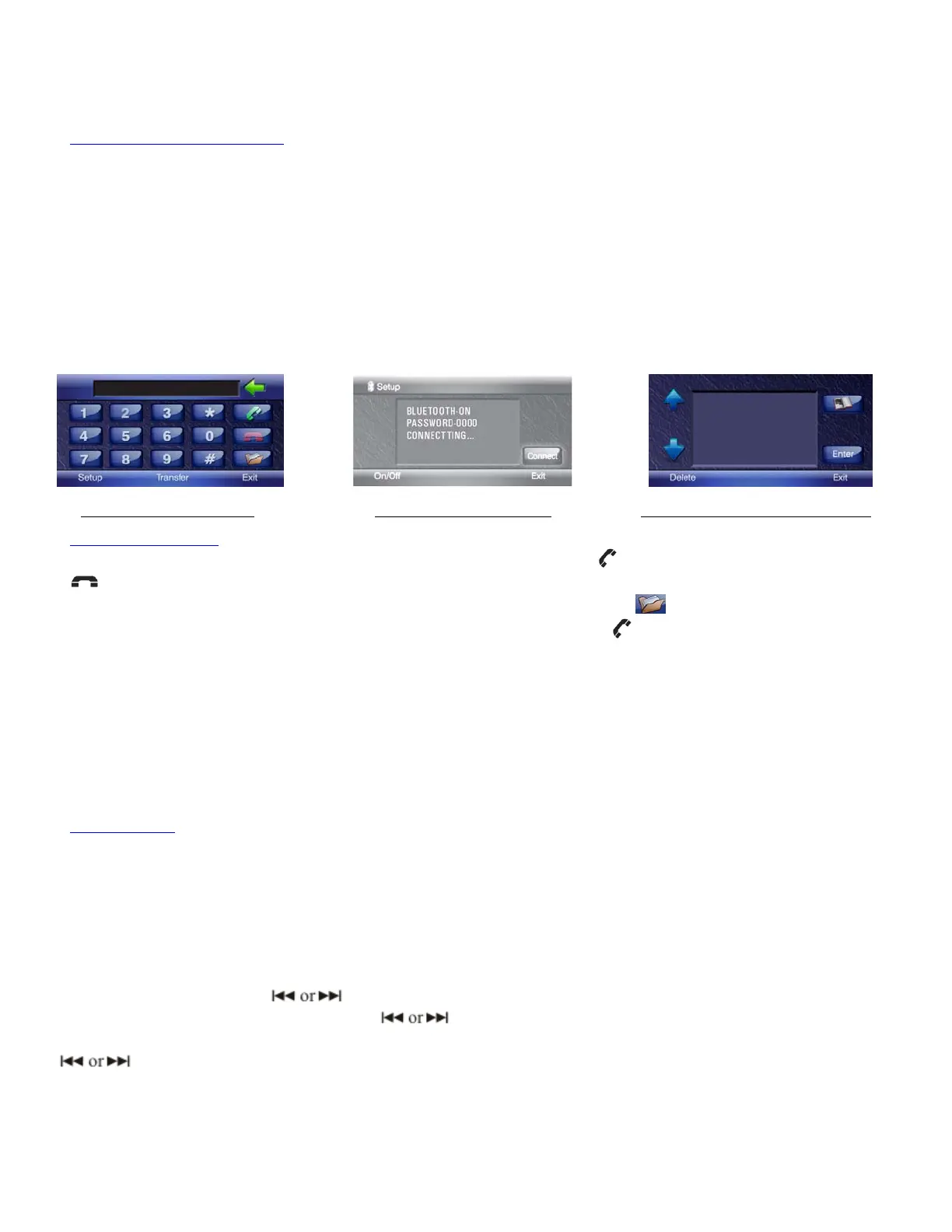
- Operating “Bluetooth” mode: Select from the main screen by touching the icon or by pressing
the “SOURCE” button repeatedly until “Bluetooth” is displayed. Press “Setup” on the screen,
then press on/off and press “Connect”.
- Turn your cell phon
e’s Bluetooth on; select either “Search Audio Enhancement” or “Pair or
link with Device”. Once your cell phone has done searching, the car DVD should display as
“Car Kit”. Press “Connect” or “OK” on phone, when asked for a security code,
Enter “0000” then press “Accept”.
Once pairing/link completed both devices will say connected.
You can now make and receive phone calls th
rough your car DVD player.
Note: Some phones will have a feature to allow the car DVD to connect to your cell phone automatically without a security code.
Bluetooth Main Screen Bluetooth Setup Screen Bluetooth Call History Screen
Making phone calls
- To make a call simply use touch dials from screen and press to send. To end the call press
to end.
- You can review
a history list of in/out calls by pressing the folder
icon.
To redial, press the desired number on screen and then press
to send.
- To end conn
ect and transfer call back to you cell phone, just press transfer on the screen.
**When calls come in while you’re on the phone using Bluetooth, please be aware Bluetooth does not
have call waiting feature, and this is how it actually works:
- While on the phone and another call comes in, you will hear 2 short soft beeps, as an alert on
incoming call, which will be the only notification you get. There will be no display on the unit
for the other incoming call; however your cell phone will display the incoming call. You can
only pick up the 2
nd
call from your cell phone; otherwise inbound call will go into voicemail.
Note: Some phones will repeat the beep at least twice depending on the brand of your phone and your service provider.
Playing Music
- Some Phones that ha
ve built-in music player, music can be play through the car DVD via Bluetooth.
- All functions of the mu
sic player can only be control through your phone. However we do not
recommend using this function while driving; it’s dangerous to take your focus away from the road.
Note: When a call comes in, the unit will automatically switch to Bluetooth mode.
Radio Mode
- Press Power/SRC button on the unit, and then touch the “Radio” icon the screen.
- Band Select: Touch “BAND
” to select from FM1, FM2, FM3, AM1 or AM2.
- Manual Tuning: Touch
repeatedly to locate the desired frequency.
- Automatic Tuning: Touch and hold
for 3 seconds to search available frequencies.
- Storing Radio Stations: To st
ore stations to the unit, locate the desired station using
, then press and hold the desired number on the remote control (from 1 to 6).
Unit will beep once set. Repeat steps for the rest of
the numbers and Band section.
- Automatic Radio Station Storing: To randomly store
available frequencies,
Simply touch and hold the “APS” button
for about 2 seconds then release.
*NOTE: This unit can store up to 18 FM Stations (FM1=6, FM2=6, FM3=6) and up to 12 AM Stations (AM1=6 AM2=6).
10


 To Next Page