25
Move Select Return
Enter New Password
Confirm Password
----
----
Menu Adjustments
In the Lock menu, you may block television and movie programming based on TV ratings and Motion Picture Association
guidelines. To gain access and select your preferences within the Parental menu make certain your input is set to TV.
How to Navigate:
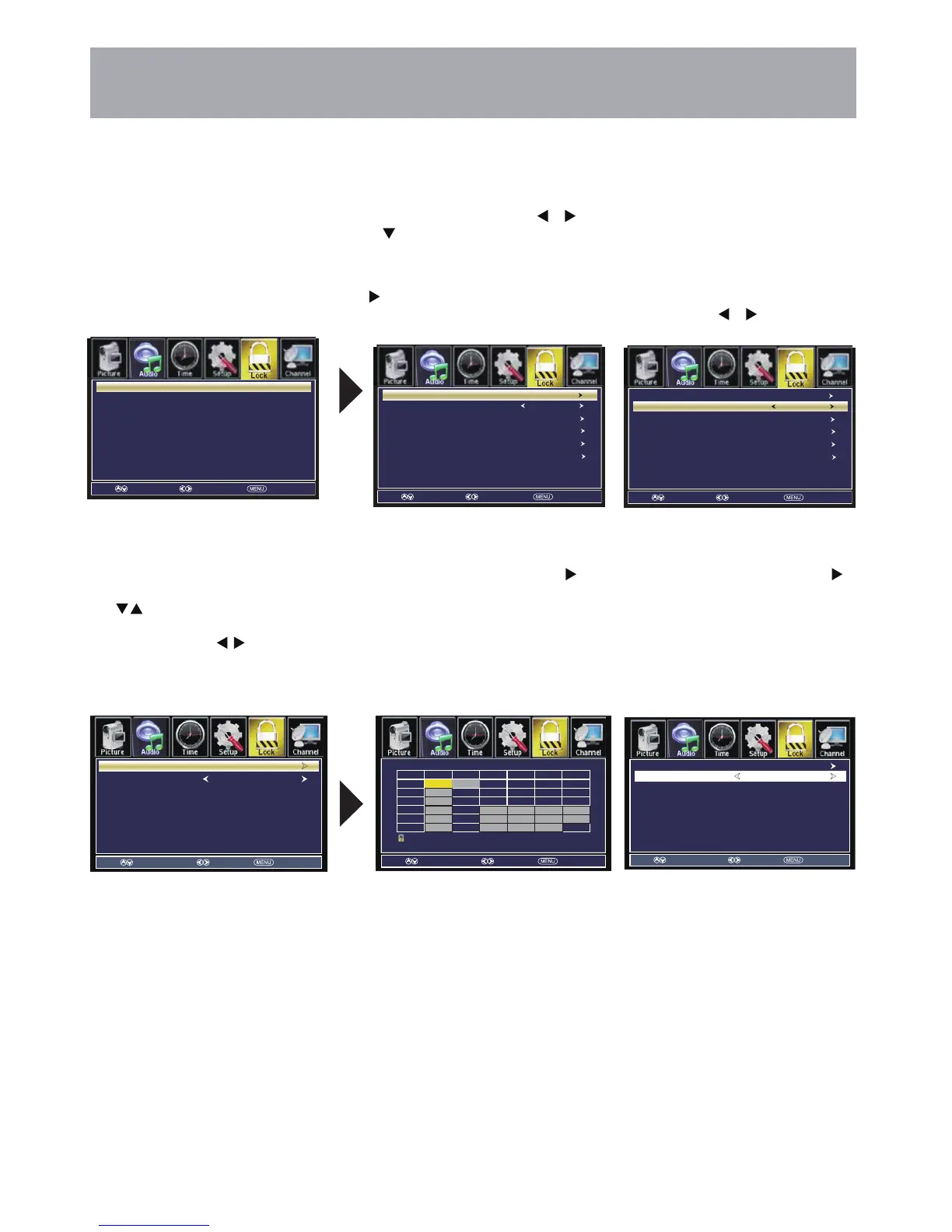
Press the MENU button on the remote control. Navigate using arrow buttons to select Lock. Gain access to
parental rating options by pressing the down arrow button to highlight Enter Password. Enter your 4 digit code
(factory default code is “0000”) unless previously changed.
• To change the password, press
arrow button to display a screen
to enter your new password, then
confirm again. (not illustrated)
• To make changes to parental
controls, highlight System Lock
then press the arrow button
• To set parental controls for television
programming or DVD movies, press
the arrow buttons to highlight
Navigate using the
buttons to
highlight TV / MPAA menu.
• Highlight TV, then press the
arrow button to enter the TV Ratings
menu and select your preference.
• Highlight MPAA, then press the
arrow button repeatedly to select
your movie rating preference.
TV-Y Appropriate for all children
TV-Y7 Appropriate for all children over 7
TV-G General Audience
TV-PG Parental Guidance Suggested
TV-14 Parents Strongly Cautioned
TV-MA Mature Audience Only
G General Audience
PG Parental Guidance Suggested
PG-13 Parents Strongly Cautioned
R Restricted
NC-17 No One Under 17 Permitted
X Adults Only
Off Not applicable
NOTE: RRT Setting and Reset RRT are not user adjustable settings.
Parental Control
TV RATING
Press ENTER to Lock or Unlock: BLock
ALL FV VS LD
TV-Y
TV-Y7
TV-G
TV-PG
TV-14
TV-MA
TV
GAAPM
MPAA
Move
TV
US Rating.
Off
Move Select Return
Change Password
System Lock
US
Canada
RRT Setting
Reset RRT
Move Select Return
Change Password
System Lock
US
Canada
RRT Setting
Reset RRT
Select Return
Move
Select Return
Move
Select Return



 To Next Page