43
Fill in the web port, for example port 85, IP address as 192.168.1.100, click Save.
(1) Repeat step 3 above, it will pop-up the window again, fill in the media port as 38401, IP address as
It will show DDNS: http://test.aipcam.com:85 , input this link in IE, then you can visit this camera remotely.
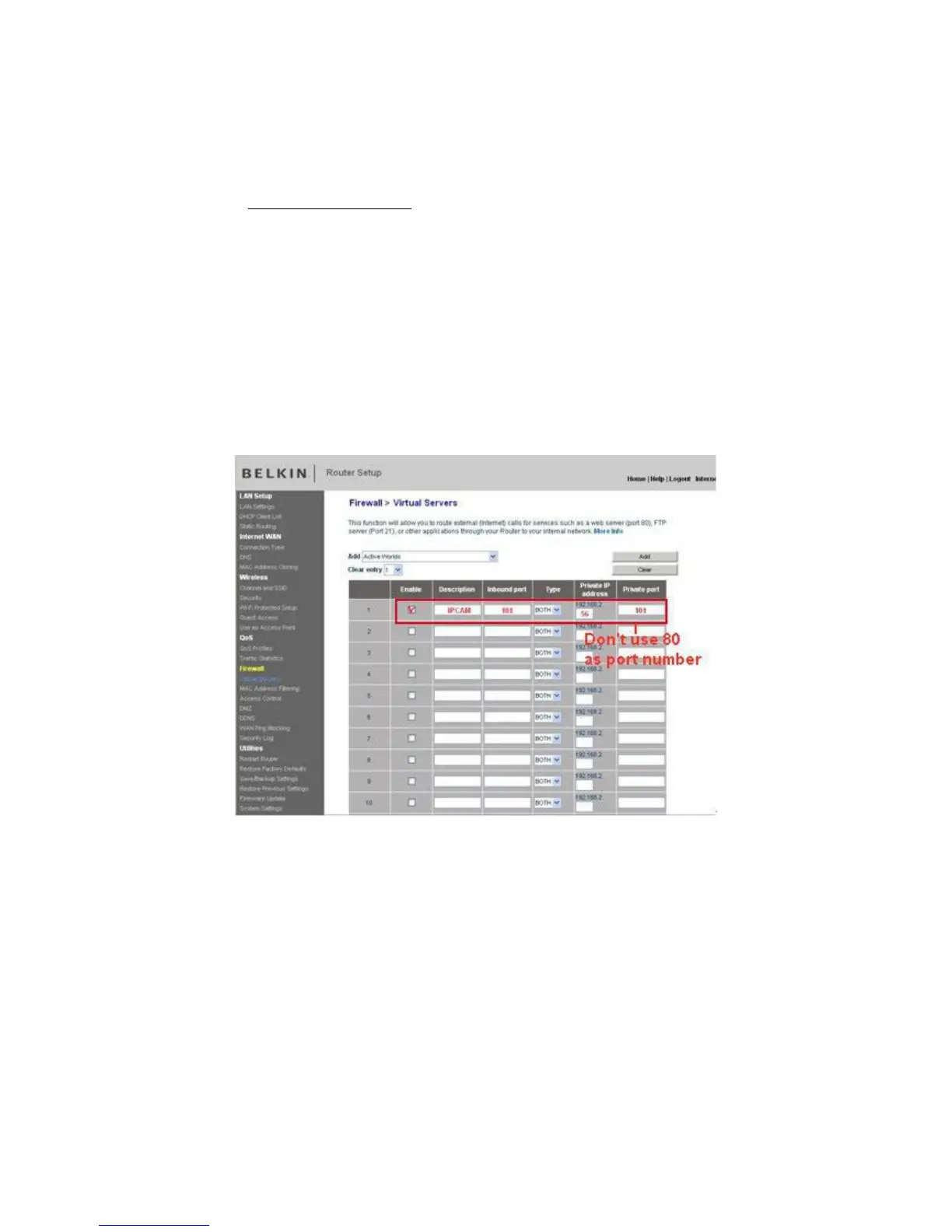
BELKIN:
1. Login to the router.
2. Choose “Firewall”, select “Virtual Servers”
3. Input the port (don’t use 80) and IP address, then click save.
NOTE: The port and IP address should be the same as the camera.
Figure 13.2
DLINK:
1. Login to the router.
2. Choose “Advanced”, select “Virtual Servers”
3. Input the port, IP address, Protocol, then click save.
NOTE: The “public port” & “private port” should be the same as camera’s port, choose the
protocol to be “both”.



 To Next Page