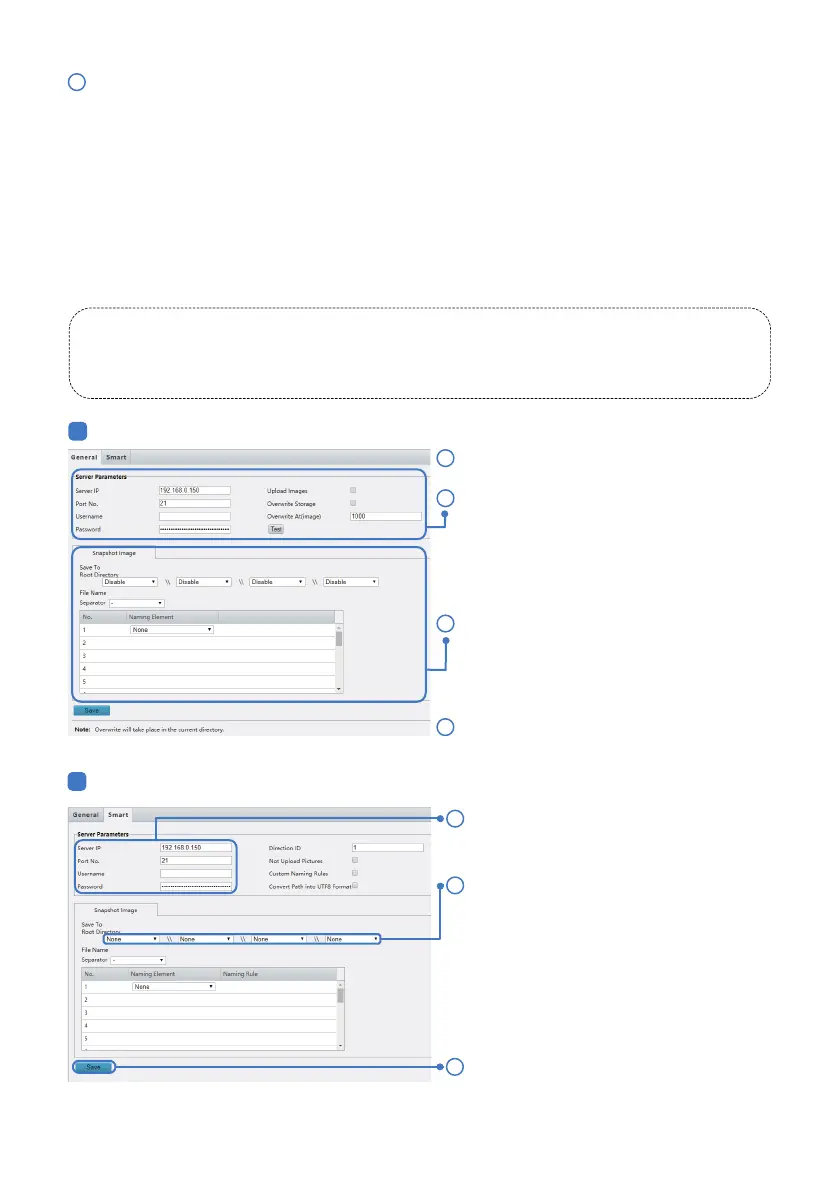
Set the IP address and port for the FTP server,
username and password used to upload
images to the FTP server, select Upload
Images, Overwrite Storage and set Overwrite
At (threshold for overwriting images). Some
camera models support FTP test. You may test
FTP aer completing FTP settings correctly.
2
1
2
General
Smart
1
2
Click Save.
3
Click Save.
4
3.4 FTP Alert
4
Click Save.
- 07 -
Aer the configuration of FTP, you will be able to upload snapshots from network cameras to the specified
FTP server.
Restrictions on FTP entries:
1.The FTP server must be in numeric format (IP) and doesn’t support domain as input.
2.The password of FTP doesn’t support special characters.
Click Setup > Storage > FTP.
There are two sections of FTP upload.
The general FTP configuration is for snapshots (except for face detection) saved through the general alarm
events. The smart FTP configuration is for uploading snapshots taken from smart events such as face
capture.
3
Set the path for saving snapshots on the FTP
server and the file name format. For example,
set path as Preset No.\\IP Address\\-
Date\\Hour(s), and set file name as Preset
No.-PTZ Zoom-PTZ Latitude-PTZ Longitude.-
jpg.
1
Click Setup > Storage > FTP. Go to General tab.
Set the IP address and port of the FTP server,
username and password to upload images to
the FTP server.
Set the path for saving snapshots on the FTP
server and the file name format. For
example, set path as Preset No.\\IP
Address\\Date, and set file name as Preset
No.-PTZ Latitude-PTZ Longitude-PTZ
Zoom.jpg.


 To Next Page