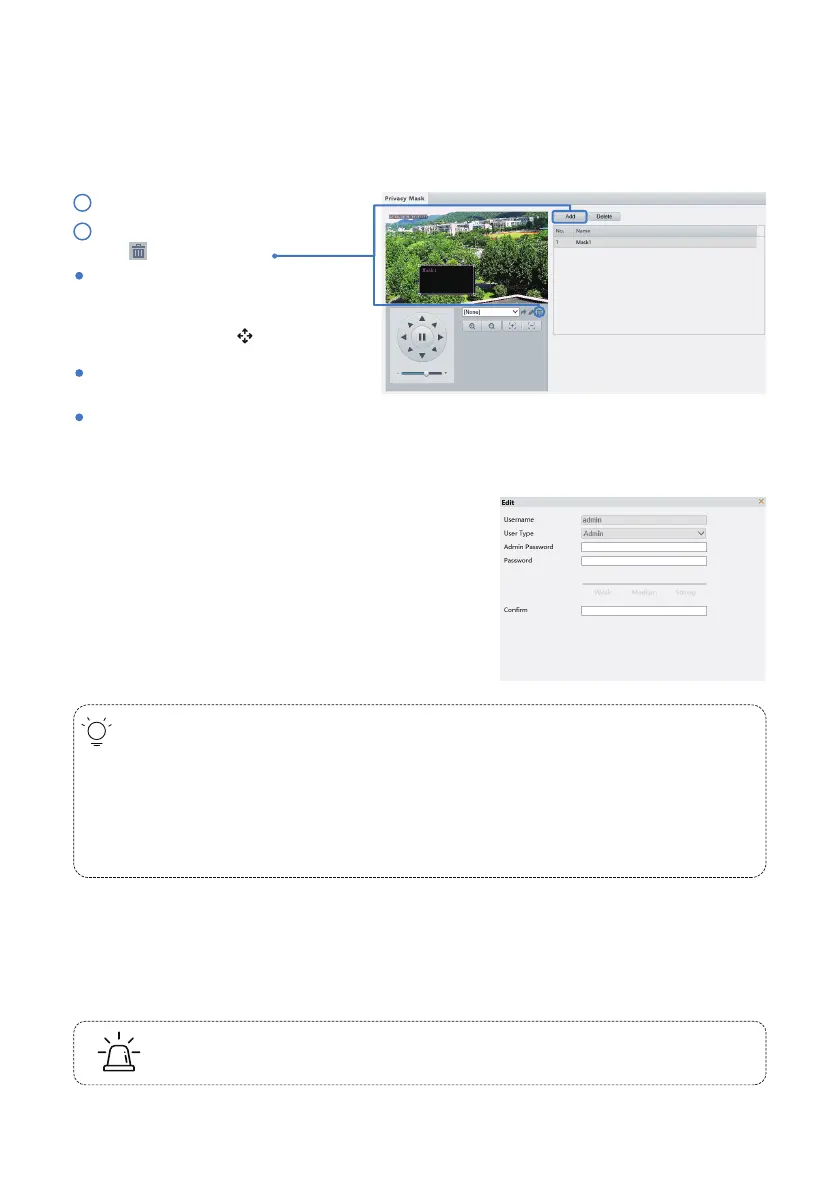
To mask a position: Click the box (with
Mask displayed on it) to activate the mask.
Move the cursor to the edge of the box
until the cursor shows , drag the box to
the intended position.
There are two types of users in the system:
1. Administrator: referred to as “admin” in this manual. The default name of the administrator is
admin, which cannot be modified. Admin has full permission and can manage all users and devices.
Only one admin user is allowed in the system.
2. Common user: referred to as “user” in this manual. User only has permission to play live and
recorded video. Up to 32 common users are allowed in the system.
You can add a user on the user management interface (under Setup > Security > User).
Aer the user is added successfully, you can change the password by entering the new password or delete
the user by clearing the username.
The following section is only for SUNBA Performance Series PTZ cameras.
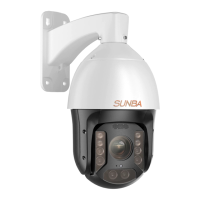
To modify the password of the account, select the user on the
list and click “Edit”. You will be asked to enter your Admin
main password in order to assign a new password to the
account.
6.Preset and Patrol
5.Account Management
Click Common > User.
The camera comes with the default account as follows:
Username: admin
Password: 123456
Private Mask
On certain occasions, you may need to set a mask area on the camera image to protect privacy. For
example, if you are live broadcasting the camera, and have a private zone you don’t want to hide from the
audience, you can setup a private mask. Alternatively, if the camera is installed at the bank, you may want
to hide the ATM keyboard to protect the privacy of customers. You can set up to 8 private mask zones.
Click Setup > Image > Privacy Mask.
1
2
Click “Add” to add a privacy mask, and
click to delete a mask.
When privacy mask is configured, the intended area is
blocked.
To mask an area: Use the mouse to draw
a box on the area you want to mask.
To delete an area: Click the mask on the
list, and click “delete”.
- 14 -


 To Next Page