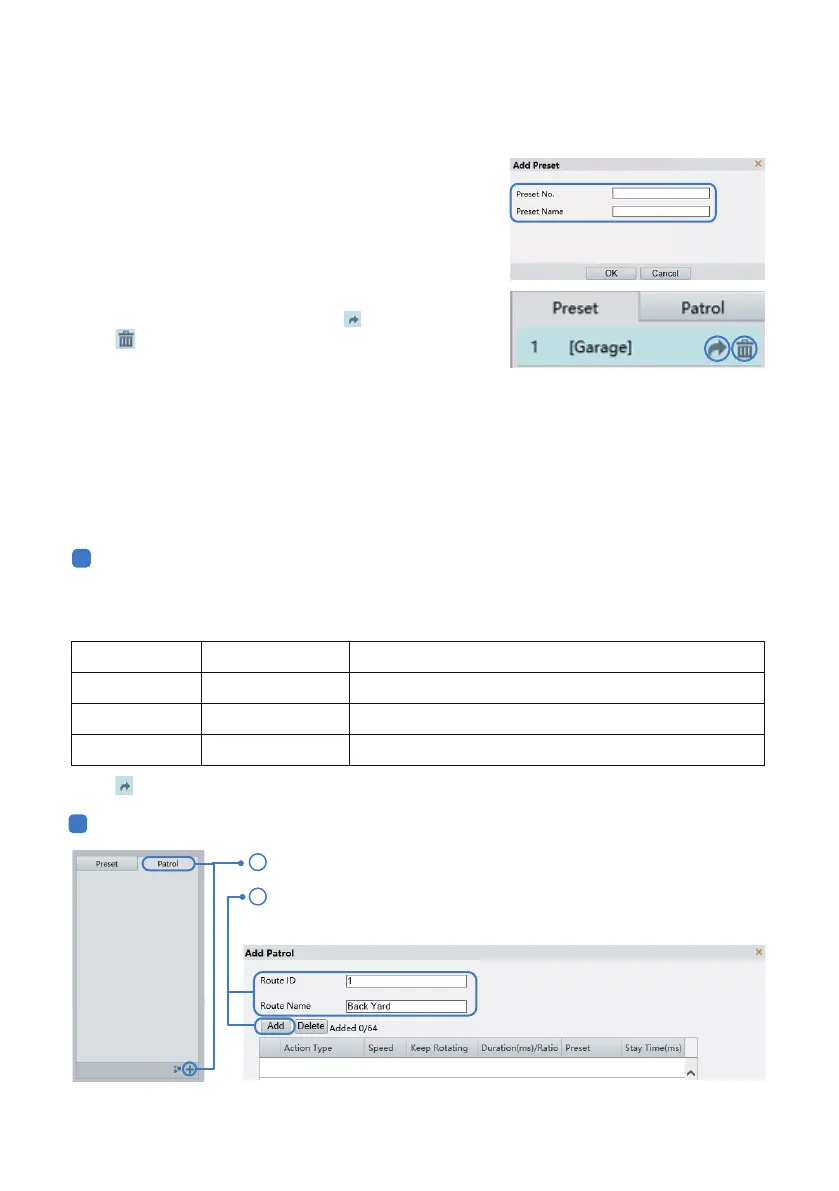
The number and preset name will appear under the preset list.
Move the cursor to the preset, and click “ ” to call the preset.
Click “ ” to delete the preset.
88 Call Run the patrol for preset 1~10
Run the patrol for preset 11~20
Run the patrol for preset 21~30
Call
Call
Call Run the patrol for preset 31~40
89
90
91
Click “ ” to call the preset.
2
Add a Patrol Route
Click Patrol on the control panel, and click “+” on lower right corner.
On the Add Patrol page, enter the route ID and name, and then click Add to
add a patrol action.
2
1
6.1 Preset
6.2 Patrol
Presets are sets of locations that the camera can memorize and travel to directly when being called. It is
available only in pan, tilt and zoom cameras. Each preset location will correspond to a number from the
preset list. You can also add text notes for each preset location.
A patrol is the process of travelling through each preset location with designated order (for example,
from preset 1 to 10) and dwell time at each preset.
A patrol is also known as a cruise or a tour.
In order for the camera to go to the designated location, you
must first “add” a preset, and then “call” it.
There are two methods of setting up the patrol aer you have defined the corresponding location
preset.
First, please add preset 88-91. Then call preset 88~91 to start the patrol. A special preset doesn’t
correspond to a location (it doesn’t memorize preset position), but a command that the PTZ camera will
follow. Below is the special preset list for patrol.
To set a preset location, control the PTZ panel and have the
camera point to the desired location, then click “Add.” A
window will pop out, and you can assign a number and add a
name to this specific preset location.
1
Use Special Preset
- 15 -


 To Next Page