Red Oset
Adjust the red oset manually.
Note:
You can set this parameter only when White Balance is set to Fine Tune.
Adjust the red oset manually.
Note:
You can set this parameter only when White Balance is set to Fine Tune.
Blue Oset
On Screen Display (OSD) is the text displayed on the screen with video images and may include
time and other customized contents.
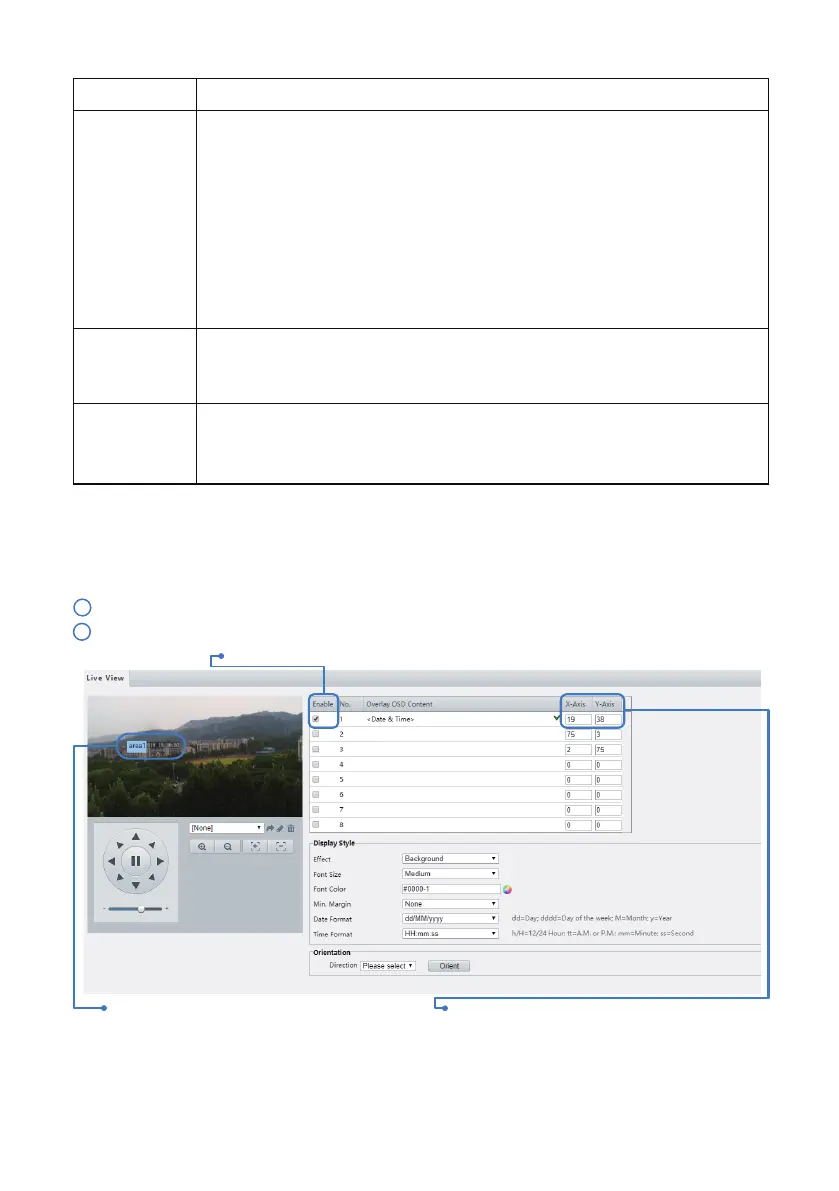
Click Setup > Image > OSD.
1
Users can customize the position, content and display of the text.
To change the position of the OSD text, click the desired box in the Live View area.
Aer the cursor shape is changed, click and hold the button
to move the box to the desired position.
To change the text of the OSD, the drop-down list of Overlay OSD Content provides Time, Preset and
Serial Info. You may also select Custom and enter the content you want.
To set the position precisely, input the X-axis and Y-axis
under Overlay Area.
2
4.3 OSD Setting
White Balance
Adjust the red or blue oset of the image:
Auto/Auto2: The camera adjusts the red and blue oset automatically according
to the light condition (the color tends to be blue). If the images are still unnatu-
rally red or blue in Auto mode, please try Auto2.
still unnaturally red or blue in Auto mode, please try Auto2.
Fine Tune: Allow you to adjust the red and blue oset manually.
Outdoor: Suitable for outdoor environment with a relatively greater color
temperature range.
Locked: Lock the current color temperature without change.
Sodium Lamp: The camera adjusts red and blue oset automatically according
to the light condition (the color tends to be red).
Parameter Description
- 13 -


 To Next Page