SunBriteTV Model 3260HD Operator’s Manual
Page 27
Closed Caption
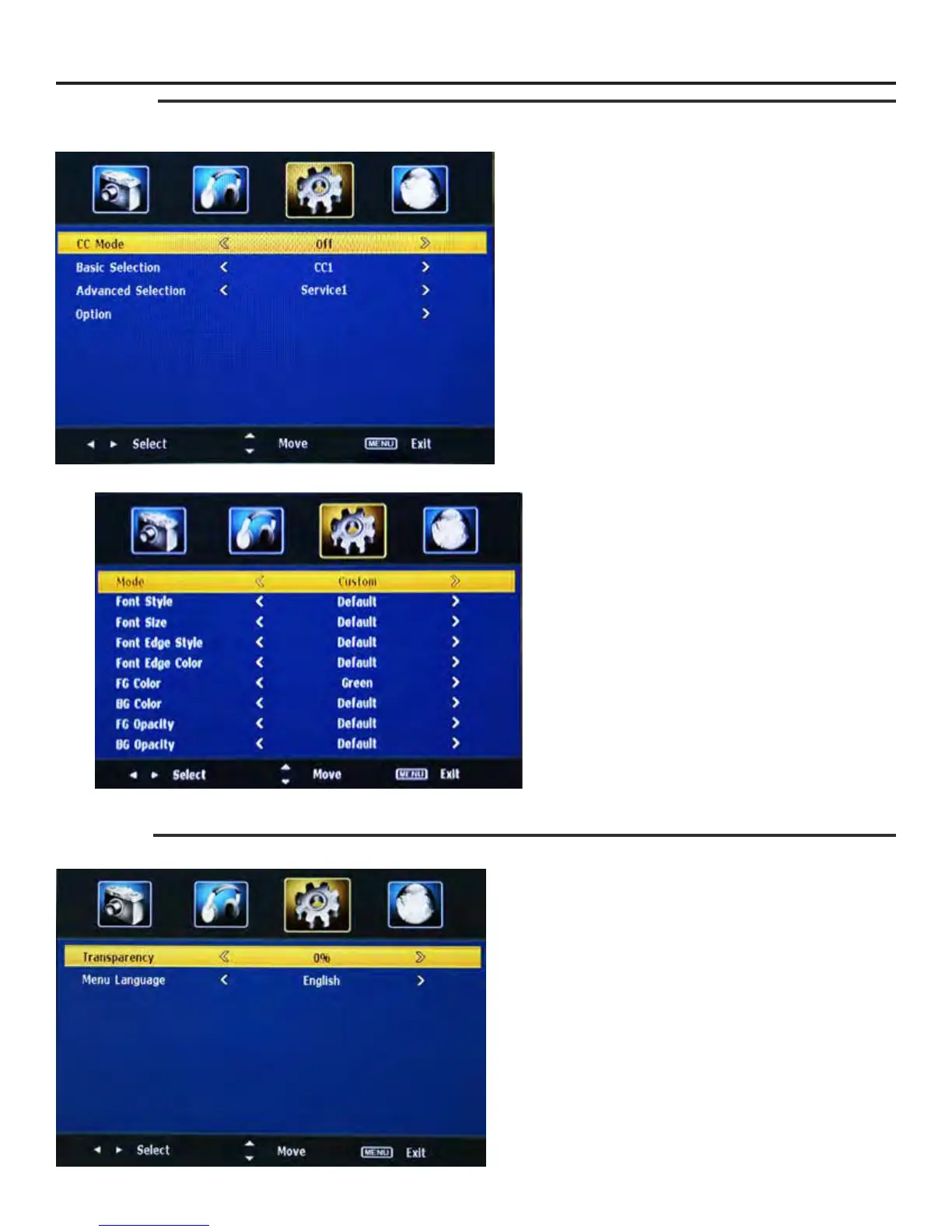
From the Setup Menu, press qp buttons to Closed Caption, then press u button to enter the Closed Caption submenu shown below. To turn on the
CC Mode.
Closed Caption Submenu
CC Mode
Press qp buttons and then use t u buttons to turn the CC
Mode ON or OFF
Basic Selection
Press qp buttons and then use t u buttons to select setting
options. The options are CC1 / CC2 / CC3 / CC4 / TEXT1 / TEXT2 /
TEXT3 / TEXT4.
Advanced selection
Press qp buttons and then use t u buttons to select current
zoom mode, the options are Service1 / Service 2 / Service 3 /
Service 4 / Service 5 / Service 6.
Option
Press the u button to enter the submenu list shown below.
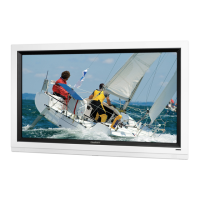
Closed Caption-OptionSub-Menu
Closed Caption-OptionSub-Menu
Mode: Press qp keys to select either Default and Custom.
If you set Automatic, the other choices are disabled and can’t
be adjusted.
Font Style: press t u keys to select one of the Defaults and
from Font0 to Font7.
Font Size: press t u to select one of Default / Normal /
Large / Small.
Font Edge Style: press t u keys to select one of Default /
None/Raised/Depressed/Uniform/Left Shadow/Right Shadow.
Font Edge Color: press t u keys to select one of Default /
Black / White / Red / Green / Blue / Yellow / Magenta / Cyan.
FG Color: press t u keys to select one of Default / White /
Black / Red / Green / Blue / Yellow / Magenta / Cyan.
BG Color: press t u keys to select one of Default / Black /
White / Red / Green / Blue / Yellow / Magenta / Cyan.
FG Opacity: press t u to select one of Default / Solid /
Flashing / Translucent / Transparent.
BG Opacity: press t u to select one of Default / Solid /
Flashing / Translucent /Transparent.
Adjusting On-Screen Displays – Setting Menu
Menu Options
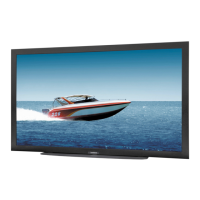
From the Setting Menu, press qp buttons to Menu Options, then press u button to enter the Menu submenu shown below.
Menu Settings
Transparency
Press qp buttons to select Transparency, and then press t u
buttons to select 0% / 25% / 50% / 75% / 100%
Menu Language
Press qp buttons to select Menu Language, and then press
t u buttons to select English/French/Spanish


 To Next Page