SunFounder pisloth
Step 4: At the end of the Forever block, fill in the angle values read into the 4 servos and use the do action block to
make PiSloth do this step.
Step 5: Once the code is complete, click the download icon in the bottom right corner to download and run the code.
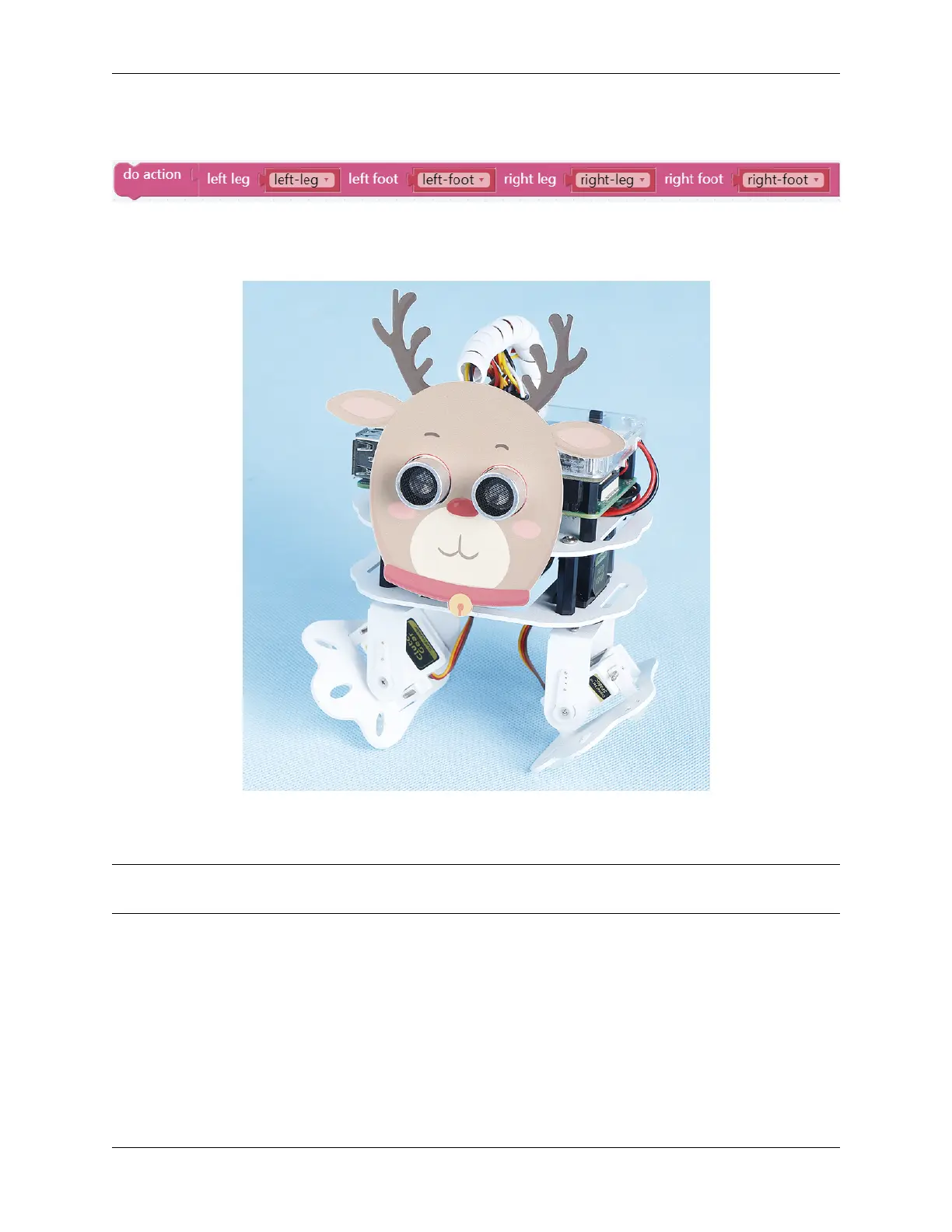
Now we can click button CD and button GH (according to the actual code) to make PiSloth pose like this, you can
also make it do other steps.
Step 6: Click on the Debug Monitor icon in the bottom left corner, and you will see the angle of the 4 servos in the
Debug Monitor at that moment when you press button I.
Note: Some times more than 2 sets of data may appear because if you click button I for a little longer, EzBlock will
think button I was clicked 2 times. You can clear the data and click button I again.
38 Chapter 3. Play with Ezblock



 To Next Page