34
OWNER’S MANUAL
Split Point
Changing The Split Point For Lower Voice
When the lower mode is engaged the keyboard is divided into two parts at the
“split point.”
In the right hand section the original or Upper voice will sound. In the left hand
section a new instrument voice can be assigned, the “lower” voice. The split point
for the Lower section can be changed in this Set Up Function mode.
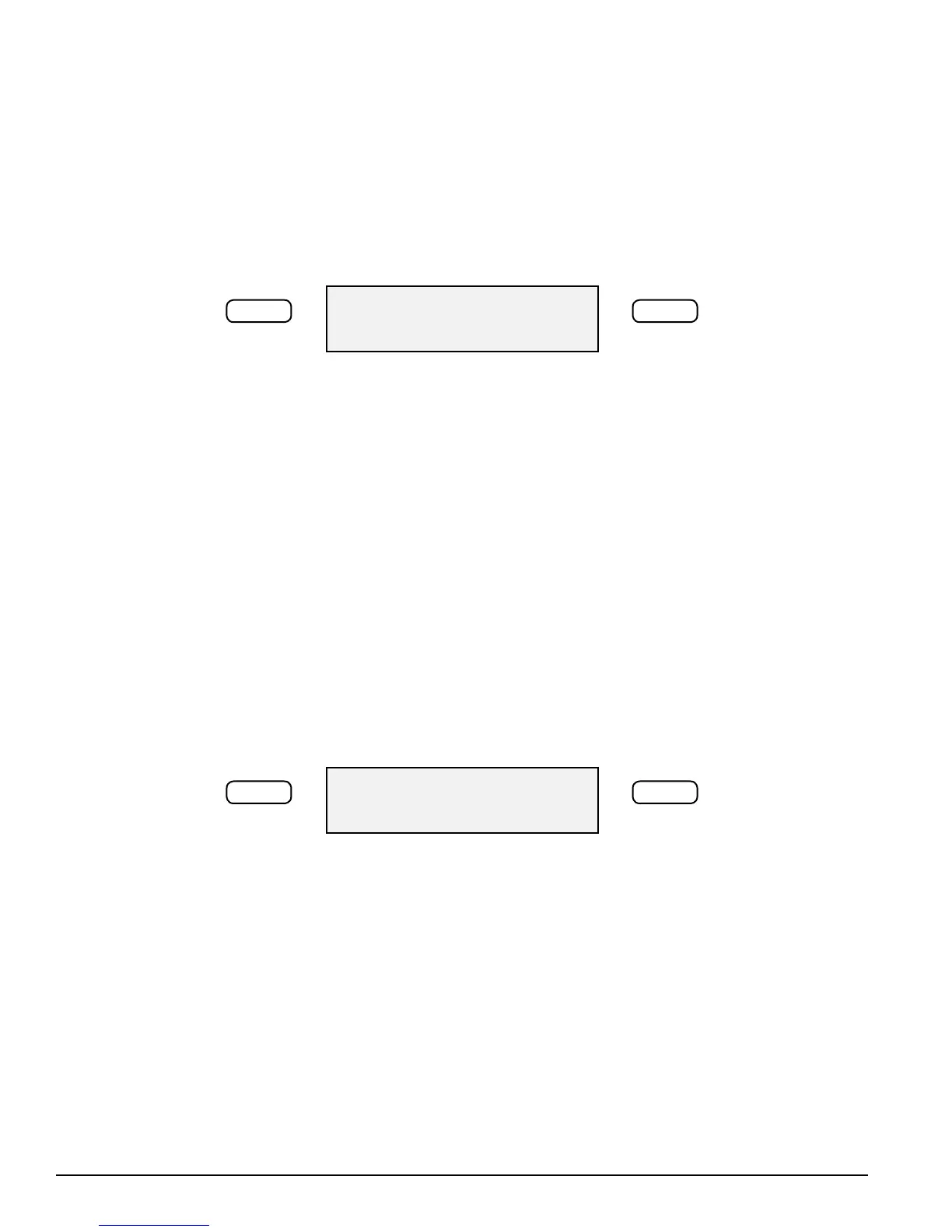
Split Point
–/NO +/YES
1. Press the SETUP button until the “Split Point” menu appears.
The current voice split point will be shown.
2. Use the +/YES button to shift the split point up the keyboard, to the right, and the
–/NO button to shift the split point down the keyboard, to the left.
The Range of the Split Point is from G1 to C7.
Press the +/YES, –/NO buttons simultaneously to recover the default setting of C3.
3. To Exit the Set UP Mode press any control panel button except the +/YES, –/NO
buttons or the Set Up Button.
Auto Accompaniment Split Point
Changing The Split Point For Auto Accompaniment
The Split Point in the Auto Accompaniment Mode can also be changed.
Auto A. Split
–/NO +/YES
1. Press the SETUP button until the “Auto A.Split” menu appears.
2. Press the +/YES button to display the current auto accompaniment split point.
3. Use the +/YES button to shift the split point up the keyboard, to the right, and the
–/NO button to shift the split point down the keyboard, to the left, from AO–C3.
Press the +/YES, –/NO buttons simultaneously to recover the default setting of G1.
4. To Exit the Set UP Mode press any control panel button except the +/YES, –/NO
buttons or the Set Up Button.



 To Next Page