57
EN
Before you start
Changing the
Setup menu
Others Español
Connections Getting started
Recording
Playing discs Editing
Editing
Note
• If the selected picture for
a thumbnail is overwritten
a default picture will be
selected.
Setting pictures for thumbnails
You can set a picture to each title
for a thumbnail. It helps you to
remember the contents of the title
you are playing. The beginning
picture has been selected as the
default.
1
Follow steps 1 to 3 in “Deleting titles”
on page 52 to display the Edit menu.
2
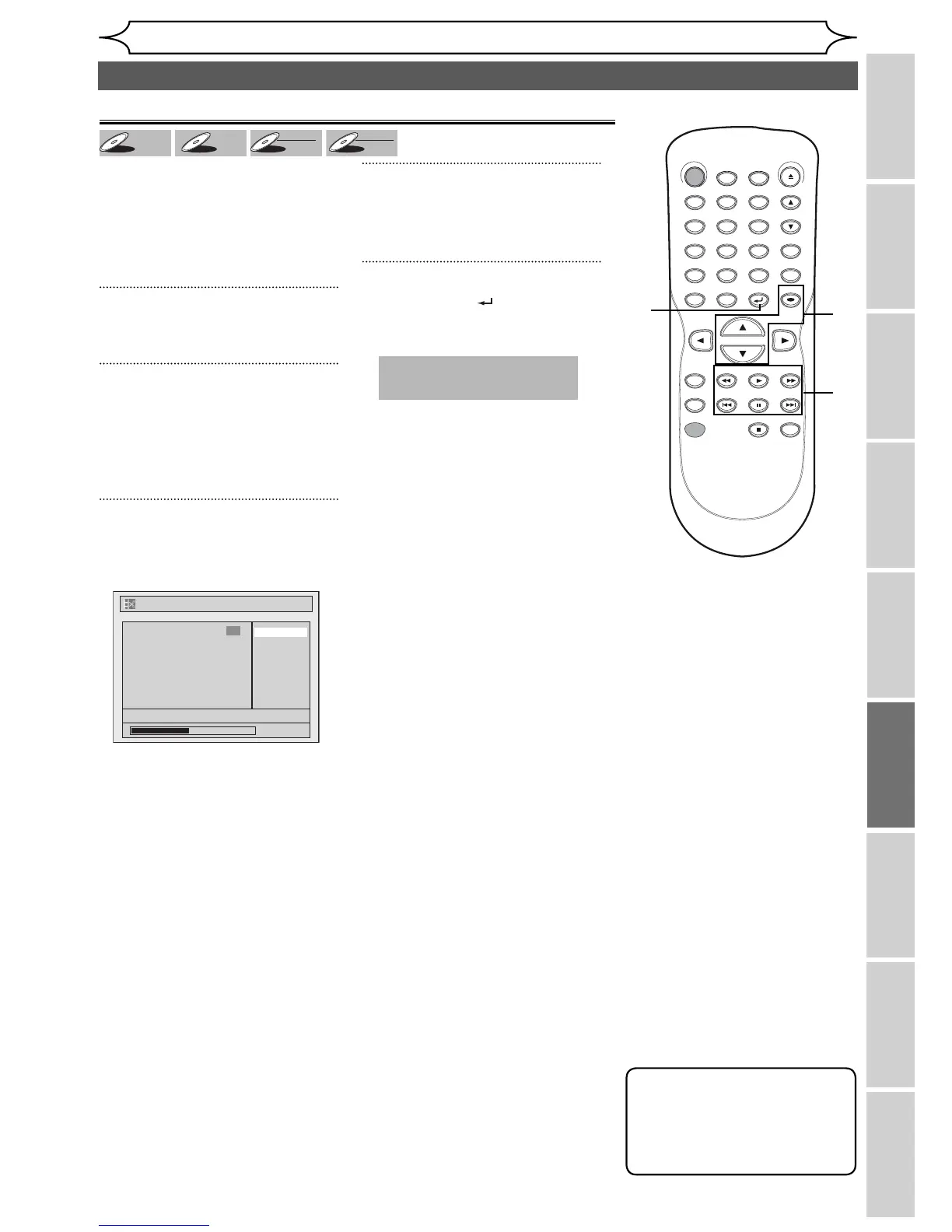
Use [PREV H], [NEXT G],
[REV E], [FWD D],
[PAUSE F] and [PLAY B] to
decide the picture you want to
select as a thumbnail.
3
Using [K / L], select “Index
Picture”. Press [OK].
Confirmation window will appear.
4
Using [K / L], select “Yes”.
Press [OK].
A picture for thumbnail will be set.
5
Press [RETURN ] to exit.
Data will be written onto the disc
momentarily.
This operation may take a
while to be completed.
No
Yes
1
Index Picture
NOV/22/05 11:00AM CH12 EP
0:00:59
F
Editing discs (cont’d)
DVD+



 To Next Page