36
j
Playback Operation
Playback Operation
A
B
C
D
E F
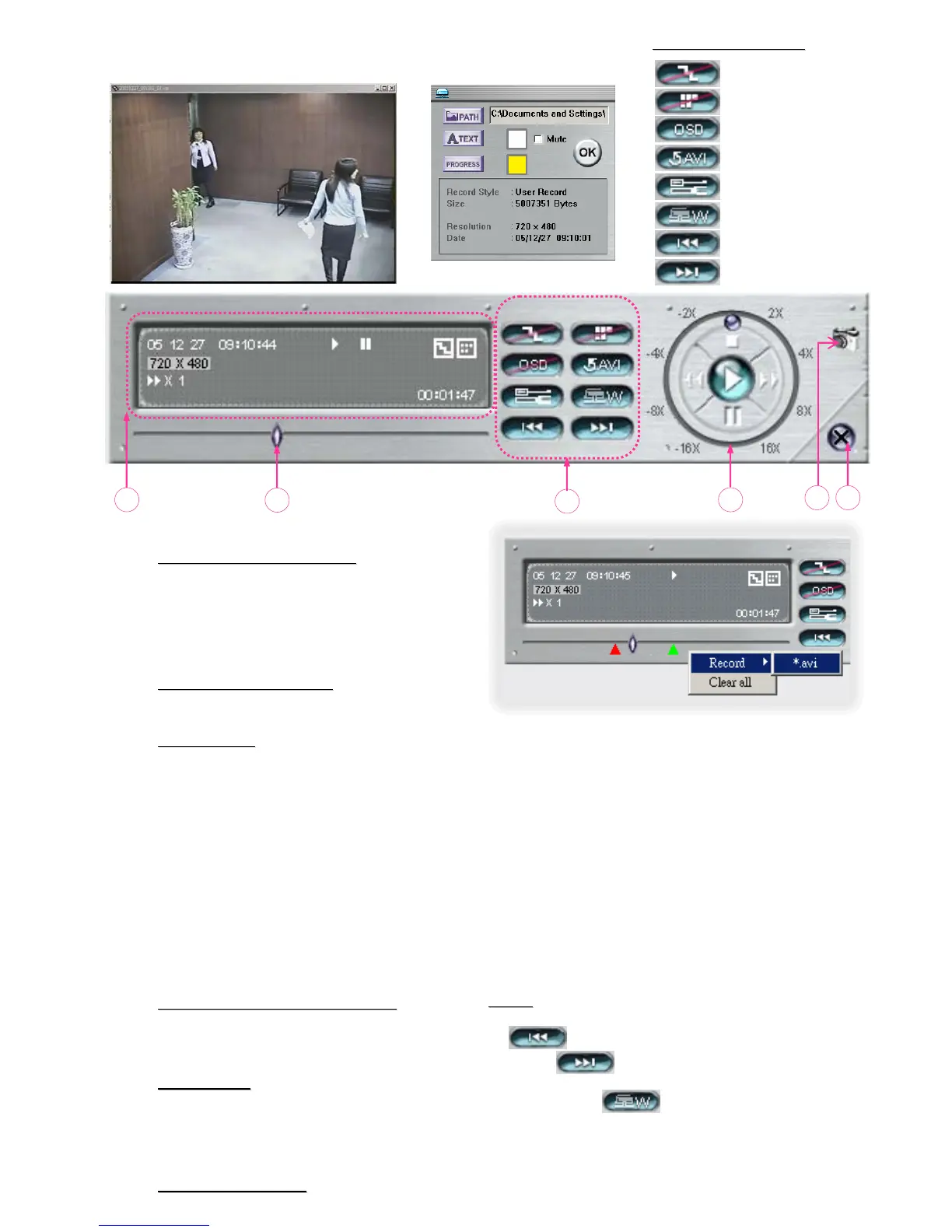
A.
Playback Information
Playback Information :
Display information such as “Date”,
“Time”, “Resolution”, “ Rewind /
Forward Speed”, “Status” and
“Functions”, etc..
B.
Time Progress Bar
Time Progress Bar :
Show the playback progress status.
C.
Functions
Functions :
D.
Playback Control Buttons
Playback Control Buttons :
Play / Stop / Pause / Fast Rewind /
Fast Forward
E.
Snapshot
Snapshot :
Press this button to take a snapshot
of the current image which will be
saved in the designated destination.
F.
Close the Player
Close the Player.
One click to activate
One click to activate
•De-interlace
• De-blocking
•OSD
• AVI Convert
• Config. Setting
• Watermark
• Open Previous File
• Open Next File
De-interlace: Reduce the vibration of the paused picture.
De-blocking: Reduce the video mosaic phenomenon.
OSD: Display the OSD of the AP playback window.
AVI convert: Convert the entire recorded file to AVI format.
Config. Setting: Enter AP config. setting box, and
set the file destination, text color, and text color of progress status.
Watermark: Proof the authenticity of the backup video.
Open Previous File: Open previous backup video.
Open Next File: Open next backup video.
AP Config. Setting Box :
AP Playback Window :
Note:
Note:
• When users pause the playback picture, press
“ ” button to go to the previous frame, or
press “ ” button to go to the next frame.
• In the playback mode of the software AP, users
could press ” “ button to check the
authenticity of the BACKUP VIDEO. If the
BACKUP VIDEO had been altered, the video
image will turn to
light red
light red and the playback will
be paused.
To snap video, right-click of the mouse to make a
starting point (red) and click one more time to make a
ending point. Then right-click to convert to AVI format.












 To Next Page