3
3
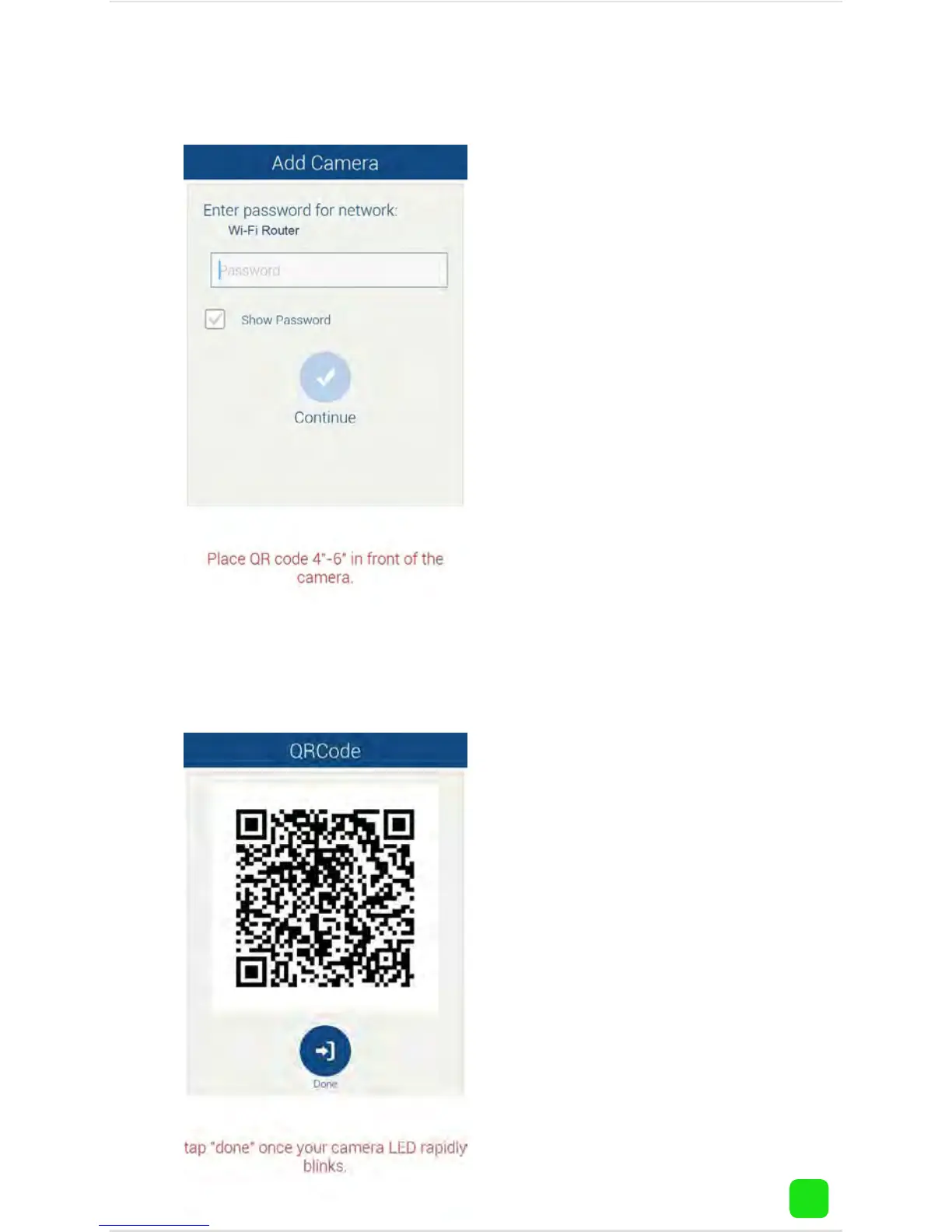
Input the password for
your Wi-Fi network then
tap “Continue”. A QR
code will appear, this
contains all the network
settings.
4
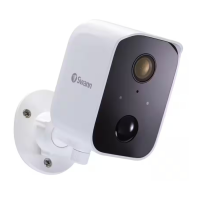
ADS-446 & 456: Hold your
mobile device approximately
4” to 6” (100mm to 150mm)
in front of the camera lens
to scan the QR code. When
you hear a short beep beep
sound, tap “Done” to finish.
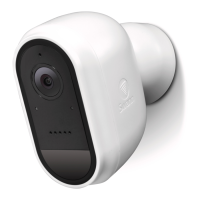
ADS-466: Hold your mobile
device approximately 4” to 6”
(100mm to 150mm) in front
of the camera lens to scan
the QR code. Watch for the
IR LEDs to flash twice to con-
firm the QR code has been
scanned successfully.



 To Next Page