9
Camera Operations
The PRO-754 is an advanced PTZ camera with professional image adjustment options for
experienced users. You can access and control the advanced camera features using the
On-Screen Display (OSD). The OSD allows you to customize the various camera settings for
image quality, white balance and shutter speed. There’s no requirement to use the OSD - in
the majority of situations, the automatic settings work quite well. For the vast majority of
applications, it’s easier and often more useful to let the camera automatically adjust its
settings.
The OSD settings are many and varied, and there’s simply not enough room in this manual to
cover it. You can download an in-depth guide to the OSD from our website:
www.swann.com/osdpro
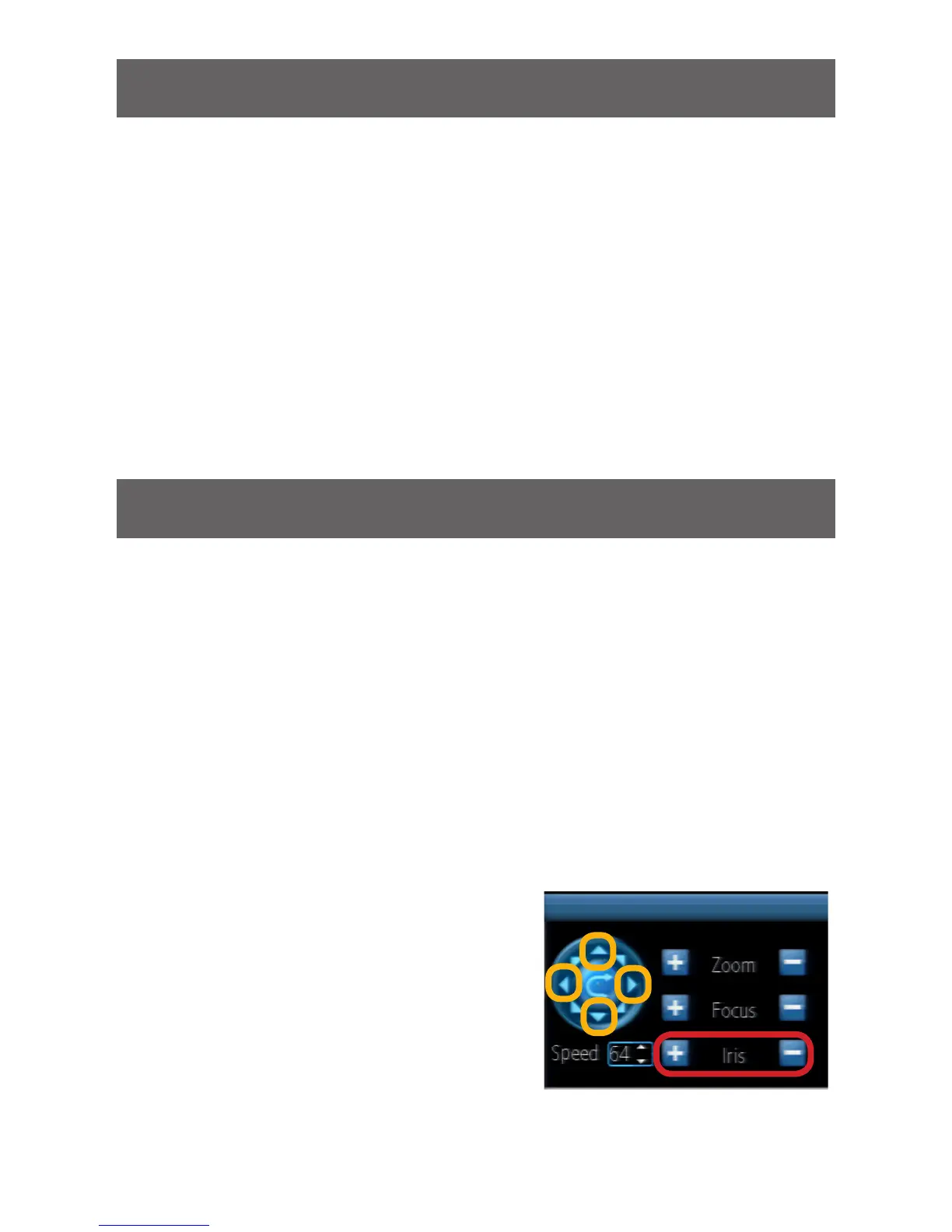
*For illustration only. PTZ Control
Interface may vary between DVR models.
IRIS + / - Buttons
Advanced Feature: On-Screen Display
Using the directional buttons on the PTZ Control Interface, you can easily perform simple
pan, tilt and zoom movements on your camera. For experienced users, if your DVR supports
advanced PTZ functions, you can program a detailed surveillance program for the camera
to run. You should consult your DVR documentation for more information on the availability
of advanced PTZ functions.
Generally, on most capable DVRs you should be able to:
• Define Presets: Program movements for your camera system to repeat over time, or to
remember a specific viewpoint for easy access later.
• Initiate Patrol mode: Using a series of presets, you can run patrol mode where the
camera will move from one point (also sometimes called “Keypoint” on the interface)
to another. The camera stays at a single point for a set duration (“Dwell Time”) before
moving on to the next point.
• Adjust PTZ Speed: Change the speed of pan, tilt and zoom movements.
There are 2 ways for you to access the OSD Camera Setup menu:
Via DVR PTZ Control Interface
• Press the “Iris +” to display the Camera Setup
menu
• Use the up/down arrows to navigate and the left/
right arrows to adjust options.
• The Iris + button also functions as the SELECT
button.
• Click Apply to save any changes you’ve made to
the camera settings.


 To Next Page