8
DVR Configuration
Configuring the PTZ Settings
After you’ve got the PRO-754 properly connected to your DVR as shown already in this manual
and have followed the basic configuration procedures as described in your DVR’s manual:
1. Navigate to the PTZ Configuration menu.
2. Select the video channel number input that your camera is connected to on back of the
DVR. For example, if the camera is connected to the channel 1 input then select Channel
1 from the Camera No. dropdown list.
3. Ensure that settings in this menu match the following:
Camera No.: Channel1
Baud Rate: 9600
Data Bit: 8
Stop Bit: 1
Parity: None
Flow Ctrl: None
PTZ
Protocol: Pelco-D
Address(0-255): 1
Note: If you’ve connected the PRO-754 to channel 1, you shouldn’t need to change anything
on your DVR.
Changing the Camera’s Command Address
If you’ve got multiple PTZ cameras, then you’ll need to assign the command address of each
to be unique.
• Connect additional cameras one at a time to the channel 1 input
on your DVR.
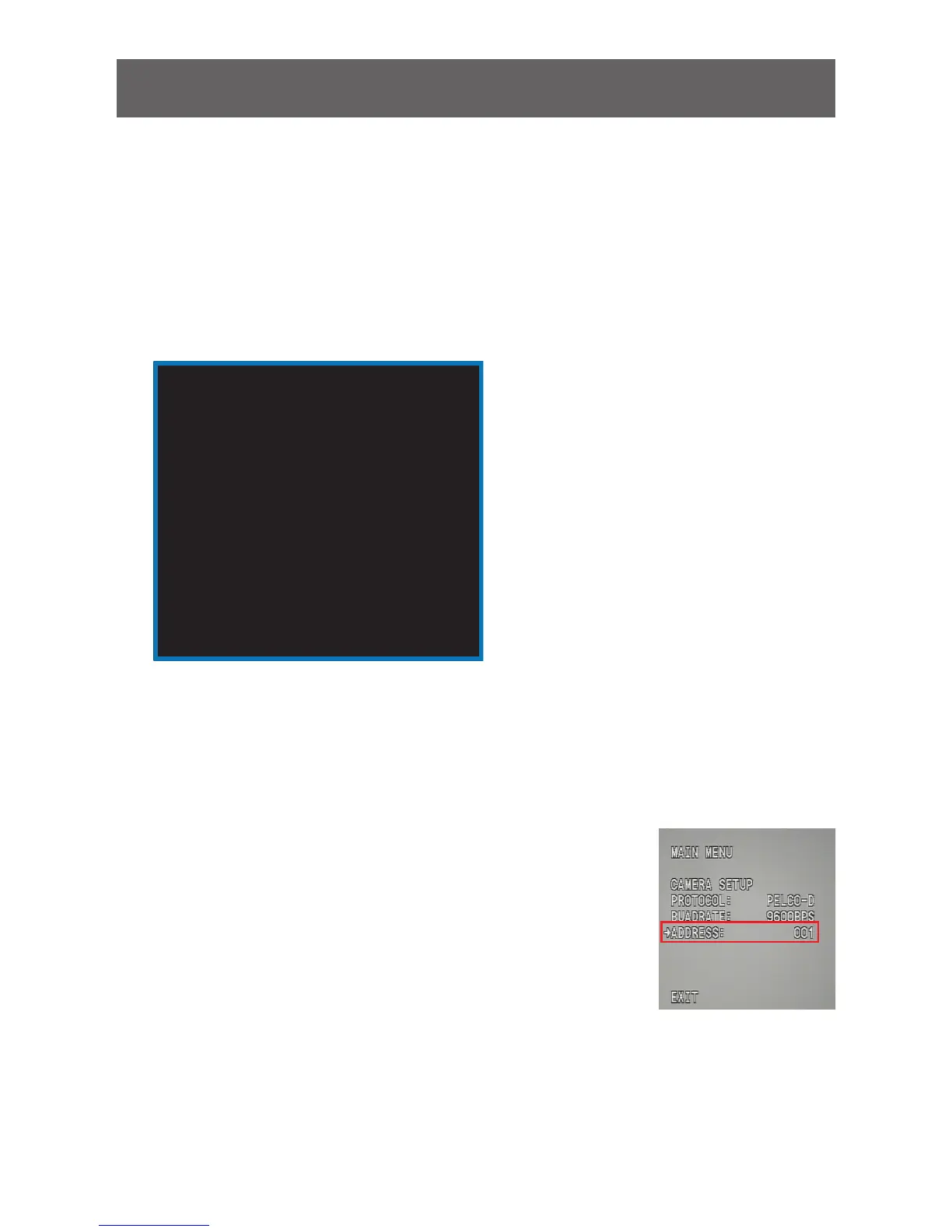
• Bring up the PTZ Control Interface and call “Preset 95” to
display the Camera ID menu shown on the right.
• Using the up/down arrows, navigate to the “ADDRESS” setting.
Then, using the left/right arrows, select a unique address for
the camera.
• To make it easy to remember, we suggest choosing a command address which
corresponds to the video channel input that you’re plugging this camera into. So if this
camera is going to be connected to channel 2, then the command address should be set
to 2 as well.


 To Next Page