10
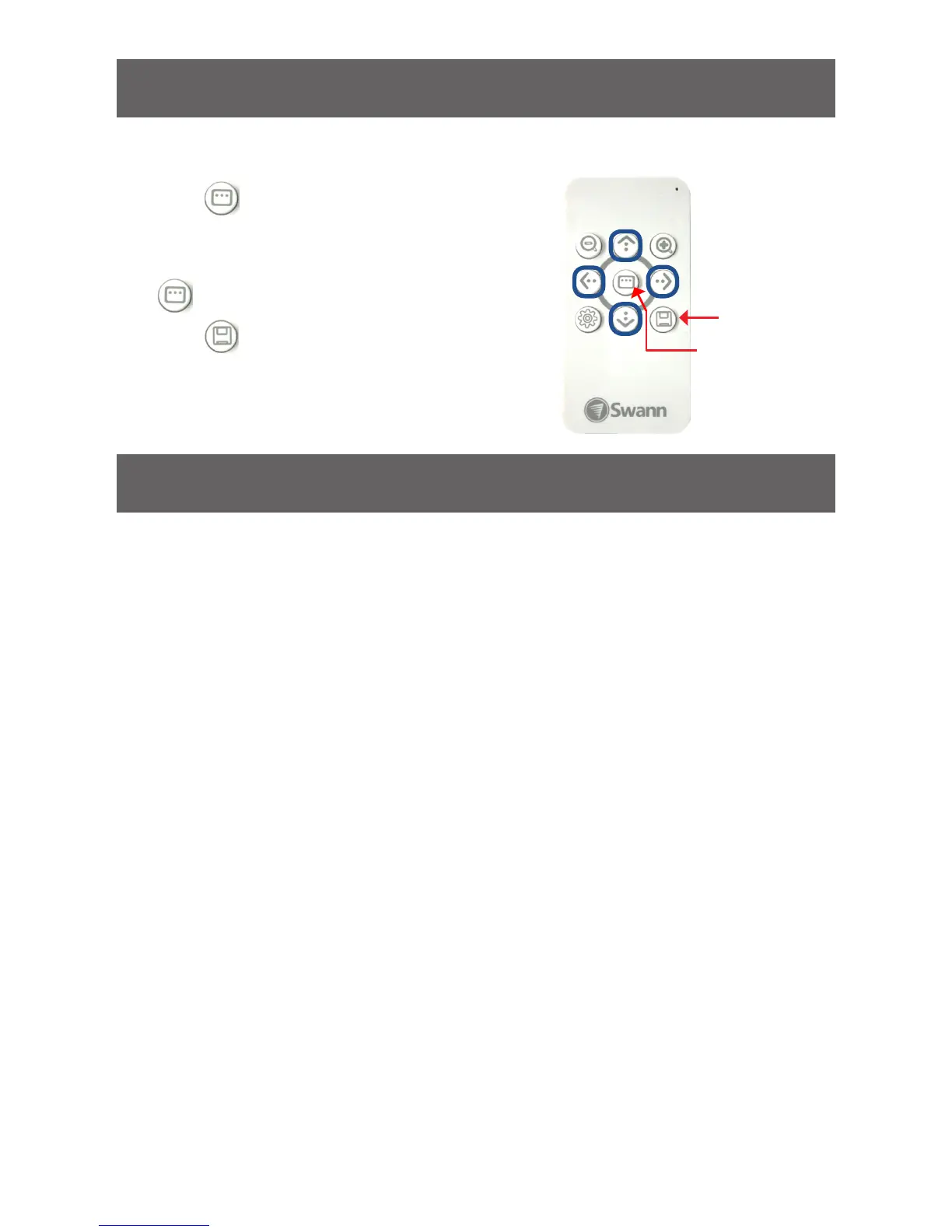
Camera Setup Menu/
Select function
Quick Save
Problem: My DVR is in Motion Detection mode, and continually records whilst
the camera is moving.
Solution: This is not a malfunction. When a DVR looks for “motion”, what it is really doing
is looking for a change between one image it captures and the next. Therefore, it doesn’t
matter whether it’s something the camera sees or the camera itself that is moving, the DVR
will interpret the change as movement. Turn off Motion Detection on your DVR if you are
using the camera in Patrol Mode.
Problem: I can’t make the camera move.
Solution: There are a few possible reasons why the camera(s) may not be working properly.
• Check the integrity of the RS485 connections - a loose wire will stop the system working.
• Check the polarity - the red wire should always be connected to a terminal marked “A”
or “+” of the RS485 port and the black wire to a terminal marked “B” or “-” of the RS485
port.
• Check the settings in the DVR’s PTZ Configuration menu, and ensure the Baud Rate,
Protocol and Address values match your camera’s settings.
Problem: I don’t know my Command Address!
Solution: You can either go through them one at a time to see which one works, or see
“Changing the Camera’s Command Address” on page 8 for instructions on how to find
out the command address.
Problem: The camera won’t turn on.
Solution: Check your power adapter is the right one for the camera (DC 15V). Make sure both
the camera and the controller are supplied power.
Advanced Feature: On-Screen Display
Troubleshooting
Via OSD Controller
• Press to display the Camera Setup menu.
• To navigate and adjust different setting options,
use the arrow buttons.
• also functions as the SELECT button.
• Press to quickly save any changes you’ve
made to the camera settings.


 To Next Page