10
Main Menu
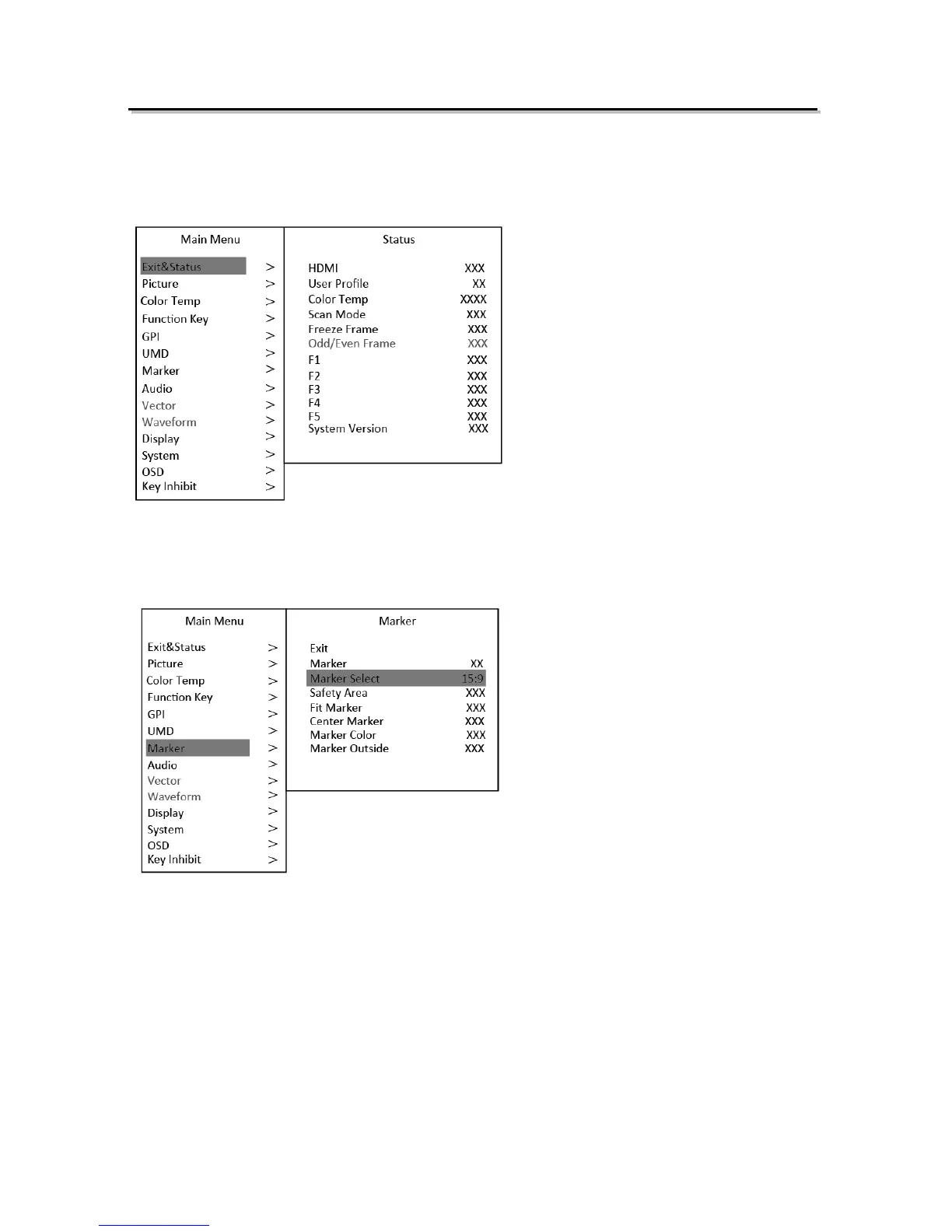
S-1071H+ has OSD to adjust the parameters and settings, for example: Picture, color temp.,
function keys, etc.
1. Press “OK” button, the main menu will popup from the left top of the screen. The selected main
menu highlights in yellow.
2. Revolve “OK” to select submenu, the selected submenu highlights in yellow, press “OK” to apply
and enter into the selected submenu’s items.
3. Revolve “OK” to select the item which needed to adjust, press “OK”, the selected item and its
parameters will be highlighted in yellow.
4. Revolve “OK” to change the selected item’s parameter, press “OK” to apply and save the settings.
5. Revolve “OK” to select “Exit”, press “OK” to quit submenu. Select “Exit & Status” under the Main
Menu and press to quit Main Menu.
Notice:
* The items in gray can not be set up.
* If there is no operation under the setted time, the menu will automatically save settings and quit.
* If the key inhabit function is turned on, except key inhibit function, all other items are in grey. Please
turn off the key inhibit function to adjust the items.



 To Next Page