13
7. Marker
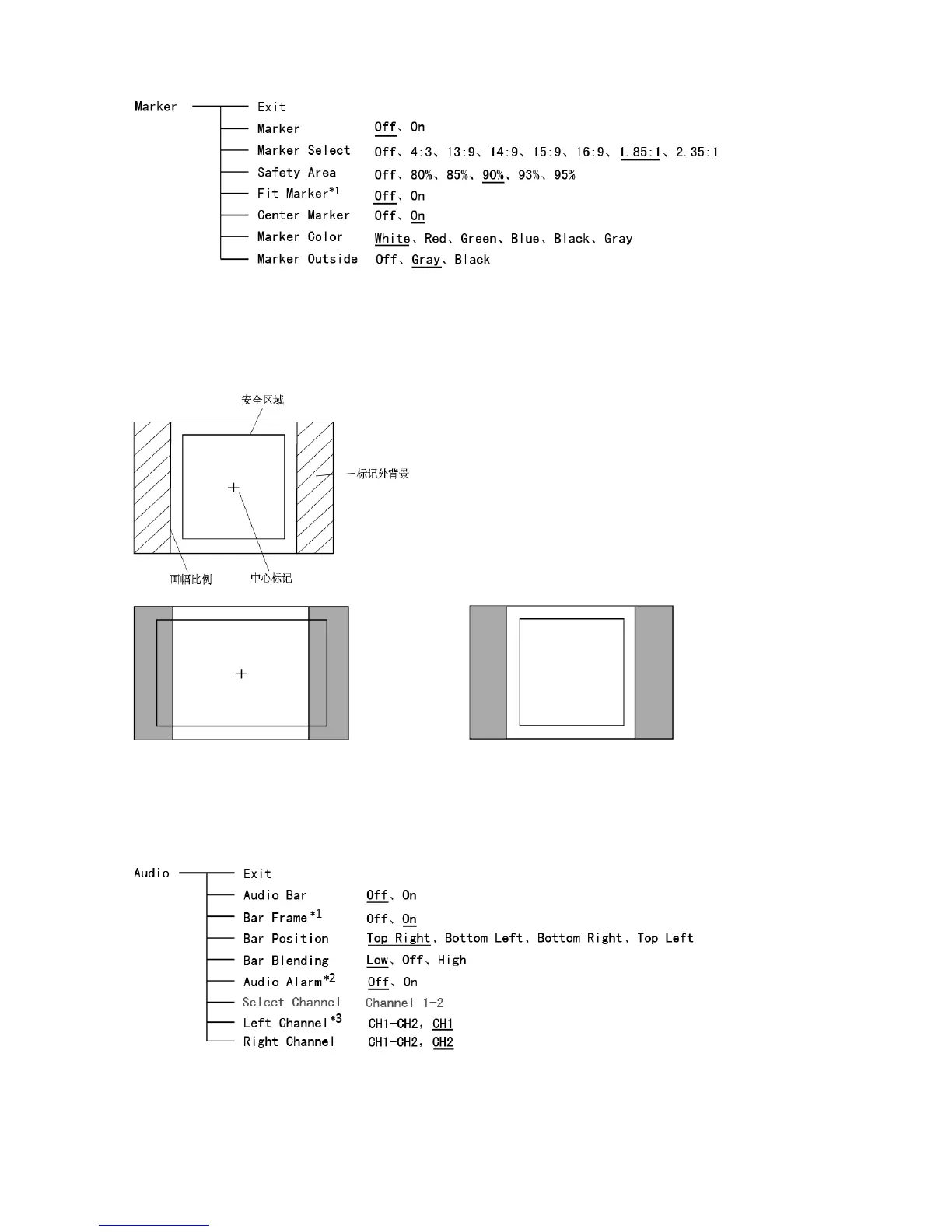
*1 When “Fit Marker” is “Off”, the size of safety area is benchmarked against the actual display screen,
accounting for 80% ~ 95% of actual display screen. When “Fit Marker” is “On”, the size of safety area
is benchmarked against the area inside the scales marker, accounting for 80% ~ 95% of the area
inside the scales marker.
Example:
Aspect ratio: 4:3 Aspect ratio: 4:3
Safety Area: 85% Safety Area: 85%
Center Marker: On Center Marker: Off
Fit Marker: Off Fit Marker: On
8. Audio
*1 When “Bar Frame” is set to “Off”, only the audio meter will be displayed.
When “Bar Frame” is set to “On”, frame and real-time audio value will be displayed.
*2 When “Audio Alarm” is set to “On”, if no embedded audio is detected, the audio bar will display
“UNLOCKED”. If the audio value is too low, the audio bar will display “MUTE”.


 To Next Page