Altiris Deployment Solution™ from Symantec User’s Guide 13
When a job is built, it can be scheduled to run immediately, at desired intervals, or at
any other convenient time when the bandwidth is low. In addition, you can use
bandwidth throttling features to schedule and run deployment tasks to large groups
without affecting network traffic.
See Scheduling jobs on page 153.
From the Deployment Server Console, you have several options to create deployment
jobs:
z Create common deployment tasks quickly and easily using the New Event Wizard.
z Import jobs from other Deployment Solution systems.
z Manually create deployment tasks from the console.
z Copy and paste deployment tasks from within the console.
See Building new jobs on page 150.
In the Jobs pane, you can create and organize deployment jobs. You can then assign
jobs by dragging icons to the desired computer or computer group.
Building jobs
Building jobs includes creating a new job and then adding tasks to the job to run in
sequence when scheduled on selected computers. You can build jobs by adding tasks
manually or you can step through the New Job Wizard to create common jobs and
schedule them. Sample tasks are also included with Deployment Solution to use as
installed or to easily customize and run.
See New job wizard on page 146.
After creating and building a job, you can then assign it to a computer and schedule it to
run at any time—immediately, after a specified time, or on a daily, weekly, or monthly
schedule. The deployment status of each job is reflected in the console.
Assigning deployment jobs with icons
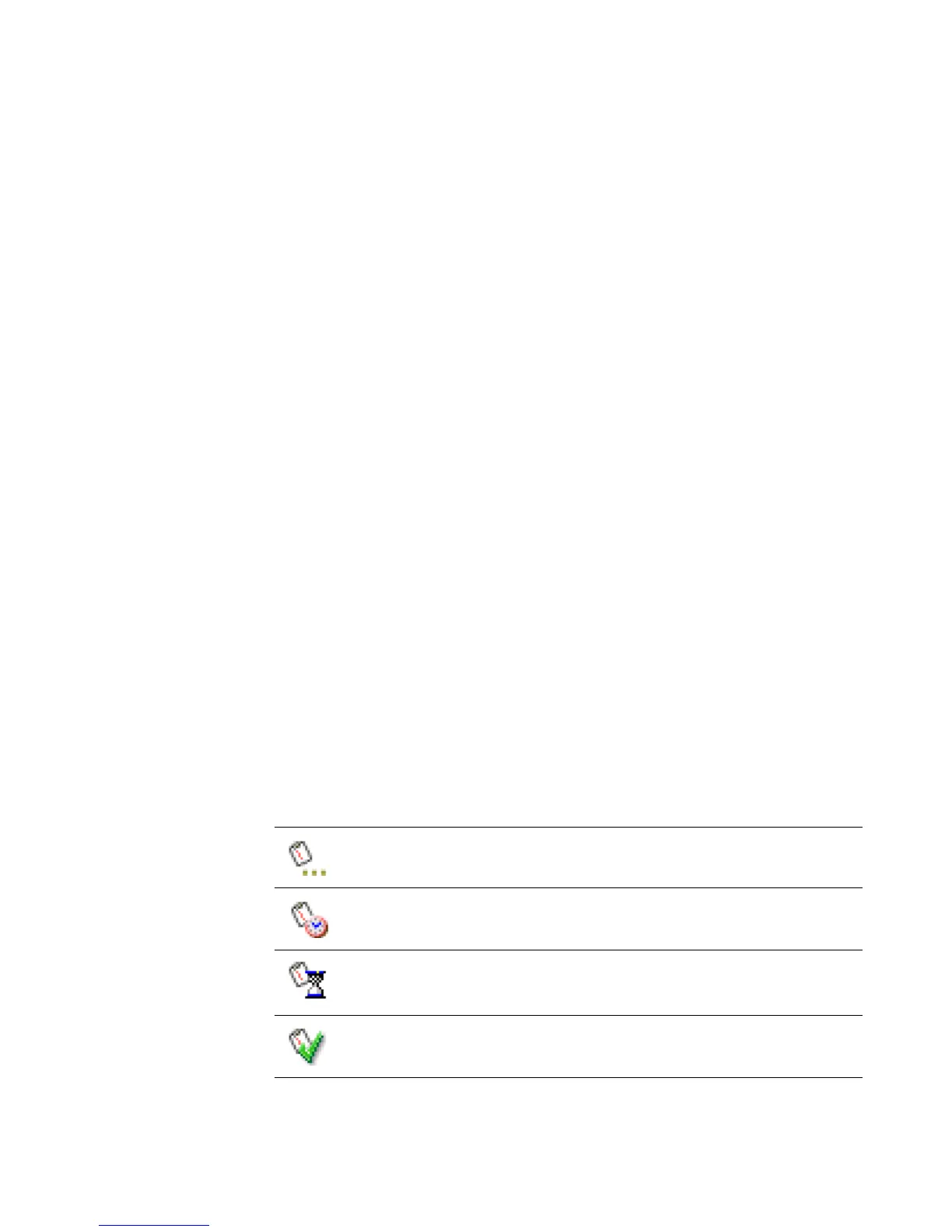
Computer icons are used to identify the types of computers in a console. Similarly, job
icons identify the status and success of a scheduled deployment job. After scheduling
jobs, you can monitor the progress as the job icons are updated at each step of
execution.
This job is assigned to a computer, but is not scheduled to run. Until
scheduled, this job icon remains unchanged.
This job is assigned to the computer and is scheduled to run either
immediately or in the future.
This job is currently in process.
This job has completed successfully.




 To Next Page