10
Connections
Caution:
Make sure this unit is connected directly to the TV.
Set the TV to the correct video input channel.
Do not connect the AUDIO OUT socket of your DVD
player to the Phono input socket of your Hifi equip-
ment.
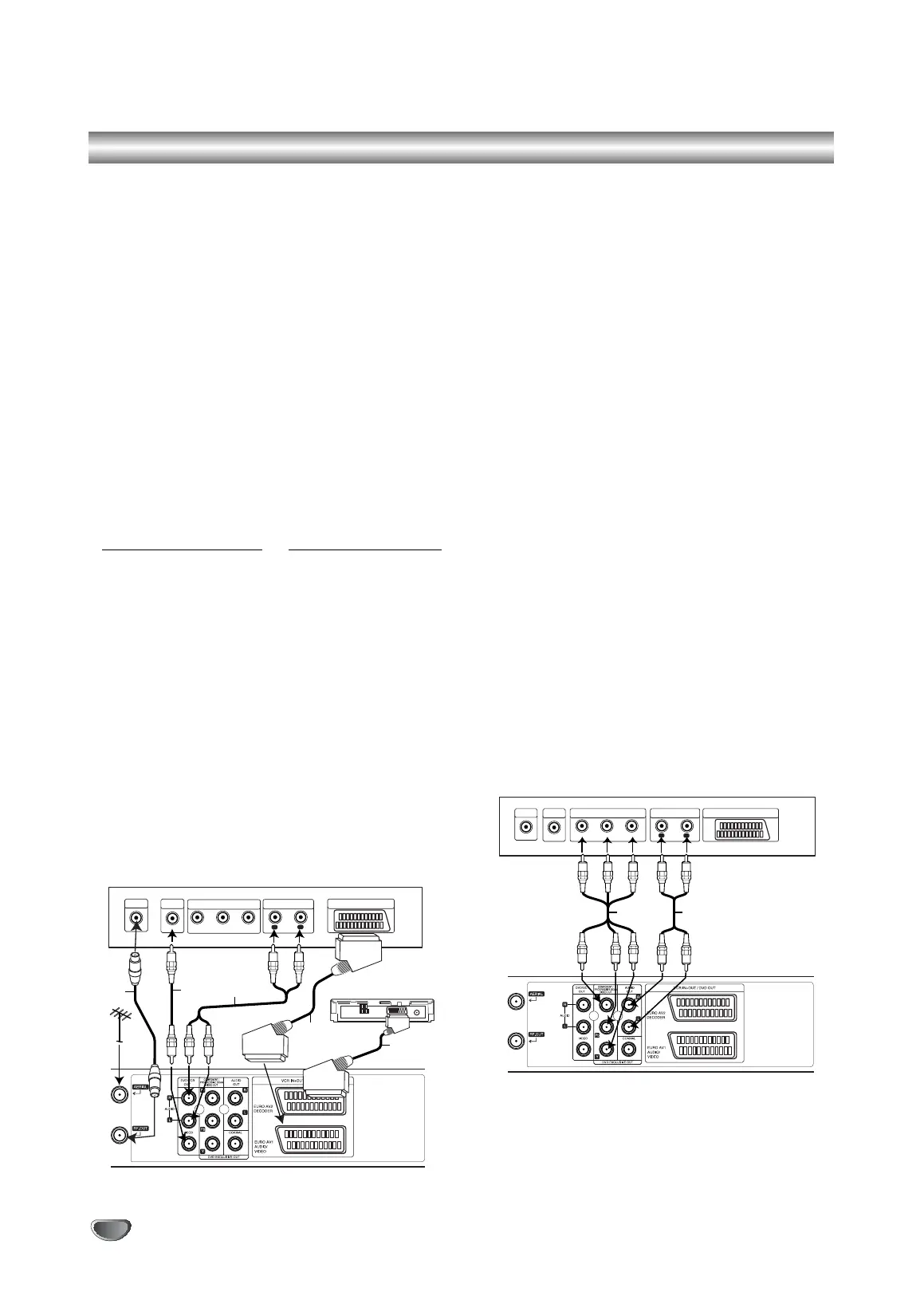
Connecting to a TV & Decoder (or
Satellite)
Make one of the following connections, depending on
the capabilities of your existing equipment.
Basic connection (AV)
1. Connect the EURO AV1 AUDIO/VIDEO on the rear
panel of this unit to the SCART input socket on the
TV using a SCART lead (S1).
2. Some TV broadcasters transmit encoded television
signals which you can only see with a purchased or
rented decoder. You can connect such a decoder
(descrambler) to this unit (S2).
or
1. Connect the VIDEO (DVD/VCR OUT) jacks on the
DVD Player to the corresponding in jacks on the TV
using the video cable (V).
2. Connect the Left and Right or AUDIO (DVD/VCR
OUT) jacks of the DVD+VCR to the audio left/right in
jacks on the TV using the audio cables (A1).
Note:
The encoded television signals (CANAL+ or PRE-
MIERE) are not decoded in the 1W Mode (see p. 27).
Basic connection (RF)
1. Connect the RF antenna cable from your indoor/
outdoor antenna to AERIAL jack on the rear panel of
this unit.
2. Connect the supplied RF antenna cable from the
RF.OUT jack on the rear panel of this unit to your
television’s Antenna Input (R).
DVD exclusive out connection
Component Video connection
1. Connect the COMPONENT/PROGRESSIVE SCAN
VIDEO OUT jacks on the DVD Player to the
corresponding in jacks on the TV using the Y Pb Pr
cable (C).
2. Use an audio cable to connect the left (L) and right
(R) Audio-Out sockets ("AUDIO OUT") of this unit to
the left (L) and right (R) Audio-In sockets of your TV
set (A2).
Progressive Scan connection
(C) If your TV set supports HDTV or is “HD-Ready”
you can use the Progressive Scan output of the DVD
player to achieve the highest possible picture resolu-
tion.
(A2) If your TV does not accept the Progressive
Scan format, the picture will appear scrambled if you
try Progressive Scan on the DVD Player.
1. Connect the COMPONENT/ PROGRESSIVE SCAN
VIDEO OUT jacks on the DVD Player to the corre-
sponding in jacks on the TV using the Y Pb Pr cable.
2. Use an audio cable to connect the left (L) and right
(R) Audio-Out sockets ("AUDIO OUT") of this unit to
the left (L) and right (R) Audio-In sockets of your TV
set.
Notes:
Set the Progressive to “On” on the setup menu for
progressive signal, see page 18.
Progressive scan does not work with the analog video
connections (yellow VIDEO OUT jack).
AUDIO INPUT
L
R
AERIAL
Rear of TV
Rear of this unit (Basic connection)
COMPONENT VIDEO INPUT/
PROGRESSIVE SCAN
Pr
Pb Y
VIDEO
INPUT
Decoder (or Satellite)
SCART INPUT
R
VA1
S2
S1
AUDIO INPUT
L
R
AERIAL
Rear of TV
Rear of this unit (DVD exclusive out connection)
COMPONENT VIDEO INPUT/
PROGRESSIVE SCAN
Pr
Pb Y
VIDEO
INPUT
SCART INPUT
C A2
V1503P1Z.NA6ITTA_S_38U 12/09/2007 12:07 PÆgina 10


 To Next Page