
 Need help?
Do you have a question about the Targus ACP45 and is the answer not in the manual?
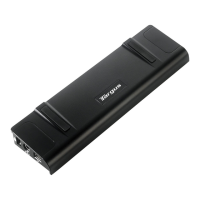
Improves laptop heat dissipation by placing its rear edge on the docking station's rubber pads for better airflow.
The raised platform of the docking station provides a more comfortable ergonomic position for the user's hands.
Specifies PC hardware requirements including processor, CD-ROM drive, USB 2.0 port, and AC power source.
Lists compatible operating systems: Windows 2000 (SP4), XP (SP3), and Vista (SP1).
Enables the operating system to recognize the docking station and its ports after driver installation.
Connects serial mouse, keyboard, or modem to the docking station's serial port.
Connects PS/2 mouse or keyboard to the docking station's PS/2 port.
Connects a parallel printer to the parallel port and guides through driver installation.
Connects a PDA to the serial port, verifying COM port settings for HotSync or ActiveSync.
Connects to a local area network using an Ethernet cable via the RJ-45 port.
Connects USB devices to the docking station's USB ports, noting Always On/High Power ports.
Connects headphones/speakers to audio out and microphone to audio in ports, requiring system configuration.
Enables S/PDIF output by configuring the USB 3D Sound Configuration applet in the system tray.
Allows USB ports to provide power even when the laptop is off or disconnected.
Details using USB ports that provide up to 1000 mA for power-hungry devices.
Discusses potential performance issues during high data transfers and recommends guidelines.
Provides steps to diagnose and resolve issues when a connected device is not functioning.
Explains how to check installed devices via the Device Manager window in System Properties.
 General
| Brand | Targus |
|---|---|
| Model | ACP45 |
| Category | Docking Station |
| Language | English |


 To Next Page