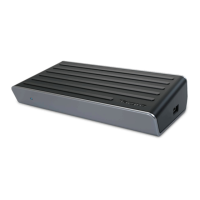
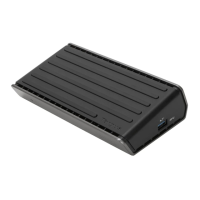
Targus Universal USB-C 4K Docking Station Targus Universal USB-C 4K Docking Station
5 6
folding line
2 staples here (saddle stitching)
folding line
2 staples here (saddle stitching)
Open size: 10”W x 7”H Folded Size: 5”W x 7”H Material: 80gsm woodfree paper Color: Grayscale
Diecut
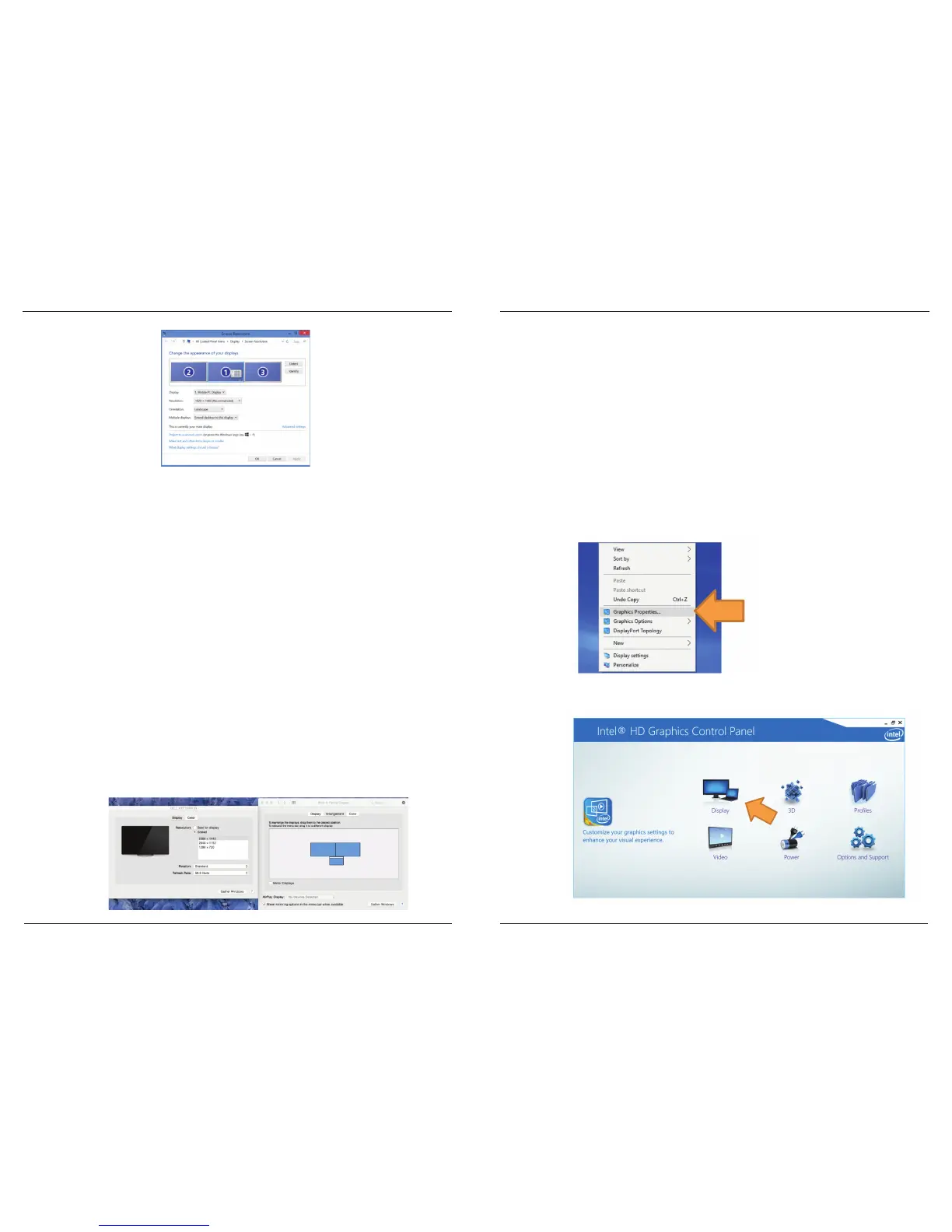
Screen Resolution window allows full configuration of all displays monitors,
including:
• Display orientation and location modification
• Layout of displays
• Resolution up to
Single display mode:
- Dual Mode DisplayPort (DP++) / HDMI: 3840 x 2160 p30 or
2560 x 1600 p60 Max
- DVI-D: 2048x 1152
Dual display mode:
- 1920 x 1080 on any all display configurartion
Remarks: Dual monitor display mode requires graphic adapter supporting
Multi-Stream Transport (MST) Mode
OS-X Setup
Macbook users can use the System Preferences for Displays to adjust the
external monitors. OS-X allows configuration of all displays, including:
• Resolution up to
Single display mode:
- Dual Mode DisplayPort (DP++) / HDMI: 3840 x 2160 p30 or
2560 x 1600 p60 Max
- DVI-D: 2048x 1152
Dual display mode is not supported in Mac OS
• Display orientation and location modification
• Layout of displays
NOTE: For Dual Display Settings on DOCK410
For dual display configuration we recommend using displays with a maximum
native resolution of 1920 x 1200 (WUXGA). Higher native resolutions may not
configure correctly due to video adaptor designs. Dual display set up requires a
video adaptor that supports DisplayPort 1.2 Multi-Stream Transport (MST) mode.
Please consult your laptop documentation to determine whether your device
supports MST mode.
NOTE: For laptop / PC tablet with built-in “Intel HD Graphic Card”
If you cannot enable the dual display setup or there is a display related issue,
try using the “Intel HD Graphic Control Panel” instead of that standard Windows
built-in Display Settings screen. To access the Intel HD Graphic Control Panel:
Step 1
Right click anywhere on Desktop area and select ‘Graphic Properties’
Step 2
Left click “Display”




 To Next Page