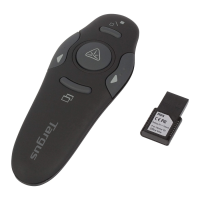
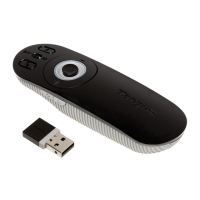
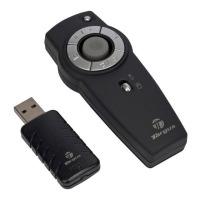
Targus Wireless Multimedia Presenter with Trackball
Establishing a Communications Link
Connection button
The Found New Hardware Wizard appears.
If it does not, the operating system has installed the default
driver automatically. No othersteps are necessary.
5 Click Next.The wizard searches for the appropriate device
driver.
6 Click Next, then Finish to complete the driver installation.
Windows
®
2000
/XP & Windows Vista™
After your computer detects the USB receiver and the driver
software is installed, you mustestablish a communications link
between the presenter and its receiver BEFORE you canuse the
presenter.
Make sure that your computer is turned on and has detected the
USB receiver before youestablish a communications link.
The light emitter diode (LED) illuminates to indicate your computer
has detected the receiver.
1 Press and release the Connection button on the receiver.
The receiver’s LED turns off.
2 Press and release the Connection button, located on the bottom
of the presenter.The receiver’s LED resumes glowing when the set
up has been completed.
You are now ready to use the presenter.



 To Next Page
 Loading...