TASCAM US-322/366
25
6 – Application Guide
In this chapter, we explain how to set some audio applications
for use with this unit.
DAW software
Procedures for making settings differ among DAW software
applications. When using a DAW, refer to its operation manual.
Windows XP and Windows Media
Player
1. Close all applications and then open the “Control Panel” from
the “Start” menu.
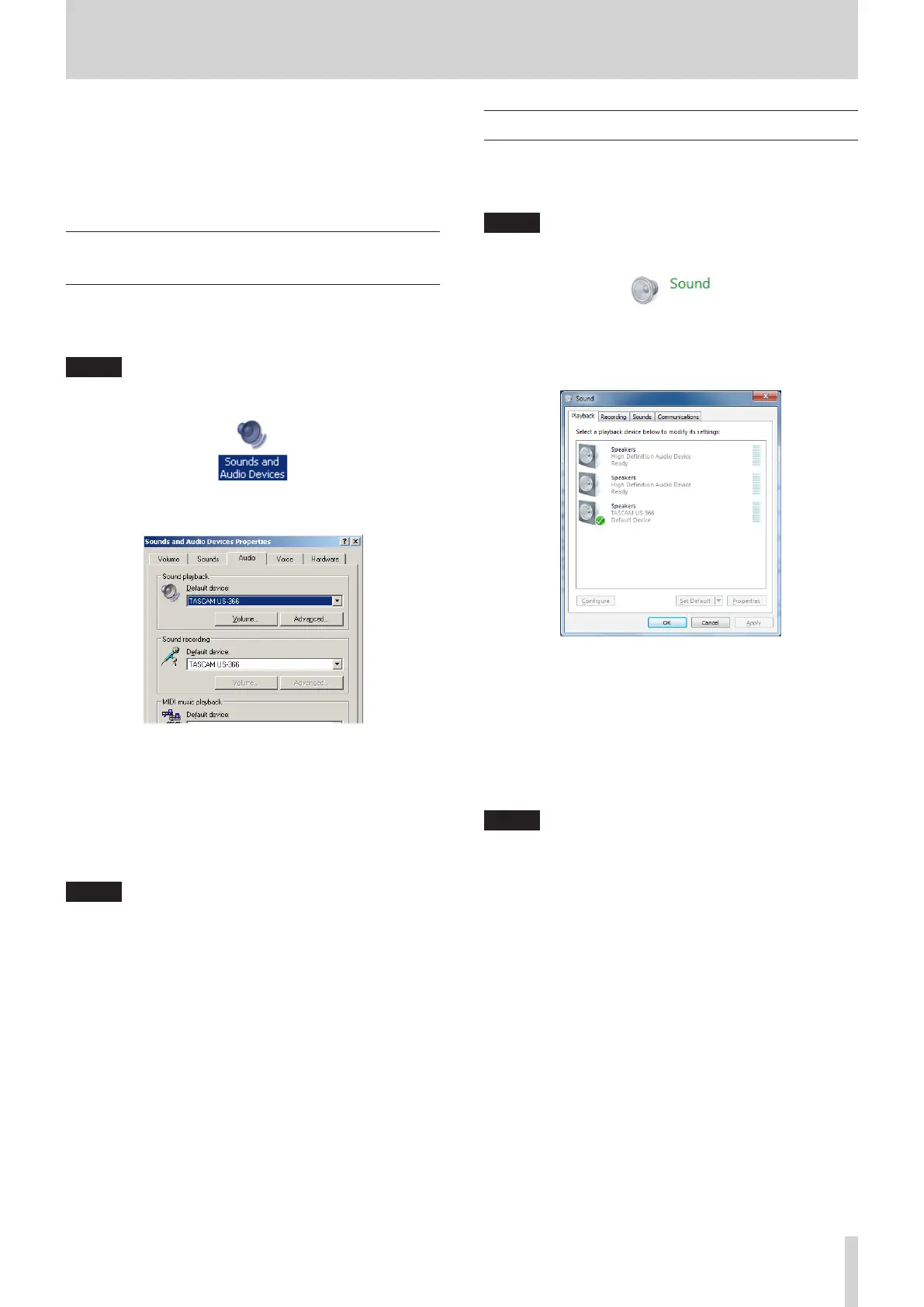
2. Open “Sounds and Audio Devices”.
NOTE
If you do not see the above item, click “Sounds, Speech, and
Audio Devices” and it should appear.
3. Click the “Audio” tab, and set the “Default device:” for “Sound
playback” to “TASCAM US-322” (or “TASCAM US-366").
If you plan to use this unit for live broadcast over the Internet
or otherwise as a recording device, make the following
additional setting.
In the window above, set the “Default device:” for “Sound
recording” to “TASCAM US-322” (or “TASCAM US-366").
4. Click “OK”.
5. Start Windows Media Player, select an audio file and begin
playback.
NOTE
•
If you change this setting while Windows Media Player is
running, the software will not recognize that the device has
been changed. In this case, restart Windows Media Player.
•
If you still cannot hear sound after making the setting and
completing the procedures above, restart the computer.
•
After making this setting, sound will be output through this
unit, but no sound will be output by the computer’s speakers
or headphone jacks.
•
If you want to output the signal from Windows Media Player
through the DIGITAL OUT without passing through the
unit's mixer, set “DIGITAL OUTPUTS” to “computer 1-2” on
the “INTERFACE” page of the Mixer Panel. (US-366 only)
Windows 7 and Windows Media Player
1. Close all applications and then open the “Control Panel” from
the “Start” menu.
2. Open “Sound”.
NOTE
If the above item does not appear, click “Hardware and
Sound” and it should appear.
3. Click the Playback tab, click “TASCAM US-322” (or “TASCAM
US-366") and click the “Set Default” button. This moves
the green check mark to “TASCAM US-322” (or “TASCAM
US-366").
If you plan to use this unit for live broadcast over the Internet
or otherwise as a recording device, make the following
additional setting.
Click the Recording tab, and click “Line In TASCAM US-322” (or
“Line In TASCAM US-366") and set it as the “Default Device”.
When you do this, the green check mark will move to “Line In
TASCAM US-322” (or “Line In TASCAM US-366").
4. Click “OK”.
5. Start Windows Media Player, and play an audio file.
NOTE
•
After making this setting, sound will be output through this
unit, but no sound will be output by the computer’s speakers
or headphone jacks.
•
If you change this setting while Windows Media Player is
running, the software will not recognize that the device has
been changed. In this case, restart Windows Media Player.
•
If you still cannot hear sound after making the settings and
completing the procedures above, disconnect the USB cable
and restart the computer.
•
If you want to output the signal from Windows Media Player
through the DIGITAL OUT without passing through the
unit's mixer, set “DIGITAL OUTPUTS” to “computer 1-2” on
the “INTERFACE” page of the Mixer Panel. (US-366 only)


 To Next Page