3. Unit Operation
6 7
3.1 Installation Guide
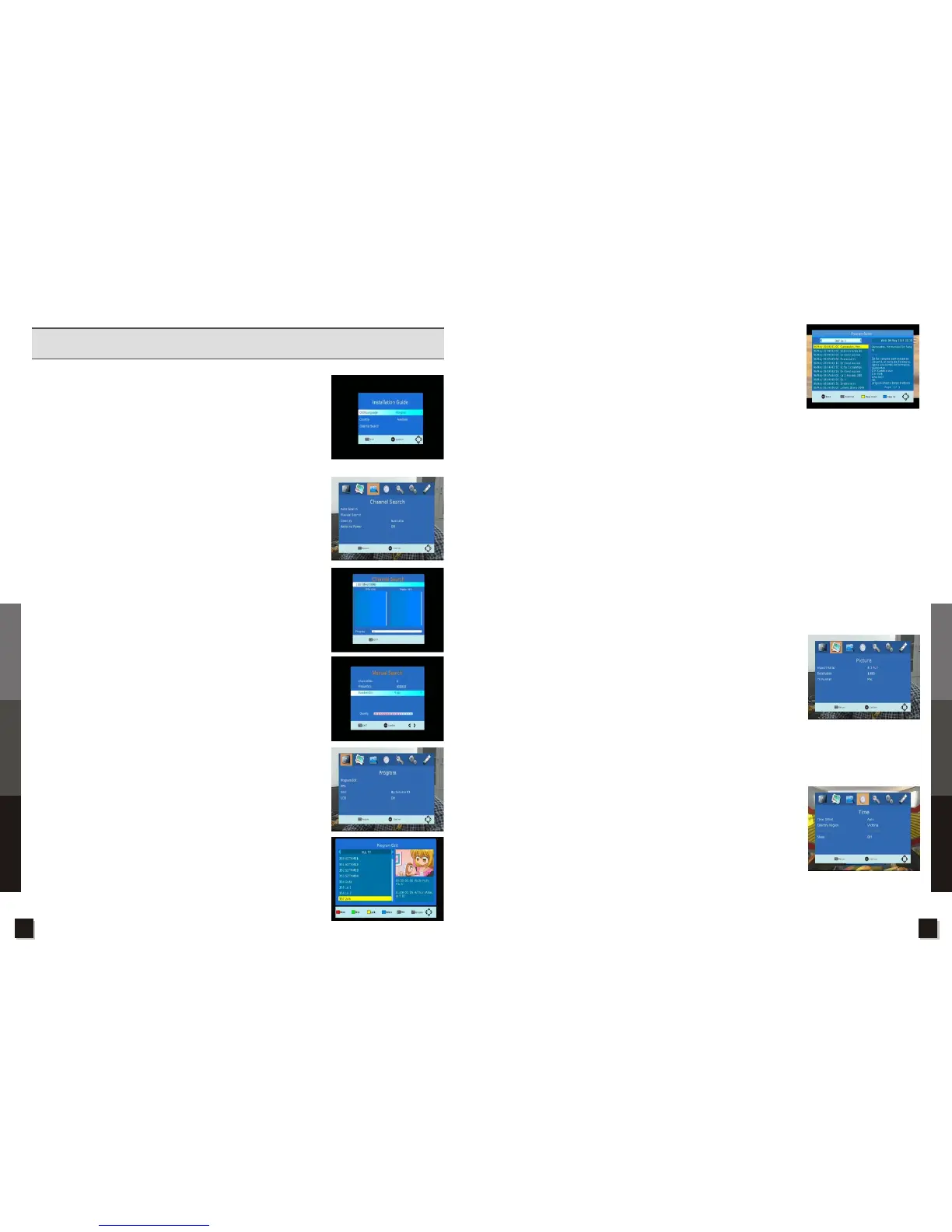
During initial setup, the installation guide menu will appear on-screen.
! Press Up and Down to select and setup OSD Language, Country;
! Press Left or Right to select the desired option for OSD Language
and country;
! Press OK to Auto Search channels(recommended) or press MENU to
enter main menu.
3.2 Channel Search
Press MENU, then press Right/Left to chose 'Channel Search', press OK
to enter this menu to do channel search, press EXIT to quit;
! Press Up and Down to chose 'Country', then press Left and Right to
change country option if necessary;
! Press Up and Down to chose 'Antenna Power', then press Left and
Right to turn On or Off; if there is antenna with amplifier, please set
On, otherwise set Off;
! Auto Search
Press Up and Down to chose 'Auto Search', then press OK to enter
Auto Search function to scan for all local channels.
! Manual Search
Press Up and Down to chose Manual Search, then press OK to enter
Manual Search function.
a. In 'Channel No.', press Left or Right to chose a channel, or
b. In Frequency, enter the frequency value directly and in Bandwidth,
press Left or Right to set a desired bandwidth to scan for a channel
When a channel is selected, if there is enough signal, it will be
indicated in the Quality bar. Then press OK to confirm search.
3.3 Program
Press MENU, then press Right/Left to chose 'Program', press OK to
enter this menu to edit channels, press EXIT to quit;
In this menu, press Up and Down to chose Program Edit, EPG, Sort,
LCN items as desired.
3.3.1 Program Edit
In this menu, channels can be edited as follows (mark one or more
channels with Red key, and move to new position, press OK to confirm):
! Move(Red key): change channel positions;
! Skip(Green key): skip one or more channels;
! Lock(Yellow key): lock one or more channels to password access
only;
! Delete(Blue key): Delete one or more channels;
! Fav(Fav key): Mark one or more channels as favourite channels;
! Rename(Recall key): rename a channel;
! 3.3.2 EPG
EPG allows channel and programme list navigation, as well as other
options including detailed programme information, starting and end
times for all available programmes up to 7 days in advance and allows
scheduling of programme recordings.
! EPG can be entered by pressing the EPG key;
! Press the Left and Right key to switch between channels;
! Press Up and Down key to select an event in the left frame;
! Press Yellow or Blue key to Page up and down for detailed
programme information;
! Press OK key to book selected event for viewing or recording;
! Press Info key for Book List to edit scheduled events.
3.3.3 Sort
Use this option to sort the channel list according to your desire.
Press Left and Right key to chose to sort by Service ID, Service Name, ONID, LCN.
3.3.4 LCN
Press Left and Right key to turn On or Off for LCN Sorting. If LCN is turned on, programmes will be
listed according to their LCN.
3.4 Picture
Use this menu to set up Aspect Ratio, Resolution, TV Format options. Press Up and Down to select an
item, press OK to enter an item's option selection.
3.4.1 Aspect Ratio
There are several options to choose from:
Auto, 4:3 Full, 4:3 Letter Box, 4:3 Pan&Scan, 16:9 Wide Screen, 16:9
Pan&Scan, 16:9 PillarBox;
Press Left and Right to chose and press OK to confirm.
3.4.2 Resolution
Press Left and Right to chose and press OK to choose the following
options: 480i(NTSC), 480p(NTSC), 576i, 576p, 720p, 1080i, 1080P
3.4.3 TV Format
Press Left and Right to chose and press OK to confirm following options:
PAL, NTSC.
3.5 Time
Use this menu to set up time zone, time offset, sleep time etc.
Press Up and Down to select an item, press OK to enter an item's option
selection.
3.5.1 Time Offset
! Time offset can be set to Auto or Manual. Press Left and Right to
chose and press OK to confirm your choice.
! When Auto is chosen, Country Region needs to be confirmed, press
Left and Right to chose and press OK to confirm the option.
! When Manual is chosen, Time Zone needs to be confirmed, press Left and Right to chose and
press OK to confirm the option.
Specifications
Troubleshooting
Unit Operation
Specifications
Troubleshooting
Unit Operation


 To Next Page