8 9
3.5.2 Sleep
! Sleep can be turned On or Off; When it is On, the unit will turn itself off automatically if no buttons
have been pressed on the panel or remote for a certain amount of time.
! Press Left and Right to chose and press OK to confirm the following options: Off, 1~12 Hours.
3.6 Option
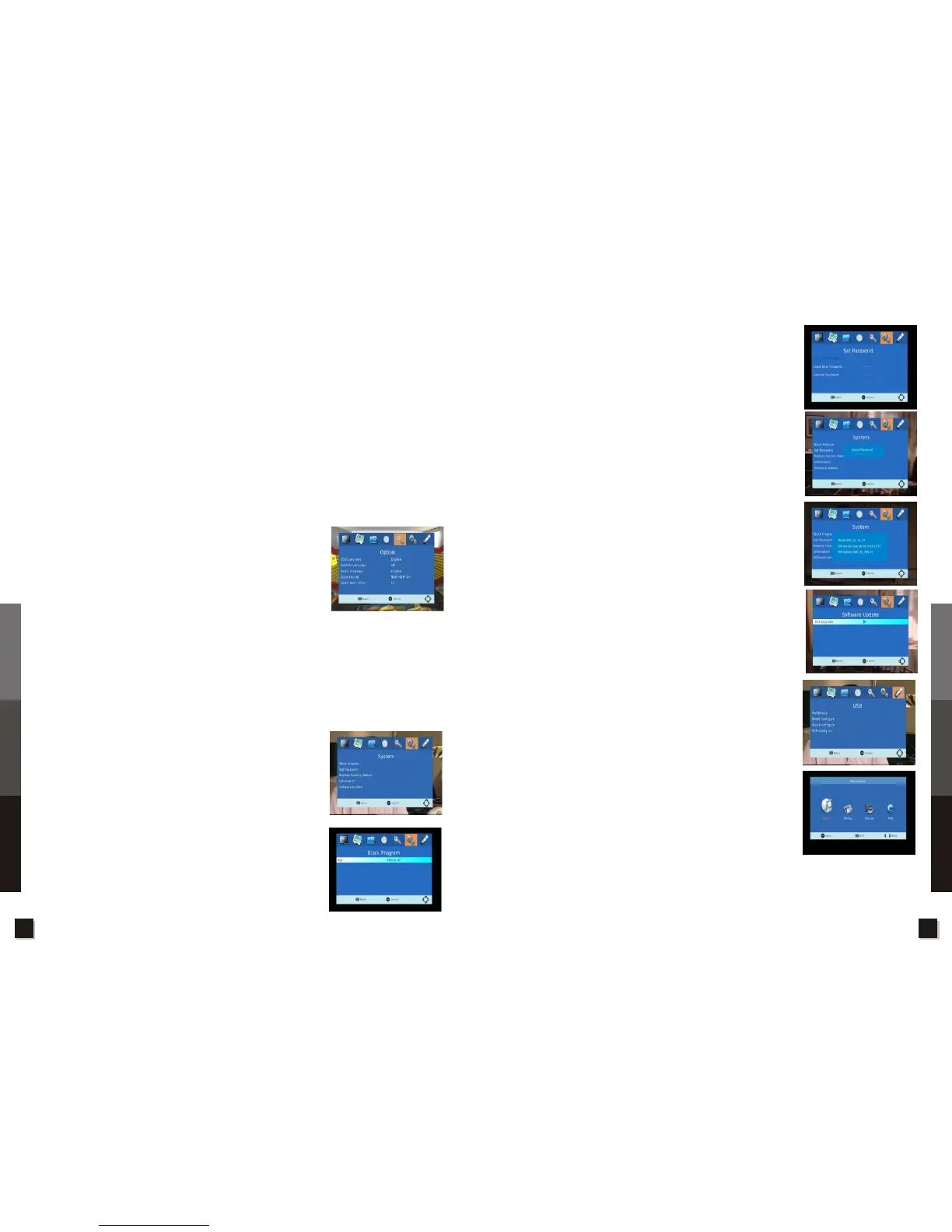
Use this menu to set up OSD Language, Subtitle Language, Audio Language, Digital Audio and Audio
Description etc. Press Up and Down to select an item, press OK to enter its option selection.
3.6.1 OSD Language
Press Left and Right to chose and press OK to confirm following options:
ENGLISH, CZECH, DANISH, FRENCH, GERMAN, ITALIAN, PORTUGUESE, SPANISH,
SWEDISH,RUSSIAN etc.
3.6.2 Subtitle Language
This item can be set to On or Off to turn on or off subtitle display on screen. Press Left and Right to
chose and press OK to confirm.
3.6.3 Audio Language
Press Left and Right to chose and press OK to confirm audio language
type available in the programme.
3.6.4 Digital Audio
Press Left and Right to chose and press OK to confirm digital audio
format:
Off, PCM, RAM HDMI On, RAM HDMI Off.
3.6.5 Audio Description
3.7 System
Use this menu to set up Program Block, Restore Factory Default,
Information, Software Update functions. Press Up and down to select a
item, press OK to enter a item's setup or operation.
3.7.1 Block Program
Blocked channels trigger a password prompt. The channel is viewable
only after the correct password is keyed in.
Default password is 000000.
Press Left and Right to chose and press OK to confirm Programme
parental control level:
Block off, P and above, C and above, G and above, PG and above, M
and above, MA15 and above,AV15 and above, R and above, Block All
etc.
Press Left/Right keys to adjust the volume level.
Note:
Audio description refers to an additional narration track for the blind and visually impaired consumers
of visual media. It consists of a narrator talking through the presentation, describing what is happening
on the screen during the natural pauses in the audio, and sometimes during dialogue if deemed
necessary. This function only can be activated when a programme contains an additional narration
track.
3.7.2 Set Password
To set a new password, the old password must be input first. After the
password is verified, key in the new password twice to confirm.
If the password is forgotten, you can use the master password 888888
to reset your password.
3.7.3 Restore Factory Default
This operation will reset the unit to factory default settings and remove
all channels and user preferences. A password is needed to activate
this operation.
3.7.4 Information
This item shows information about the unit's model, software version,
hardware version.
3.7.5 Software Update
To update software via USB, download and copy the updated software
to a USB memory stick's root directory. Then plug it in and enter this
menu. Press up and down to select the updated sofware
usb_upgrade_all_flash.bin, and press OK to start the updating process.
During updating, do not power off the unit.
After updating software, it's recommended to restore factory default and
reboot STB.
3.8 USB
In this menu, user can activate or set up multimedia, photo configure,
movie configure, PVR configure.
Press Up and Down to select an item, press OK to enter its operation
or setup.
3.8.1 Multimedia
There are four functions to choose before playback:
Music, Photo, Movie, PVR (playback recorded programmes).
Press Left and Right to chose and press OK to activate a function.
!Music
Press Up and Down to chose a music file. Press OK to play, press
Recall to return.
! Photo
Press Up and Down to chose a Photo file to preview. Press OK to play,
press Recall to return.
Press the Play key to view all pictures in a slide show, press Recall to return to thumbnail view.
! Movie
Press Up and Down to chose a movie file, press the Red key to preview, press OK to full screen, press
Recall to return.
The unit will only support a USB
device with a FAT32 file system. It will not support NTFS file
system.
Specifications
Troubleshooting
Unit Operation
Specifications
Troubleshooting
Unit Operation


 To Next Page