Recording Operation
Digital Video Recording (DVR) File System
Attach a compatible USB device to the back panel of the unit.
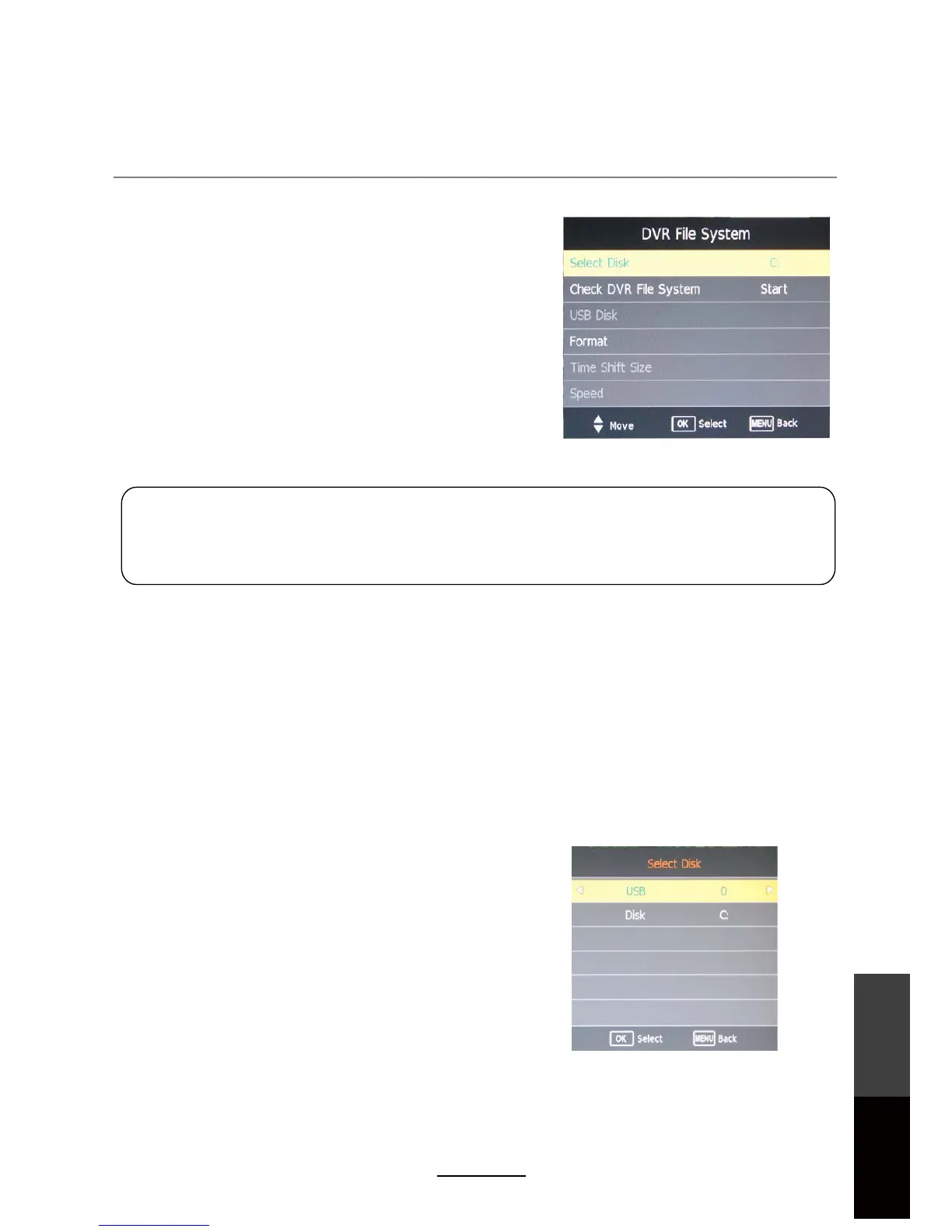
From the CHANNEL menu, enter the DVR File System to
access recording options.
NOTE:
NOT all USB devices, such as phones, MP3 players,
cameras, and the like, are compatible with recording files.
The USB drive has to be formatted before any recording
can be done.
WARNING:
Ensure that no valuable information is currently stored in the hard disk, as the formatting
process means that ALL DATA will be ERASED from the memory drive connected to the
USB/HDD port.
Follow the instructions below to enter the DVR menu and format the USB/HDD:
The following sections explain each submenu that can be accessed through the DVR file system.
1. Press the MENU button on the remote
2. Under the CHANNEL tab, select DVR File System and press OK
3. Select disk drive to format
4. Scroll down to Format and press OK
5. Select FAT32 and press OK
Select Disk
If multiple USB flash drives are connected to the unit, select a
drive/ location to record the files to.
NOTE:
Unit will always use the first partition (C:) as a default record-
ing partition. If your hard disk drive contains more than one
partition, please make sure to use first partition for recording
purposes.
27
Recording
Operation
Maintenance
and Service


 To Next Page