Press the RED button to delete a selected file.
GREEN button to add or remove all files to/from playlist.
Press
Press the
OK to add or remove a selected file to the playlist.
Basic Operation
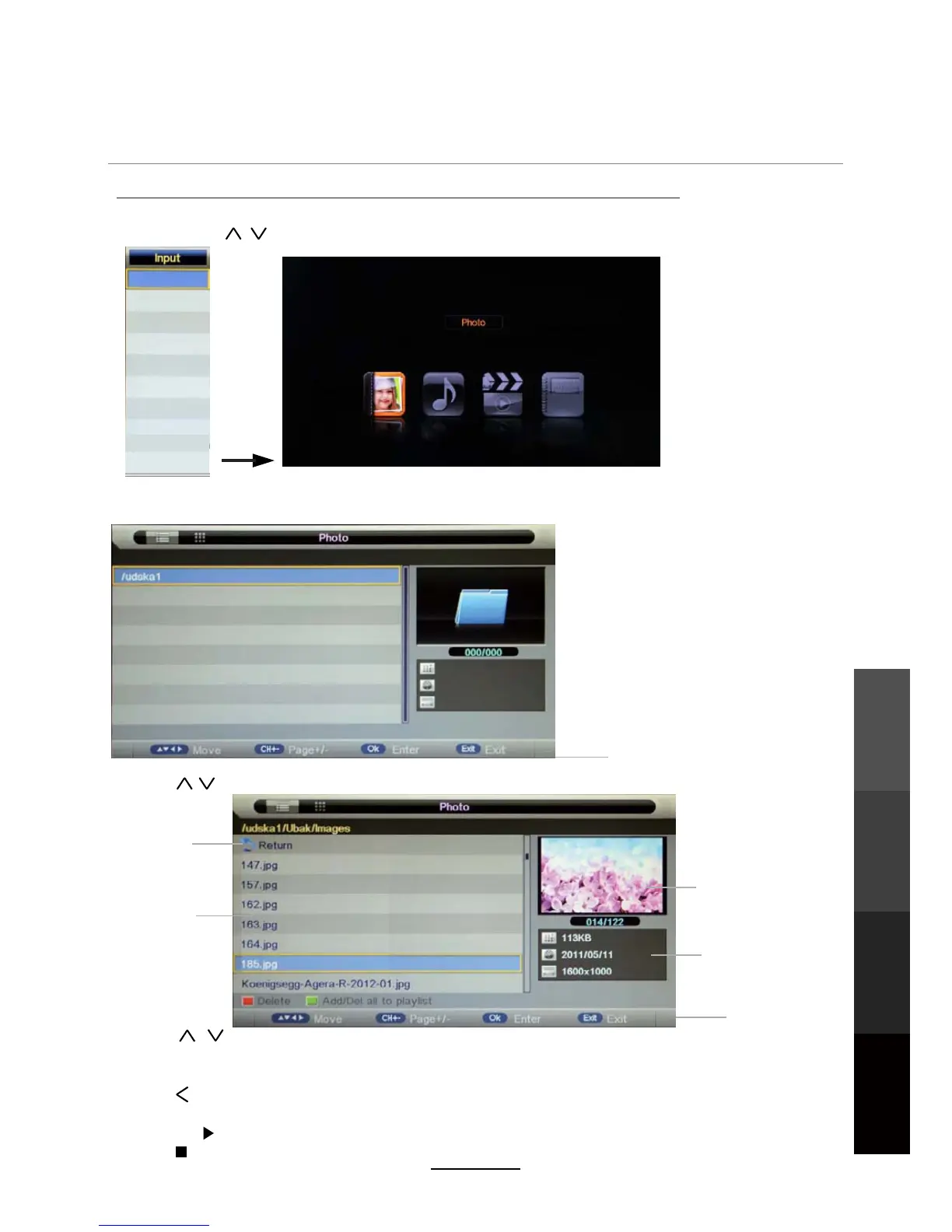
2). Insert a USB memory device such as a thumb drive. Depending on what you wish to play, choose the
corresponding Media Mode (Photo, Music, Movie, eBook). The directory of your USB device will be shown.
3). Press / buttons to select a desired device/folder. Press the OK button to enter the file list below.
1). Press the INPUT button on the remote control to display the input source menu, select Media
source with the / buttons, and press the OK button to enter the Multimedia menu as shown below.
Press the PLAY button to start playback of all selected files. (See more on playback in the next pages.)
Preview
Operation hints
Return to
previous
folder list
File/folder
list
File information
Hints
Press STOP to stop and exit full screen playback.
Multimedia Operation
Press / buttons to move through the list. Press OK to select the file or enter the folder.
Press to return to the previous folder. Press EXIT to choose the folder view (list or thumbnail view).
Press EXIT again to return to the Multimedia menu.
21
Multimedia
Operation
Recording
Operation
Maintenance
and Service
DVD Operation
DTV
AV
YPBPR
HDMI1
HDMI2
HDMI3
ATV
Media
PC
DVD


 To Next Page