298
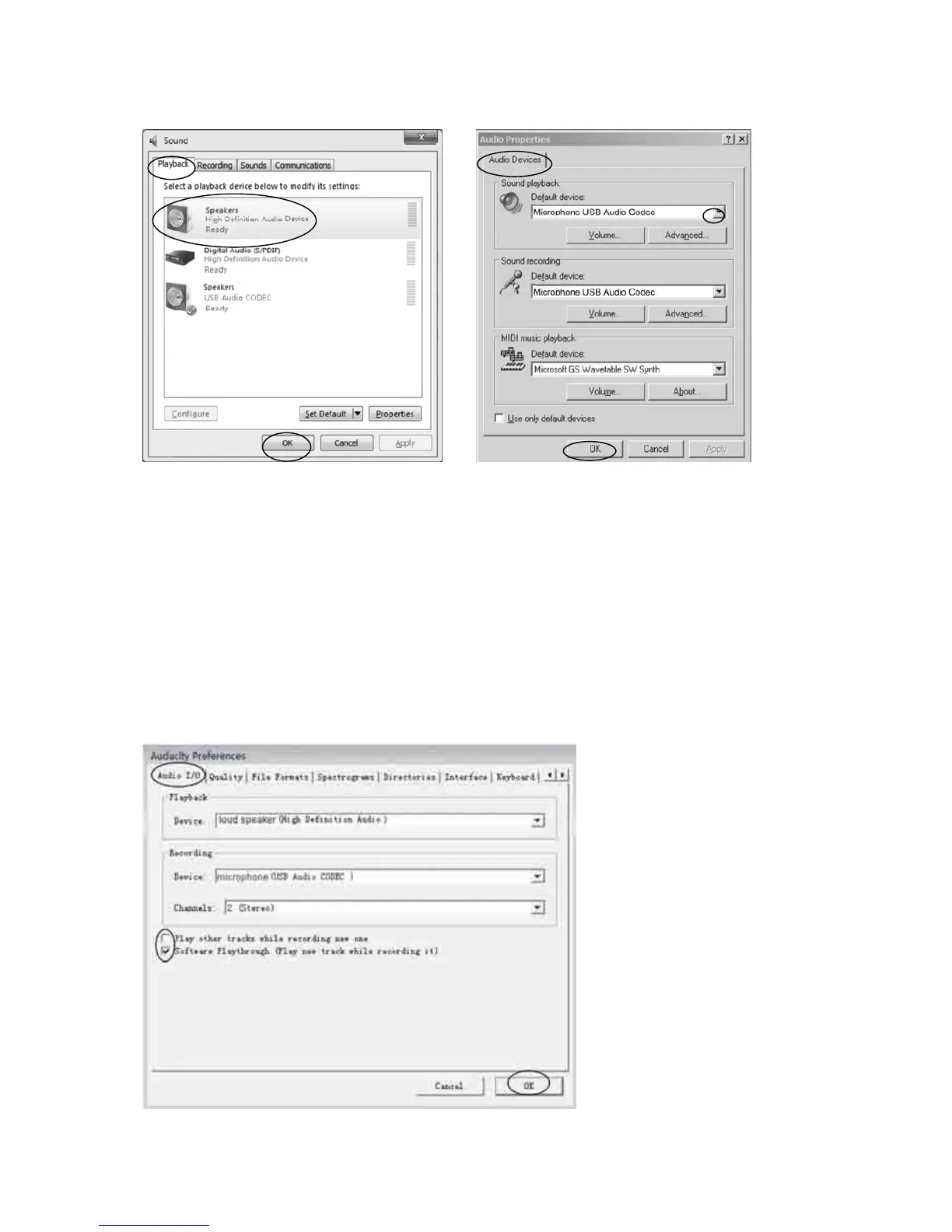
Vista and Windows 7 Other versions
Other versions (e.g.:
Windows XP): -
Click "Start", then
find and access the Control Panel. Select “Sound and audio devices” and
choose the "Audio" tab. In Sound playback, change the default device using the drop-down
menu. Select your desired playback device (e.g. speakers) and click "OK". The sound
should now be output correctly.
NOTE: If you select solution 2, you will need to change the setting manually every time
you connect the unit to the PC.
2. If you want to listen to music while recording to the computer, click Edit in the Audacity
window and select “Preferences”. Adjust your settings in the !/O tab to match the figure
below. Deselect the check box if you wish to disable the function.


 To Next Page