15
3.5 Channel Management
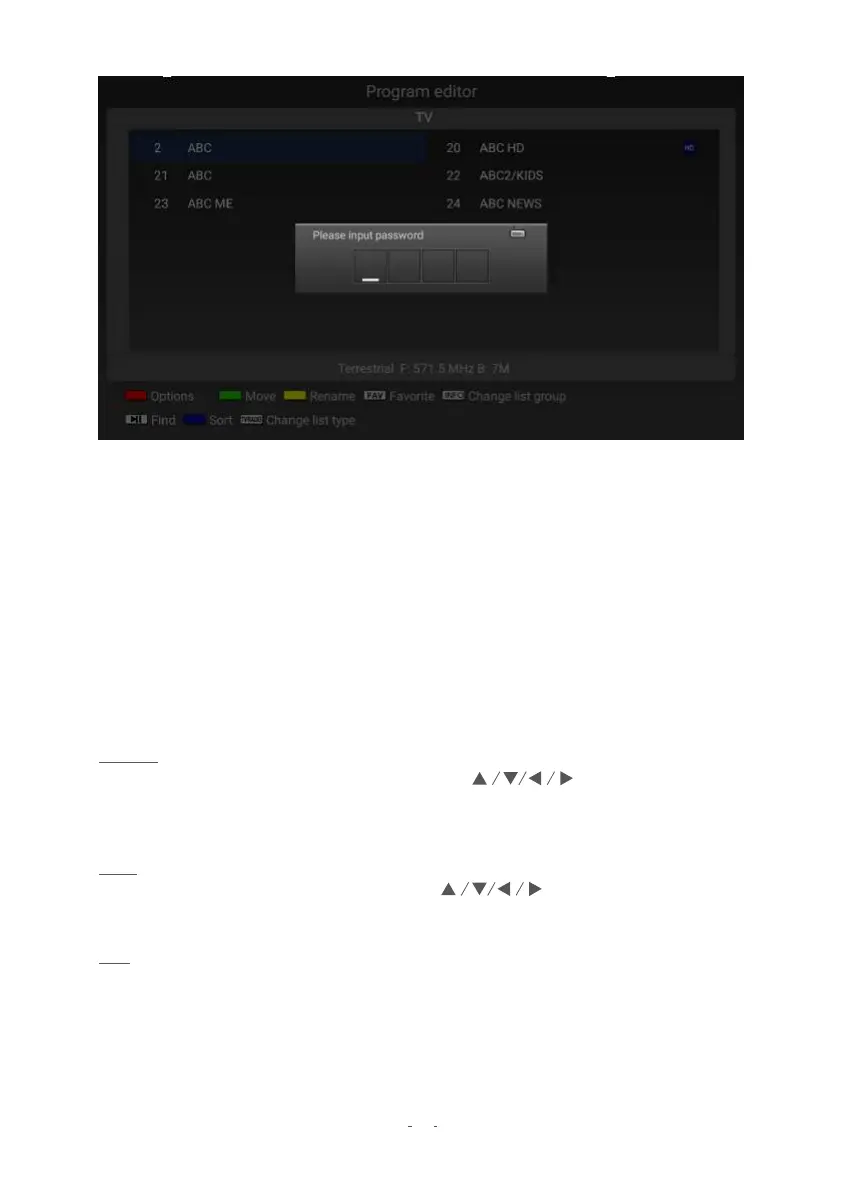
The Program Edit menu lets you make personal changes to the program listings. To access
this menu:
1. Press the MENU/HOME button.
2. Press ◀ / ▶
◀ / ▶
◀ / ▶
to find the TV Menu.
3. Use the buttons to choose Program Edit and press OK. You will be prompted for
a password, key it in with the number buttons. (Default password: 0000)
4. Use the ▲ / ▼ / buttons to highlight a
des
ired channel. To select multiple
channels, press OK on highlighted channels one by one so that a check mark
appears beside them.
5. Customise your channels as desired – referring to on-screen button hints and the
detailed descriptions below.
6. To finish, press the EXIT or the HOME button to exit the menu entirely.
Rename: You can customise your channel names with this command. Select the cha
nnel to
be renamed and press the YELLOW button. Use the buttons (or the cursor in
Mouse Mode) to key in the new channel name. Press the YELLOW button again to confirm
the change.
Move: You can customise your channel list with this command. Select the channel to be
moved and press the GREEN button. Use the buttons to choose the new
channel position. Press the GREEN button again to confirm the change.
Skip: Select a channel and press the RED button for a list of options. Highlight “Skip” and
press OK to mark the channel for skipping. While the channel has a skip symbol (a small
"skip" sign), it will be skipped when you browse through the channels with the CH+/- buttons.
You will still be able to go to this channel by keying in the channel number directly, or by
browsing the channel list (press the OK/LIST button when watching TV for the channel list),
or from the EPG. To remove the Skip setting, perform the same steps but choose “Cancel
Skip”.


 To Next Page