8.1 Accessing the Setup Menu
To access the Setup menu, press and hold until SETUP is
Displayed, then release.
8.2 To access a submenu :
⑴ Repeatedly press until
the desired submenu is displayed.
⑵ Press to select the
displayed submenu.
NOTE: You must use END to store any changes you make to the Setup
menu.
The following sections
describe each item on the Setup
menu in detail.
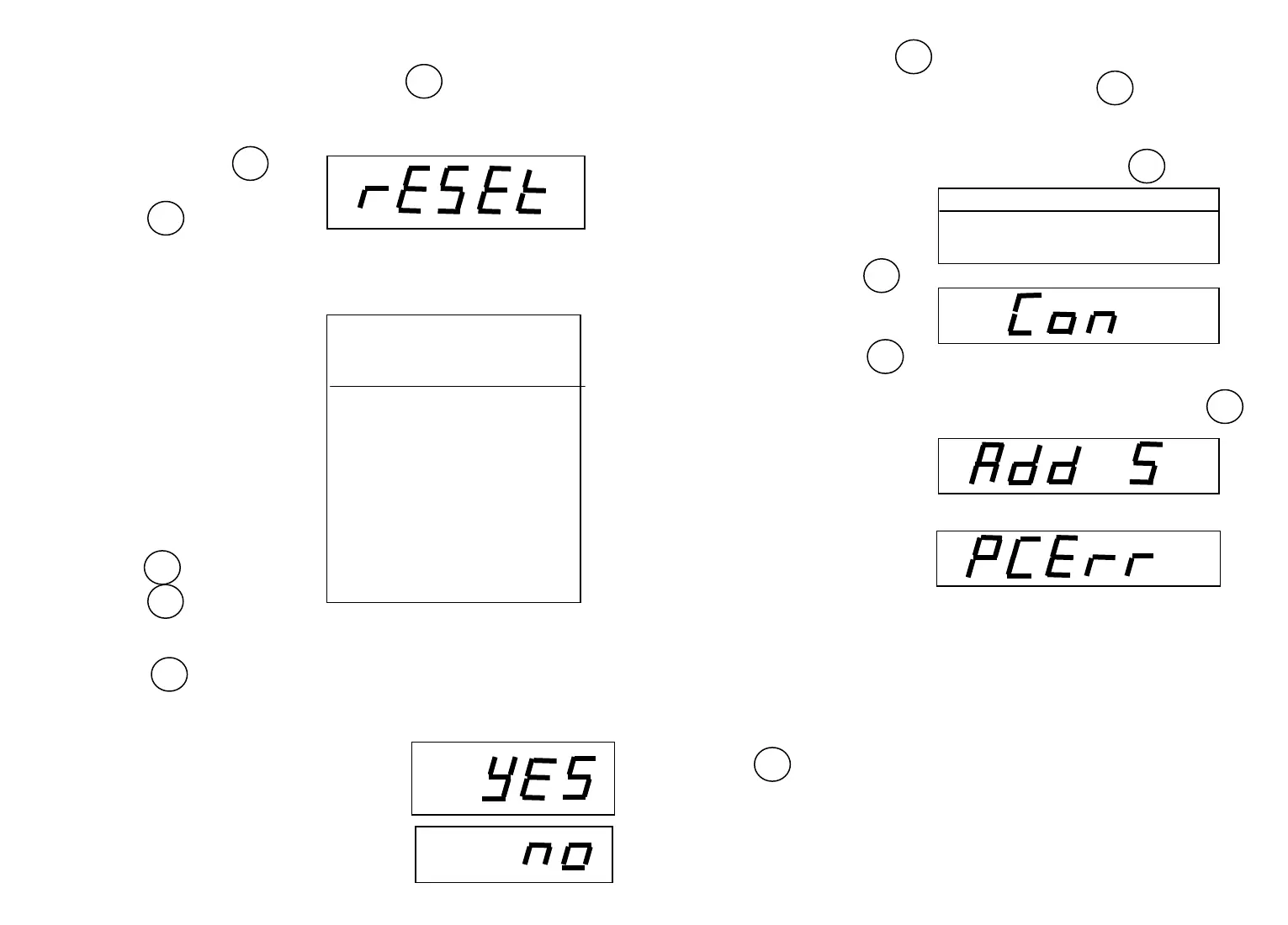
8.3 Reset to Factory Settings
This submenu enables you to
reset all Setup menu selections to
the original factory setting outlined
in the adjacent table.
To reset to factory settings:
⑴ Access the Reset submenu.
⑵ Press to enter RESET.
⑶ Press repeatedly to
change the setting from YES to NO.
Selecting YES resets the Setup menu to the original factory setting.
⑷ Press to accept the displayed setting.
8.4 Unit Selection
The Unit Selection submenu permits you to
specify which weighing units and operating
modes will be enabled for use during operation.
The adjacent table lists the units and modes
available on Portable Advanced balances.
8
⑴ Repeatedly press until
pc CON is displayed.
⑵ Place a container on the platform, then press . the balance
displays
pcADD 5 which is the preset reference quantity. “5” shows the
quantity of the reference sample.
⑶ To change the reference quantity, repeatedly press until the
desired quantity displayed.
NOTE: If you need to exit or
restart parts counting at any
time, press and hold
until
pc CON is displayed,
then release it. Return to step
2 to restart, or press
for other weighing functions.
⑷ Add the displayed number of parts to the container, then press
The balance will display the
current number of parts.
NOTE: If PCErr is displayed,
the sample is too small to provide
accurate results within the
selected parts counting error
level (PCErr of the Setup
menu).
⑸ Add parts to the container as desired and read the quantity on the
display. At this time, only “PC” counting signal is displayed.
NOTE: The reference quantity will remain in memory until it is changed
or balance is turned off.
⑹ To switch between viewing the quantity and weight of the parts,
press .
7 USING MENUS TO CONFIGURE THE BALANCE
The following illustration identifies the items in each menu and
The factory default settings are shown in bold type.
5
Parts Counting Factory Settings
Parts Counting Mode ………….. Disabled
PC Err ………………………….. 0FF
MODE
TARE
TARE
OFF
MODE
TARE
TARE
OFF
SETUP MENU
FACTORY SETTING
Unit Selection g
Stability 1d
Auto Zero .5d
PC Error Level OFF
Auto Off OFF



 To Next Page