10
OPTION (1):
CUSTOMERS WITHOUT A T-GATEWAY™
2. CONNECT BASE STATION
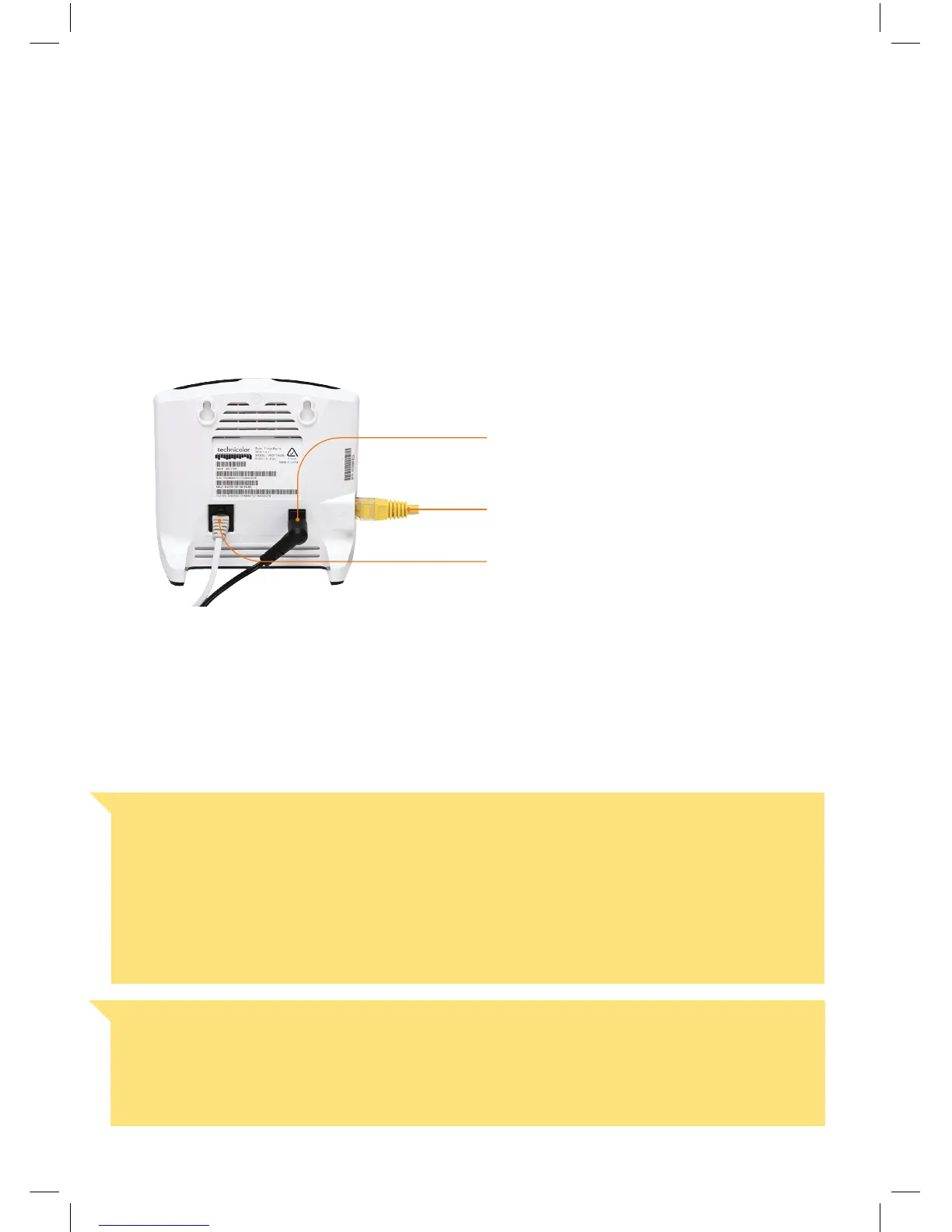
• Connect the base station to the mains power using one of the smaller power adaptors.
• Connect the base station to your Home Network Gateway or Wi-Fi modem using the
provided ethernet cable.
• Connect the phone cable to your phone socket – if you have an ADSL service, refer to the
additional flyer in your kit for tips on fitting an ADSL filter between the wall socket and the
base station.
Important Note
When the handset or base station LED is flashing red it means that they are in
the process of downloading and installing a software update. Please do not remove the
power or the ethernet cable from the base station during an update otherwise you may
damage them.
Important Note
It’s essential for the T-Hub
®
2 Base Station to be connected to your Home Network Gateway/
Wi-Fi modem using the ethernet cable provided. This enables the base station and handset
to receive updates. Your T-Hub
®
2 Tablet and Handset will continue to work if you are unable
to keep this connection at all times using the ethernet cable. However, it is recommended
that you keep the base station connected to the Wi-Fi modem during the installation
process. You will be alerted of updates in the future where you’ll be required to connect the
base station to the Wi-Fi modem again.
Power adaptor
Ethernet cable
Phone cable


 To Next Page
 Loading...