+
Locations: on robot
Locations: Mobile app
USER MANUAL 18
Back to index
Temi can save locations around the home or ofce.
You can send temi to a saved location either from temi or from the remote app during a video call.
Commands
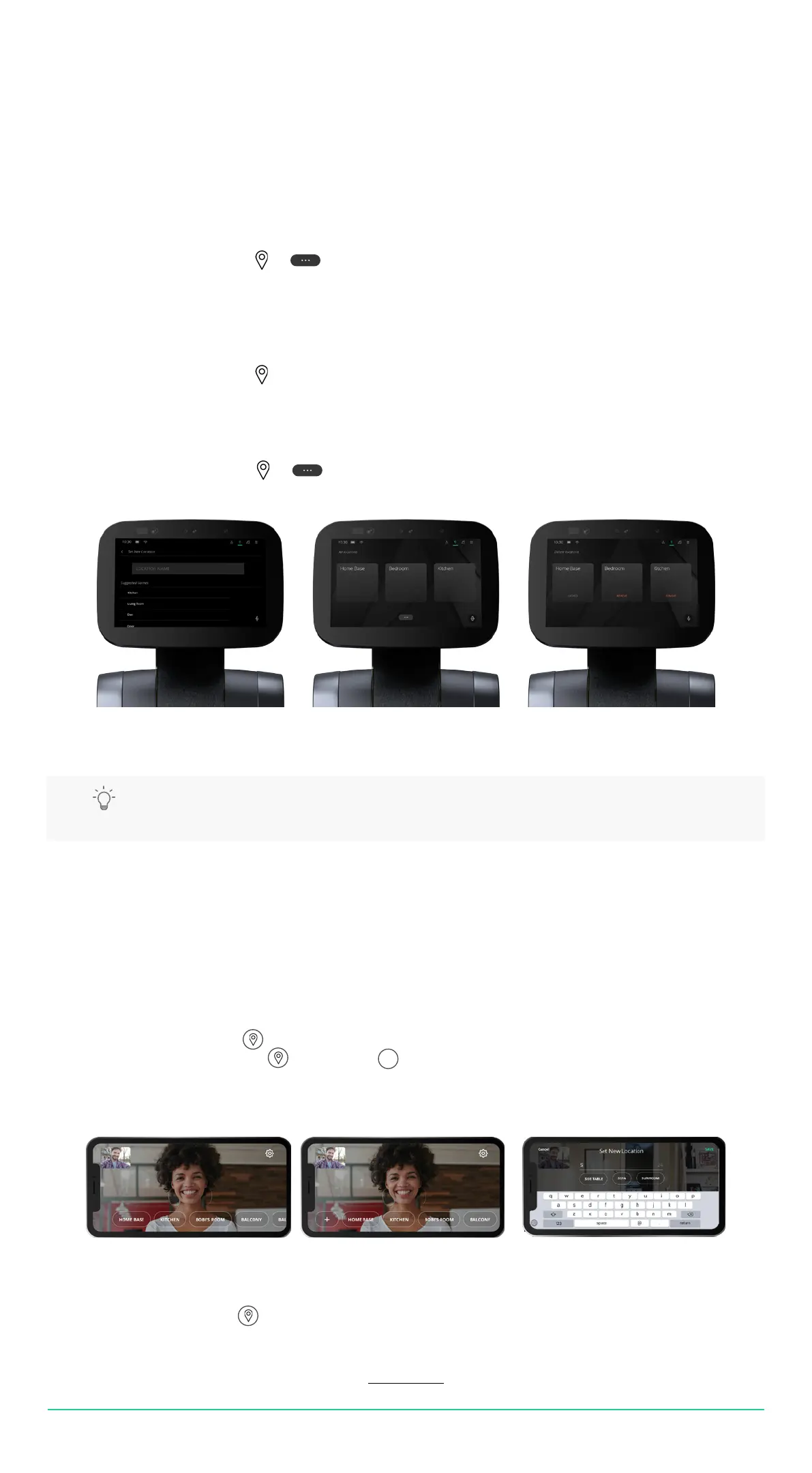
Save location (Image A)
• To save a location, say “Hey temi, save this location as Kitchen (ie.).”
or
• From the top bar select > > Set new location > Enter location name
• Temi will conrm that the location has been saved.
Go to location (Image B)
• To send temi to a location, say “Hey temi, go to the Kitchen (ie.).”
or
• From the top bar select > location name
• Temi will inform you that it’s on its way.
Delete location (Image C)
• From the top bar select > > Delete locations > Select to remove location
Temi can save locations around the home or ofce.
You can send temi to a saved location from the remote app during a video call.
Commands
Save location
• During video call, tap icon on your mobile screen to view saved location screen.
• In location screen, tap the button > Tap button on the left side to add a new location. (image B).
• Type in a custom name or select a provided suggestion. Tap “SAVE” to set location. (image C)
• The newly saved location will now be available on your saved location screen.
Go to location
• During video call, tap
• Selected a preset location.
TIP: When using Alexa as the voice assistant on temi, you can use the locations only manually by tapping
the desired location on the screen, these actions will soon be enabled through Alexa’s voice commands.
B
C
A


 To Next Page