EasyManua.ls Logo

Tenda 3G150M - User Manual

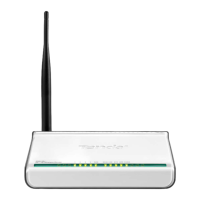
Tenda 3G150M
102 pages
Print Icon
To Next Page IconTo Next Page
Loading...
1

Table of Contents

Other manuals for Tenda 3G150M

Questions and Answers

  • A
    Alyssa MendezAug 6, 2025
    How to configure Dynamic IP to access the Internet via Tenda Network Router?
    • J
      Jill BanksAug 6, 2025
      If your ISP binds the user computer’s MAC address, select 'Dynamic IP' connection type in the Web utility interface Setup Wizard, and click 'Save' to activate it. You may also need to clone the Router’s WAN MAC address to the binding PC’s MAC address. To do this, select 'MAC Address Clone' in 'Advanced Setting', input your computer’s MAC address, and click 'Apply' to activate it.
  • J
    James MccoyAug 11, 2025
    What to do if I forget my Tenda Network Router login password?
    • D
      davismichaelAug 11, 2025
      To restore your Tenda Network Router to its default settings, press the 'RESET' button for 7 seconds.
  • M
    Michael WattsAug 16, 2025
    Why can't I use the wireless WAN function on my Tenda Network Router to access the internet?
    • J
      Jordan ShermanAug 16, 2025
      Ensure that the wireless adapter can access the Internet when connected to the computer, that the wireless signals scanned by the adapter are strong, and that the signal quality is good. Also, verify that parameters like SSID and MAC address are correct. Make sure that the IP address range obtained at the WAN port is different from the one obtained at the LAN port. Avoid detaching any antenna of the wireless Router while in use.
  • D
    Denise FieldsAug 20, 2025
    Why can't my computer connect to the internet with my Tenda Network Router and shows a yellow triangle?
    • C
      Christopher RomanAug 20, 2025
      This may be due to your network card not being assigned an IP address. If your computer is set to automatically obtain an IP, ensure that the DHCP source on your Tenda Network Router is enabled. If there is no DHCP, configure a static IP address, filling in the necessary gateway and DNS information; otherwise, internet access will be unavailable.
  • J
    Jessica PittmanAug 26, 2025
    What to do if I can't access the Tenda Network Router WEB management interface after entering the IP address?
    • K
      Kristin DominguezAug 26, 2025
      First, ensure the cable is properly connected and the corresponding indicator light is on. If using wireless, confirm the device isn't in Wireless Router mode, as the WEB interface is only accessible via wireless network in that mode. In wireless access point (AP) mode, your computer must have a specified IP (192.168.0.2 ~ 192.168.0.254) to access the device. You can also diagnose the connection by clicking 'Start' - 'Run' and entering 'ping 192.168.0.1'. If the ping is successful, check if your browser has a proxy server enabled and disable it. If the ping fails, hold the 'RESET' button for 7 seconds to restore factory settings and try 'ping 192.168.0.1' again.
  • T
    Tammy MartinAug 31, 2025
    What to do if my Tenda Network Router has an IP address conflict?
    • B
      brownashleySep 1, 2025
      If there are other DHCP servers in your LAN, disable them. Also, ensure that the default IP address of the Router (192.168.0.1) is not occupied by another device. If two computers have the same IP addresses, change the address of one of them.

Summary

Chapter 1 Introduction

1.1 Product Introduction

Overview of the Tenda 3G 150Mbps Portable 3G Wireless Router and its capabilities.

1.2 Key Product Features

Highlights technical specifications, standards compliance, and unique features of the router.

1.3 Package Contents List

Details all items included in the product packaging for user verification.

1.4 LED Indicators and Port Description

Explains the function of front panel LEDs and physical ports on the router.

Chapter 2 Hardware Installation

2.1 Router Installation Guide

Step-by-step instructions for physically connecting and setting up the router.

2.2 3 G Router Mode Application

Describes how to use the 3G Router mode to share internet via a USB modem.

2.3 Wireless AP Mode Application

Explains the use case for the Wireless AP mode to create a wireless network.

2.4 WISP Mode Application

Details the application of WISP mode for hotspot access and internet sharing.

2.5 Wireless Router Mode Application

Outlines the use of Wireless Router mode for wired broadband connections.

Chapter 3 Login to Router

3.1 Configure Wired Network Settings

Steps to configure your computer's network settings for router access.

3.2 Configure Wireless Network Connection

Instructions for connecting to the router's wireless network.

3.3 Access Router Web Interface

Guide on how to access and log into the router's web management interface.

Chapter 4 Modes Setup Wizard

4.1 3 G Router Mode Setup

Wizard steps for configuring the router in 3G Router mode.

4.2 Wireless AP Mode Setup

Wizard steps for configuring the router in Wireless AP mode.

4.3 WISP Mode Setup

Wizard steps for configuring the router in WISP mode.

4.4 Wireless Router Mode Setup

Wizard steps for configuring the router in Wireless Router mode.

Chapter 5 Advanced Settings

5.1 LAN Port Configuration

Settings for the router's Local Area Network (LAN) port parameters.

5.2 WAN Port Configuration

Configuration options for the router's Wide Area Network (WAN) port.

5.3 MAC Address Cloning

Feature to copy a PC's MAC address to the router's WAN port.

5.4 DNS Server Configuration

Settings for configuring DNS server addresses for internet resolution.

Chapter 6 Wireless Setting

6.1 Basic Wireless Settings

Fundamental settings for enabling and configuring the wireless network.

6.2 Wireless Security Settings

Configuration of encryption methods like WPA-Personal for network security.

6.3 Advanced Wireless Configuration

Advanced options for optimizing wireless performance like protection mode and data rates.

6.4 WPS Setup and Usage

Instructions for using Wi-Fi Protected Setup (WPS) for easy client connection.

6.5 Wireless Access Control

Manage client access by filtering MAC addresses to allow or block devices.

6.6 Wireless Client Connection Status

View the connection status of wireless clients, including MAC address and bandwidth.

Chapter 7 DHCP Server

7.1 DHCP Server Settings

Configuration options for the Dynamic Host Control Protocol (DHCP) server.

7.2 DHCP List and Static Binding

Manage DHCP client assignments and create static IP address bindings.

Chapter 8 Virtual Server

8.1 Port Range Forwarding

Directing external network traffic to specific internal IP addresses and ports.

8.2 DMZ Host Configuration

Exposing a computer to the internet for special-purpose services like gaming.

8.3 UPnP Settings

Enabling Universal Plug and Play for automatic port mapping and device discovery.

Chapter 9 Traffic Control

Traffic Control Setup

Limiting upload and download bandwidth for devices on the network.

Chapter 10 3 G WAN Traffic & Connection Timer

10.1 3 G WAN Traffic Monitoring

Tracking internet traffic usage, transmission rate, and data volume for 3G connections.

10.2 WAN Connection Timer

Monitoring and managing the duration of WAN port internet connection time.

Chapter 11 Security Settings

11.1 Client Filter Settings

Implementing rules to control client internet access via packet filters.

11.2 URL Filter Settings

Filtering website access based on URLs and specific time schedules.

11.3 MAC Address Filter

Controlling network access by blocking or allowing devices based on their MAC addresses.

11.4 Network Attack Prevention

Protecting the internal network from various types of common internet attacks.

11.5 Remote Web Management

Enabling and configuring remote access for managing the router's settings.

11.6 WAN Ping Test

Checking the status of the internet connection using a ping test.

Chapter 12 Routing Setting

Routing Table Explanation

Understanding the function and structure of the router's routing table.

Chapter 13 System Tools

13.1 Time Settings

Selecting the router's time zone and setting the system clock.

13.2 DDNS Configuration

Setting up Dynamic Domain Name System for dynamic IP address mapping.

13.3 Backup and Restore Settings

Saving router configurations to a file and restoring them later.

13.4 Factory Default Reset

Resetting all router settings to their original factory default values.

13.5 Firmware Upgrade Process

Procedure for updating the router's firmware to the latest version.

13.6 Rebooting the Router

Restarting the router to apply pending settings or resolve issues.

13.7 Password Change Procedure

Steps to change the router's user name and password for security.

13.8 System Log Viewer

Viewing and clearing system event logs for troubleshooting.

13.9 User Logout

Exiting the router's web management interface securely.

Appendix I: Obtain IP Automatically

DHCP IP Assignment Steps

Guide to automatically obtaining IP, Gateway, and DNS settings via DHCP.

Appendix II: Network Adapter Setup

Connecting to Encrypted Wireless Networks

Procedure for connecting a wireless adapter to a secured network using a password.

Appendix III Glossary

3 G Communication Technology Terms

Definitions for 3G, CDMA2000, and WCDMA communication technologies.

Network and Security Terminology

Definitions for networking terms like Channel, SSID, WEP, and WPA/WPA2.

Appendix IV Troubleshooting

Web Management Access Issues

Solutions for problems preventing access to the router's web interface.

Forgotten Login Password Resolution

Steps to resolve issues when the router's login password is forgotten.

IP Address Conflict Resolution

Troubleshooting steps for resolving IP address conflicts within the LAN.

Network Card IP Assignment Issues

Diagnosing and fixing problems where the network card is not assigned an IP address.

Internet Access and MTU Problems

Resolving issues with accessing the internet, particularly related to MTU values.

Dynamic IP Internet Configuration

Guide to configuring internet access using a dynamic IP connection type.

Sharing Computer Resources via Virtual Server

Configuring Virtual Server to allow external access to internal computer resources.

Wireless WAN Connectivity Problems

Troubleshooting common issues that prevent wireless WAN function.

Appendix V Complied 3 G Modem Card List

Supported 3 G Modem Cards

A list of 3G modem cards that are confirmed to be compatible with this router.

Tenda 3G150M Specifications

General IconGeneral
BrandTenda
Model3G150M
CategoryWireless Router
LanguageEnglish

Related product manuals