11 | P a g e
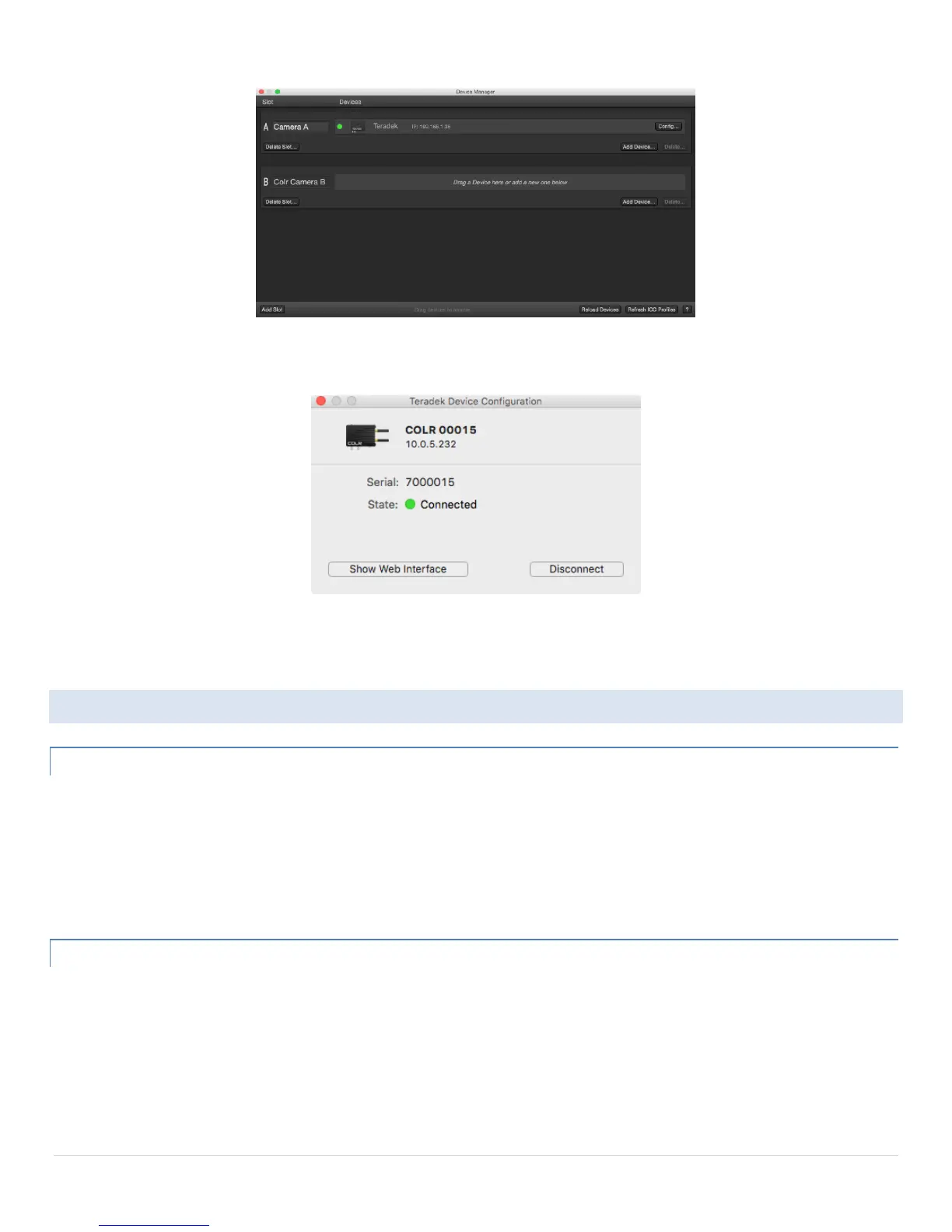
2. Click Add Device… under the slot you want to use, select Add Teradek Device...
3. Select your COLR or enter its IP address. Once connected, a green icon will appear next to the device listing.
Close the Configuration and Devices menus. COLR is now associated with your chosen slot and any look adjustments will be applied
directly to COLR’s video outputs.
USING COLR WITH LIVEGRADE
LIVE COLOR
Once COLR is associated with a LiveGrade slot, any adjustments made to that slot will be immediately applied to COLR’s SDI and
HDMI outputs.
COLR adjustments are made using a combination 33x33x33 3D LUT and CDL. Because LiveGrade converts all looks to a 3D LUT and
CDL before sending to COLR, response time will be slower in some of the advanced grading modes. CDL and LUT mode does not
require conversion.
STORING PRESETS
In addition to Live color grading, LiveGrade looks can also be saved directly to COLR from within the app. To do so, right click a look
in the Clips and Looks window and select Permanently Store Look on > Teradek Device at x (depends on which slots have associated
COLR devices). You can choose to store the look as a new preset or overwrite an existing one.


 To Next Page