7 | P a g e
CONNECT VIA WI-FI
1. Connect to COLR’s Wi-Fi network: COLR-XXXXX (serial number of the device).
2. Open a web browser and navigate to http://172.16.1.1, or find COLR using Bonjour.
3. See CONTROL COLR for information on configuring COLR’s Wi-Fi interface.
CONNECT TO A WIRED NETWORK
1. Plug an Ethernet cable into COLR’s 10/100 Ethernet port and connect it to an Ethernet switch or router. Use the front
panel’s Network Mode menu to check that Ethernet is enabled and set to DHCP Client.
2. Connect your computer to the same network. COLR’s IP address is displayed on the front panel’s Ethernet Status menu,
access it by cycling through the status screens with the Status joystick.
3. Open a web browser and navigate to COLR’s IP address, or find COLR using Bonjour.
CONNECT VIA USB
1. Connect a USB cable (included) between your computer and COLR’s mini-USB port. COLR’s USB port acts like a network
interface.
2. Open a web browser and navigate to http://192.168.100.1, or find COLR using Bonjour.
CONTROL COLR
WEB UI
COLR has a built-in Web User Interface (UI) for configuration and control. Access it by opening a web browser and navigating to the
IP address of the interface used to connect to COLR. The Web UI contains Preset Management, Camera Control, Network
Configuration, and System Settings pages.
COLOR MANAGEMENT
COLR’s Color Management menu allows you to select 3D LUT and CDL files stored on your computer and save them to the device.
These presets can be applied to COLR’s video output by using this menu or the device’s front panel. Up to 32 looks can be stored on
the device. When using COLR Duo, there are 2 selectable color processing channels. NOTE: COLR assumes that custom 3D LUT files
loaded into the unit are generated for extended range input and output signals.
Controlling looks
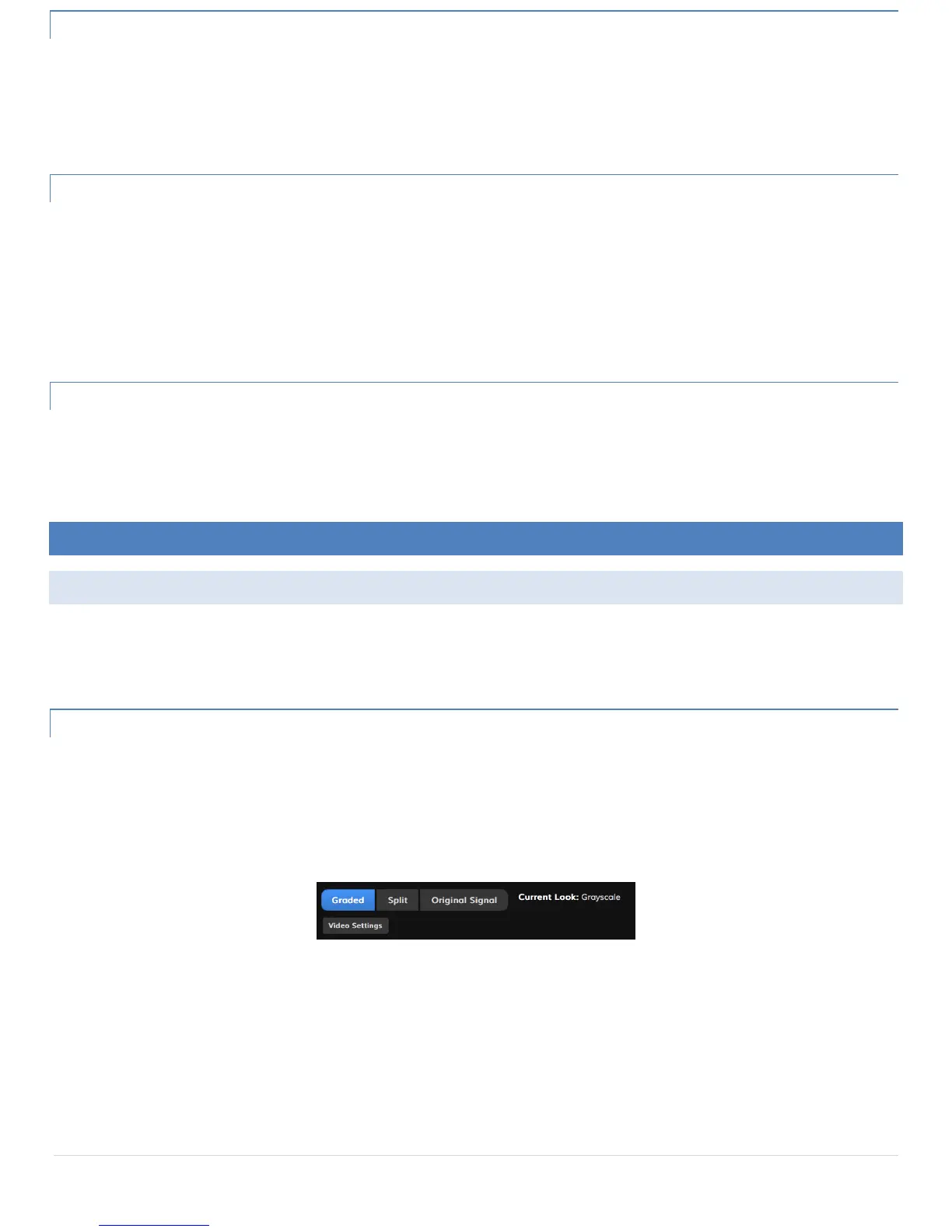
Buttons at the top of the Color Management page allow you to select a channel (COLR Duo only) enable a preset (Graded),
disable it (Original Signal), or display a Split screen view. The Video Settings menu contains configuration for input and
output signal range, Legal or Extended. Input and output options can be set individually based on your camera and monitor
settings.


 To Next Page