8 | P a g e
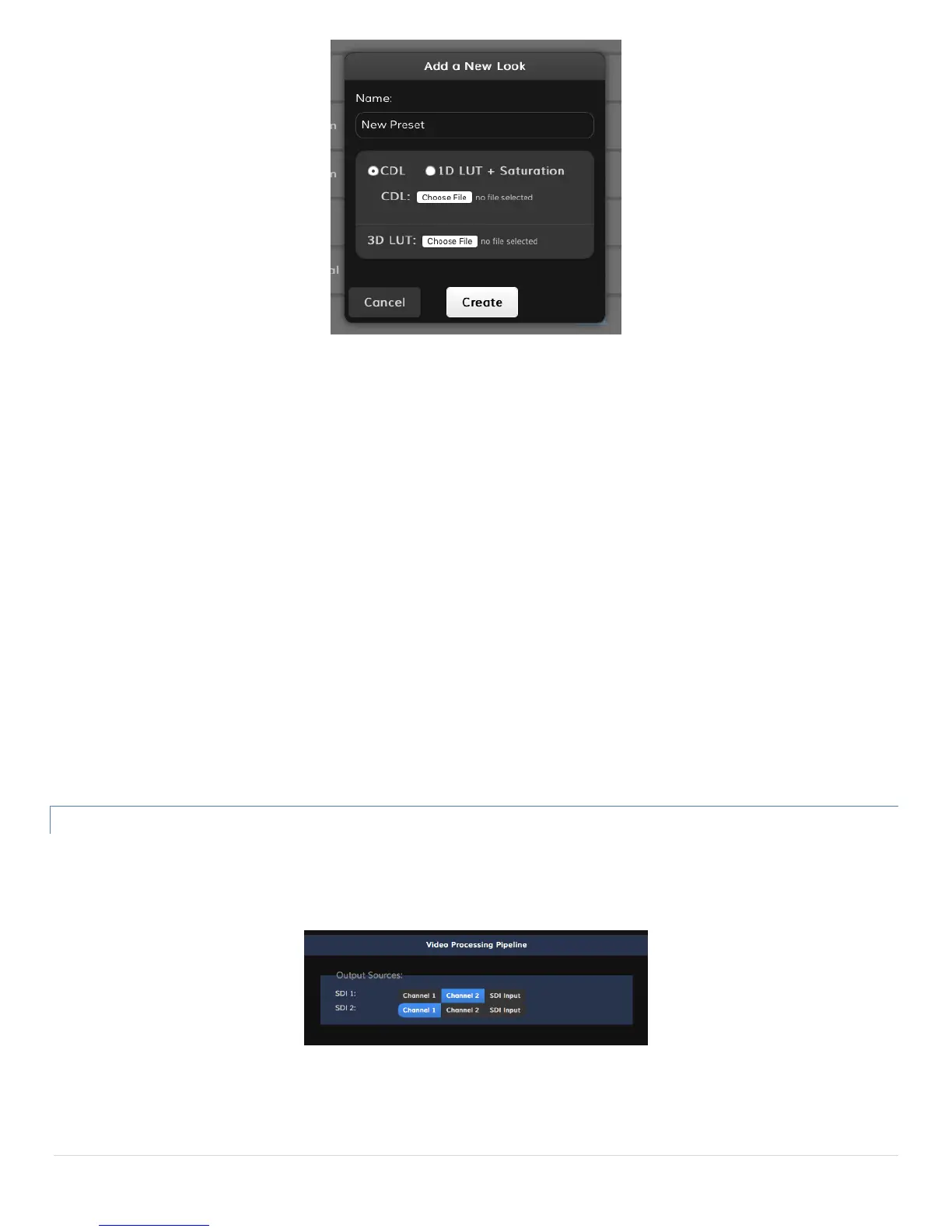
Adding a look – Look presets can be created from a 3D LUT and either an ASC CDL file or 1D LUT and Saturation files.
1. Enter a name for your look under the name field. If no name is entered, the look will use the same name as the 3D LUT
filename. Names can be up to 32 characters long.
2. Select whether you would like to load a CDL file, or a 1D LUT plus Saturation. Then click Choose File to pick the files
from your computer. If the look will only contain a 3D LUT, skip this step.
3. Click Choose File under the 3D LUT section and pick the 3D LUT file you wish to use. The following file formats are
supported:
.dat (DaVinci Resolve)
.3dl (Assimilate Scratch)
.cube (DaVinci Resolve)
.lut (Pomfort LiveGrade)
.mga (Final Cut)
Organizing looks – Arrange look presets by dragging the desired preset up and down in the list. Alternately, look presets
can be moved up or down by clicking the ˄ and ˅ buttons, respectively.
Deleting looks – Look presets can be deleted by clicking the X button located in the look’s listing. You will be asked to
confirm before deleting the look.
VIDEO SETTINGS (COLR DUO ONLY)
The Video Settings menu allows you to individually configure COLR Duo’s two SDI outputs. The outputs can be set connected to one
of two color processing channels, or to the original SDI input signal. Each color processing channel is configured on the Color
Management page or by a remote grading app.


 To Next Page