The keyboards that will be used are as follows:
power switch: the first button in the upper left corner
4. Audio output
The audio output port (AUX OUT) of the electronic piano can be connected to a
speaker with its own power amplifier to provide audio output (see Figure 1).
4.1 Headphone: users can choose the headphone with a 6.5mm diameter plug or a
3.5mm diameter plug. Plug selected headphone into the headphone jack (PHONES)
to use. With headphone plugged in, the audio output of the speaker will be
automatically blocked. The speaker is muted to avoid affecting others while using
headphone (if you would like to use the speaker, please unplug the headphone).
Note: the 6.5mm headphone jack (PHONES) is located on the back of the instrument
and the 3.5mm headphone jack (PHONES) is located on the left of the instrument.
Please use the provided headphone, other headphones may not be
compatible with the piano. If you use your own headphones, there may be
noise issues.
the speaker is located under the machine, do not block it so as not to affect
the sound quality.
5. MIDI function:
The MIDI information of the piano and the computer can be exchanged through
various professional MIDI editing software (such as cakewalk, fl studio) after
connecting the MIDI jack of the piano with the USB jack of the computer.
E.g. How to use the application “EveryonePiano” with MIDI function?
Download the application EveryonePiano on your computer, and then find the MIDI
input in the menu bar and turn it on. After connecting the piano with your computer,
you can use the MIDI function.
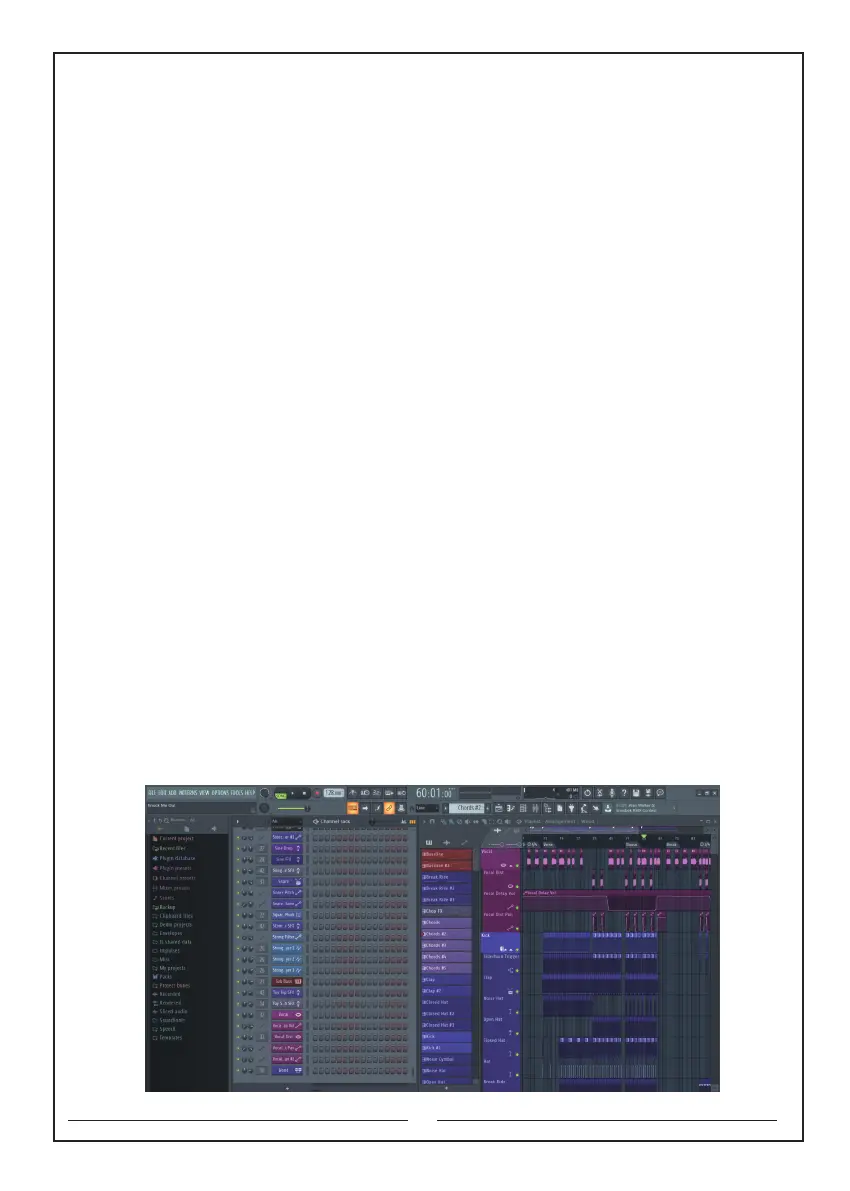
E.g. How to use the software “FL Studio” with MIDI function?
1. Download the application FL Studio on your computer, and then find the OPTIONS
in the menu bar, and select MIDI settings (as shown below)
4



 To Next Page