42
6.3 Connecting Bluetooth
®
Load Plate to Testing Computer
with the Measuring Cable
If the Bluetooth
®
connection between Bluetooth
®
load plate and testing
computer is not desired, or not possible, the connection can also be
established with a measuring cable.
Turn on the transmission unit of the Bluetooth
®
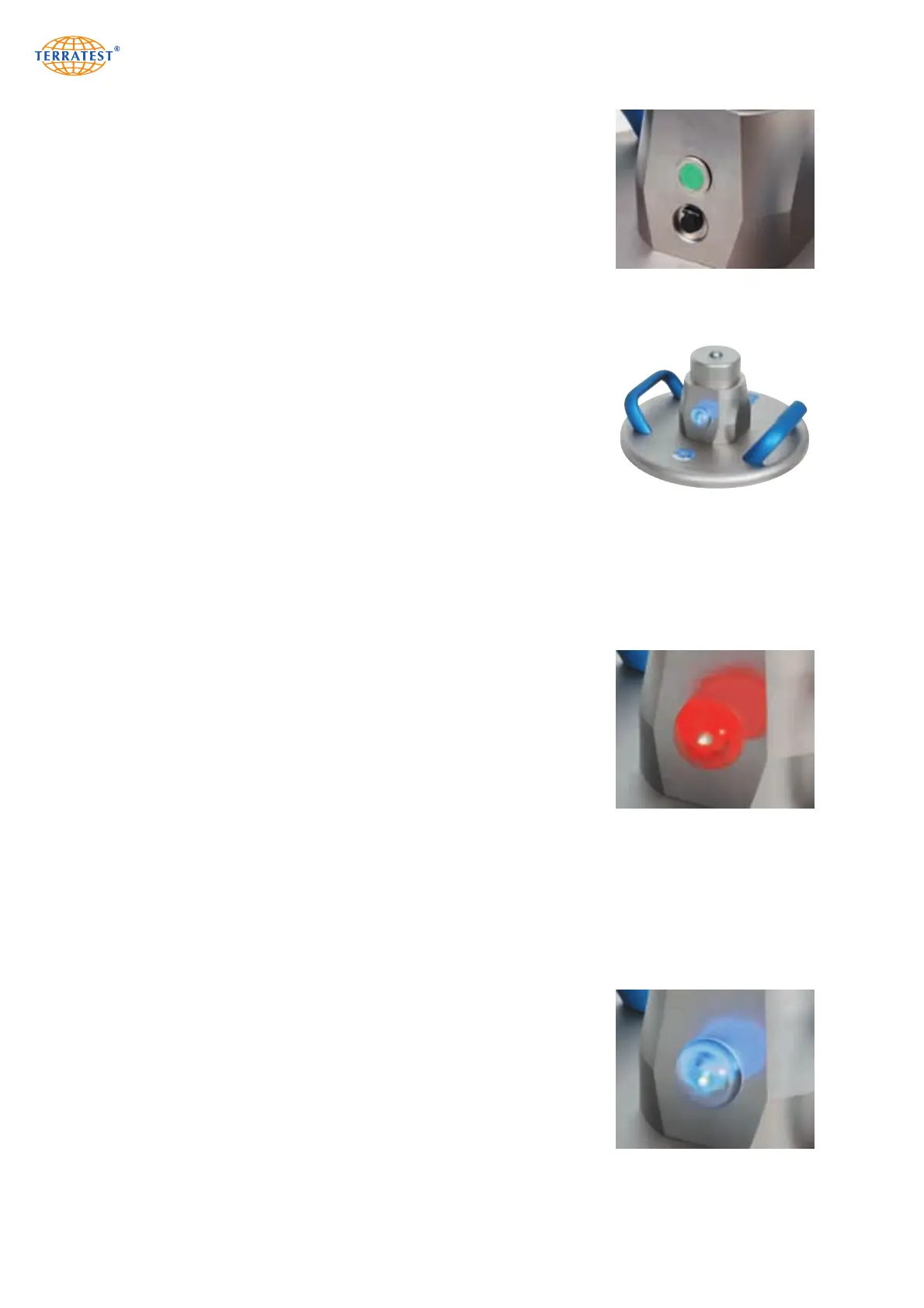
sensor dome by pressing
the button on the Bluetooth
®
sensor dome. The Bluetooth
®
sensor dome
will now perform a quick self-test. This will be shown by changing LED
colours of the ‘magic eye’. At the end of the self-test the LED will turn
red. Turn on the testing computer and connect the Bluetooth
®
sensor
dome on the Bluetooth
®
load plate with the testing computer by using the
measuring cable. Be careful when opening the hinged lids of the socket
and when inserting the plugs. If the connection has been successful, the
status LED will turn blue. You can now start the test.
The high-quality PUSH-PULL plugs from LEMO lock themselves inside
the socket automatically and can be unlocked only by gently pulling on
the connector housing. Accordingly, never pull the cable. Doing so
causes damage to the cable and the device. The plugs of the measuring
cable are identical, making an incorrect connection impossible.
6.4 The ‘Magic Eye’ of the Bluetooth
®
Sensor Dome
The Bluetooth
®
transmission unit of the Bluetooth
®
sensor dome is equipped
with a status LED, which indicates three different states. During the test,
these are displayed via the ‘magic eye’ (a transparent hemispherical
cover over the transmitter) on the Bluetooth
®
sensor dome.
‘Magic Eye’ RED
After turning on the transmission unit by pressing the button on the
Bluetooth
®
sensor dome, the ‘magic eye’ will show red, indicating that
the device is ready for use. In this state, the Bluetooth
®
sensor dome is
waiting for the connection with the testing computer to be established. If
the ‘magic eye’ switches to red during the test, it indicates that the
Bluetooth
®
connection between the testing computer and the Bluetooth
®
load plate has been lost. This may be caused by the distance between the
Bluetooth
®
load plate and the testing computer being too great. In this
case, testing stops and the voice output of the testing computer will issue
a sonar signal, indicating that the testing computer is attempting to
re-establish the connection. Reduce the distance between the Bluetooth
®
load plate and the testing computer. Another possible cause for the
failure might be that the automatic switchoff mechanism of the testing
computer has turned off the computer after three minutes of inactivity. In
this case, turn the testing computer back on and wait for the connection
to be re-established. If the Bluetooth
®
connection has been successful,
the voice instruction will announce ‘BLUETOOTH OK – START TEST’.
‘Magic Eye’ BLUE
If the Bluetooth
®
connection between the testing computer and the
Bluetooth
®
load plate has been successfully established, the ‘magic eye’
will show blue. The voice output of the testing computer will also indi-
cate the successful connection by announcing ‘BLUETOOTH OK –
START TEST’.
Always ensure that the ‘magic eye’ faces towards the testing computer,
so that there is a line of sight between the two.
Control elements of the
Bluetooth
®
sensor dome
View of the ‘magic eye’ on
Bluetooth
®
sensor dome
‘Magic Eye’ RED:
the sensor dome is ready for
use and waiting for connection
‘Magic Eye’ BLUE:
the connection is established


 To Next Page