8
32
2.3 Add device and change device's name (Refer to App Instruction)
Sign in with the 7HVHRU account, add the device, then change device name to a easily recognized
word or phrase, like "URERWYDFXXP".
3. Set up Google Home and configure in Home Control
Configuration needs Google Home app. Search "Google Home" in App Store or Google Play to install
the app.
3.1 Set up Google Home with Google Home app
You can skip this part if your Google Home is already set up.
1. Make sure your Google Home is energized.
2. Open the Google Home app by tapping the app icon on your mobile device.
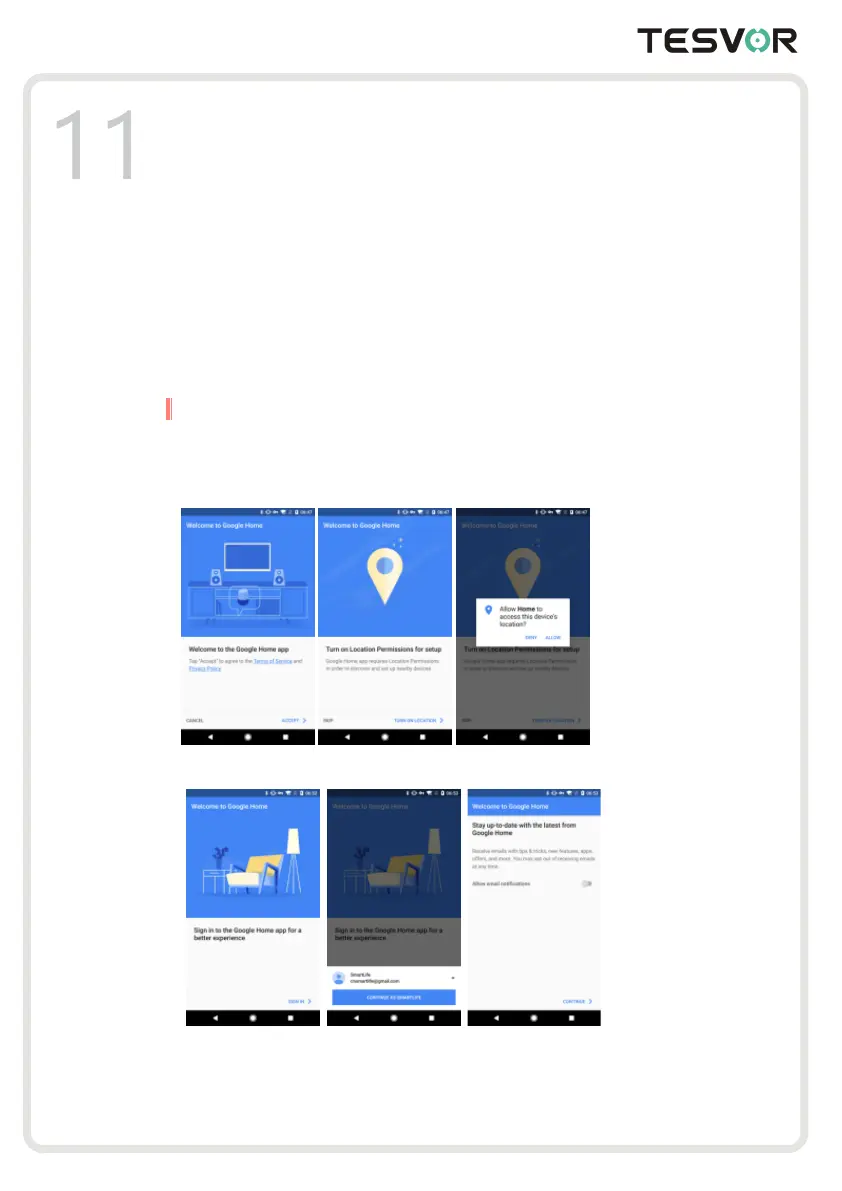
3. Ta p "ACCEPT" to agree to the Terms of Service and Privacy Policy. Allow Google Home app to
access the device location to discover and set up nearby devices.
4. Ta p "SIGN IN", choose one Google account that you already logged in on your mobile device. Or
follow the instructions to sign in with a new Google account.
5. The Google Home app scans nearby devices that are energized and are ready to set up. Tap "SET UP"
to set up your Google Home.



 To Next Page