EasyManua.ls Logo

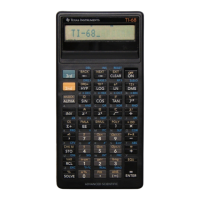
Texas Instruments TI-60 - TI-60 Keyboard and Display Basics

Texas Instruments TI-60
170 pages
Print Icon
To Next Page IconTo Next Page
To Previous Page IconTo Previous Page
Loading...
CHAPTER
1*1
KEYBOARD
AND
DISPLAY
BASICS
Section
1
Keyboard
and
Display
Basics
This
section
Is
a
quick
explanation
ol
the
bastes.
Please
keep
the
calculate*
with
you
so
you
can
see
the
use
of
each
feature
as
It
is
presented
Turn
the
calculator
on
with
the
CE/C1
key
The
LQN
key
and
the
|COC
key
are
physically
the
same
key
Although
"ON
-
is
printed
above
the
Cj/6
1
key.
it
is
not
a
second
function
If
Ihe
calculator
is
ofl,
pressing
this
key
turns
It
on
;
If
the
calculator
is
already
on.
this
key
operates
as
a
ctear/clear
entry
key
This
guidebook
uses
[g®L
for
references
to
turning
the
calculator
on
and
Ct/C
lor
references
to
clearing
operations
A
zero
appears
in
the
display
and
a
number
of
Indicators
may
appear
If
STAT
is
shown,
press
the
key
marked
2nd
and
then
the
key
marked
STO
with
CSR
above
it
If
PROG
is
displayed,
at
least
one
program
step
naa
been
entered
into
the
calculator's
program
memory
To
clear
the
program
memory,
press
2nd
.
then
press
]CP]
The
program
memory
Is
cleared,
and
PROG
Is
erased
from
the
display
Note
:
Aftor
you
have
cleared
the
program
memory,
you
may
wish
to
ensure
that
the
maximum
number
ot
data
memories
are
available
(12).
Press
2nd
[Part)
then
press
<C>
PI
07
C
is
displayed
.
press
C6/C
to
clear
the
display
(Refer
lo
section
7
for
more
information,)
Press
2nd
'
[CM]
to
clear
the
data
memories
The
display
now
shows
a
zero
and
a
DEG
Indicator
The
calculator
is
ready
to
portorm
all
normal
(unctions
If
the
battenes
are
momentarily
removed
or
replaced,
clear
tho
calculator
by
pressing
|C|@1
2nd
(CSR)
C€/C
2nd
[CPJ
2nd
[CM)
2nd
[Part)
<c>.
c&c
The
display
then
shows
zero
and
DEG
The
Keyboard
Tha
calculator
has
many
features
that
make
calculations
easy
and
accurate
To
allow
the
use
ot
all
these
features
wtthoul
crowding
the
keyboard,
most
of
the
keys
have
more
than
one
function
Notice
that
most
ot
the
keys
have
symbols
printed
above
them
m
addition
to
those
on
them
The
symbols
printed
above
the
keys
are
second
functions.
To
perform
one
of
these
functions
press
[Smt
]
and
then
press
the
key
for
the
function
that
you
wish
4-GB

Related product manuals