70
16. Setting up the App
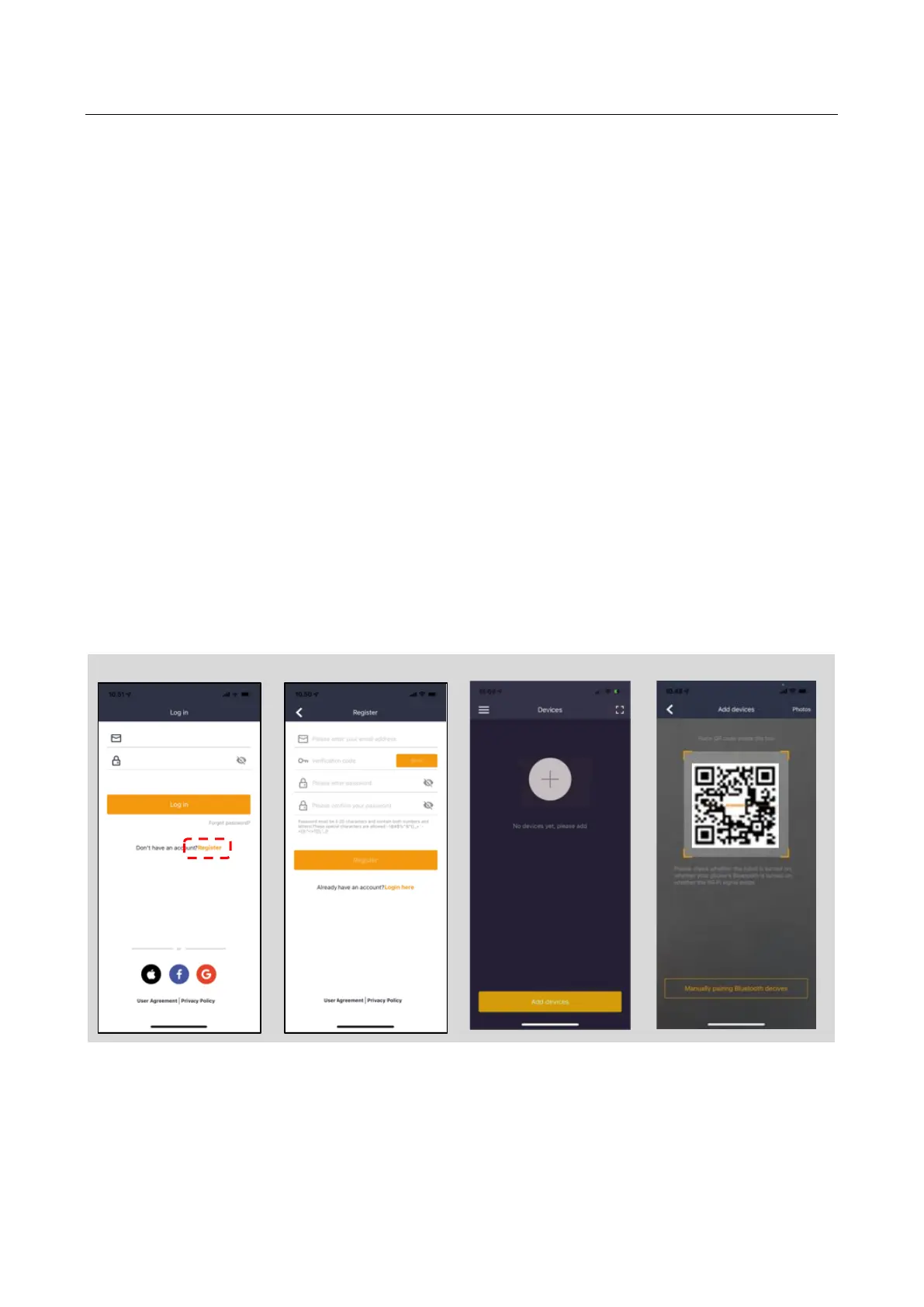
1. Open the App and click "Register"
2. Enter email and press the "Send" button to have a verification code sent to you. Then
enter the code (within 30 min) and choose a password, which is entered 2 times.
Finally, press the "Register" button
Setup and connection
Setup can be done in 2 ways. Via QR code or manually
Connection via QR code
1. To add your robot, press the circle with (+) in the middle of the screen.
2. Then scan the QR code on the sticker on the back of the robot (left one).
(The robot must be turned on, same with Bluetooth and Wi-Fi on your mobile phone)
Allow the App to have access to your camera and location.
3. The App is trying to connect, which may take a few minutes.
4. Serial number now appears. Enter the PIN code for the robot. By default, the code is
0000, but if you have manually selected another PIN code via the robot's display, the
new one must be used.
5. Select Wi-Fi network (only 2.4 GHz) and enter password for the network.
6. The robot is now added and appears in the overview "Devices" and a Wi-Fi icon will
light up on the robot's display.
7. You can finally name the robot (can also be changed under "Settings")
More robots can be added if you need more than one robot.


 To Next Page