Audio Codec Adapter Setup for Cinterion
®
Modules
2.1 MAX9860 Audio Codec Adapter
33
audio_codec_adapter_setup_v04 2019-10-16
Confidential / Released
Page 8 of 34
2.1.2 Access
For update, configuration and programming purposes the Audio Codec Adapter can be ac-
cessed via the RS232 serial interface on its top side.
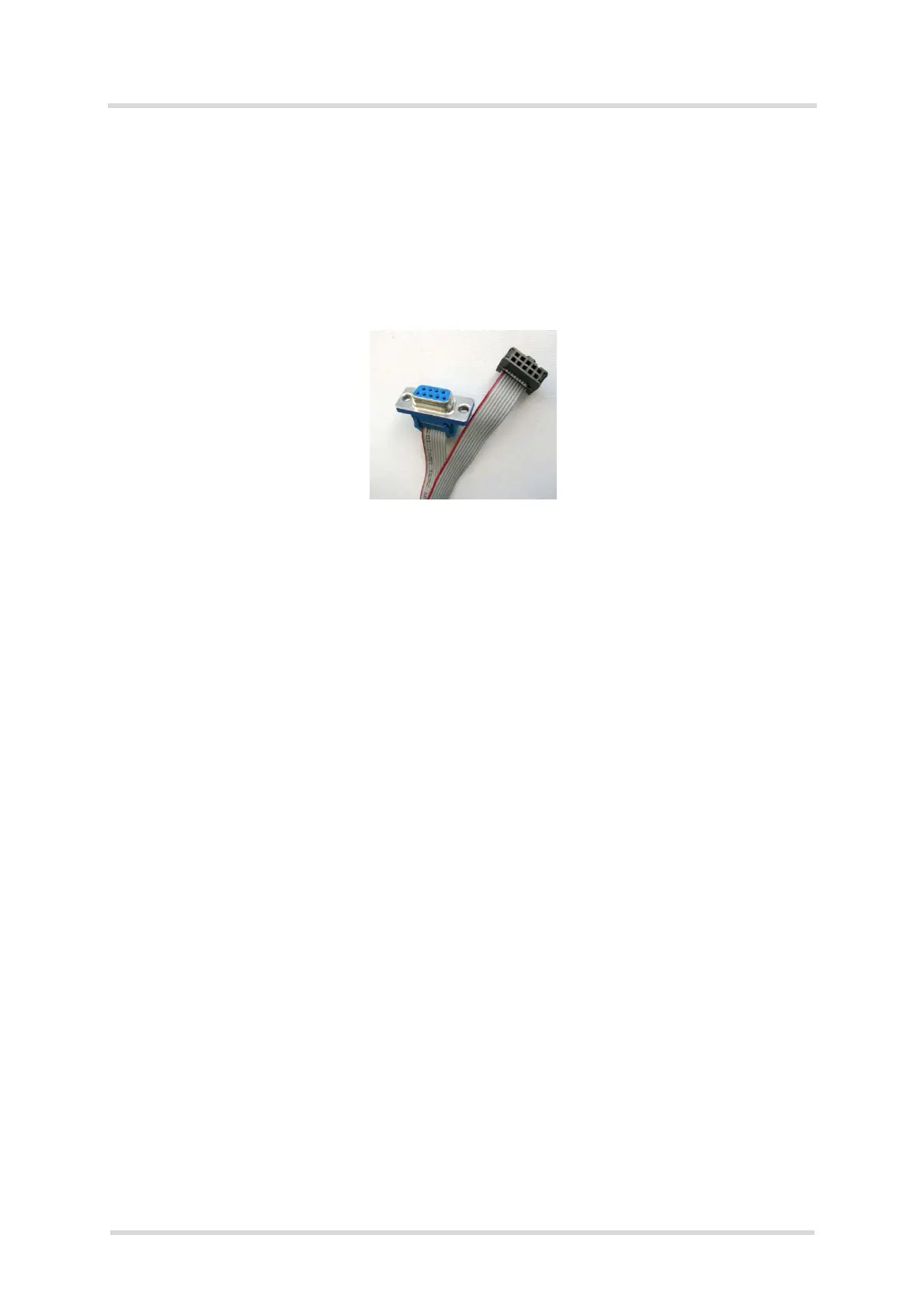
The RS232 interface on the Audio Codec Adapter can be connected to a PC’s serial port by
using a crimped cable that links the 10-pin connector at the Audio Codec Adapter to a 9-pin
connector at the PC. Such a crimped cable is shown in Figure 4:
Figure 4: Crimped serial cable
Once connected to the PC, the Audio Codec Adapter should be available at a defined COM
port for update, configuration, and programming as described in the below sections.
2.1.2.1 Update
Please complete the following steps to update the Audio Codec Adapter:
• Unzip the archive with the latest software for the Audio Codec Adapter to a directory on the
PC. The following files should be available: CodecAdapterMAX.bin, Sloadhost.exe, and
firmware_update_com_x.bat
• Call the batch file firmware_update_com_x.bat.
• Enter the COM port number the Audio Codec Adapter is connected at.
• Wait for a few seconds until the update is complete, and the adapter was reset, i.e., until
the LEDs were restarted.
Having updated the Audio Codec Adapter’s software, the adapter is ready to be employed for
configuration and programming.
Note: Coming from the factory, the above described update procedure is also required to ini-
tialize the Audio Codec Adapter before it can be used for the first time, i.e., before any of the
LEDs on the Audio Codec Adapter’s top side will light to indicate the adapter’s current status.



 To Next Page